NVIDIA's DLSS 5 neural renderer, applied to your whole Windows desktop in real time. Everything on screen — games, video, photos — goes through the same neural network that DLSS 5 games use, and comes back sharper.
The guide below gets you running. How it works and what was measured: TECHNICAL.md. Русская версия: README.ru.md / TECHNICAL.ru.md.
 |
 |
 |
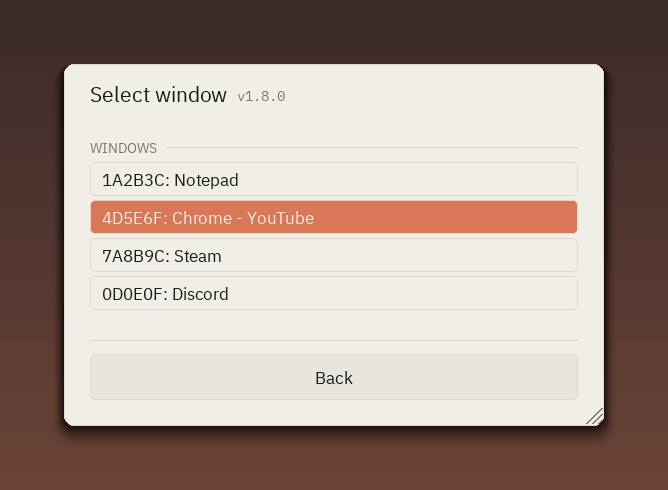 |
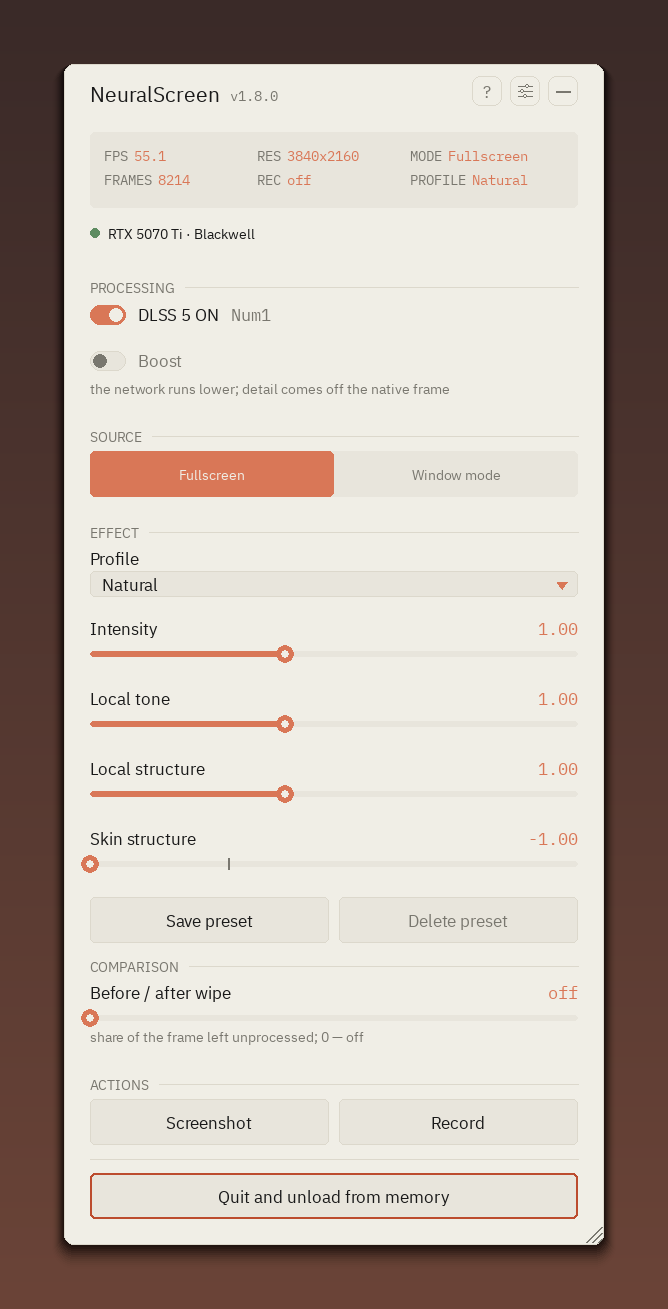
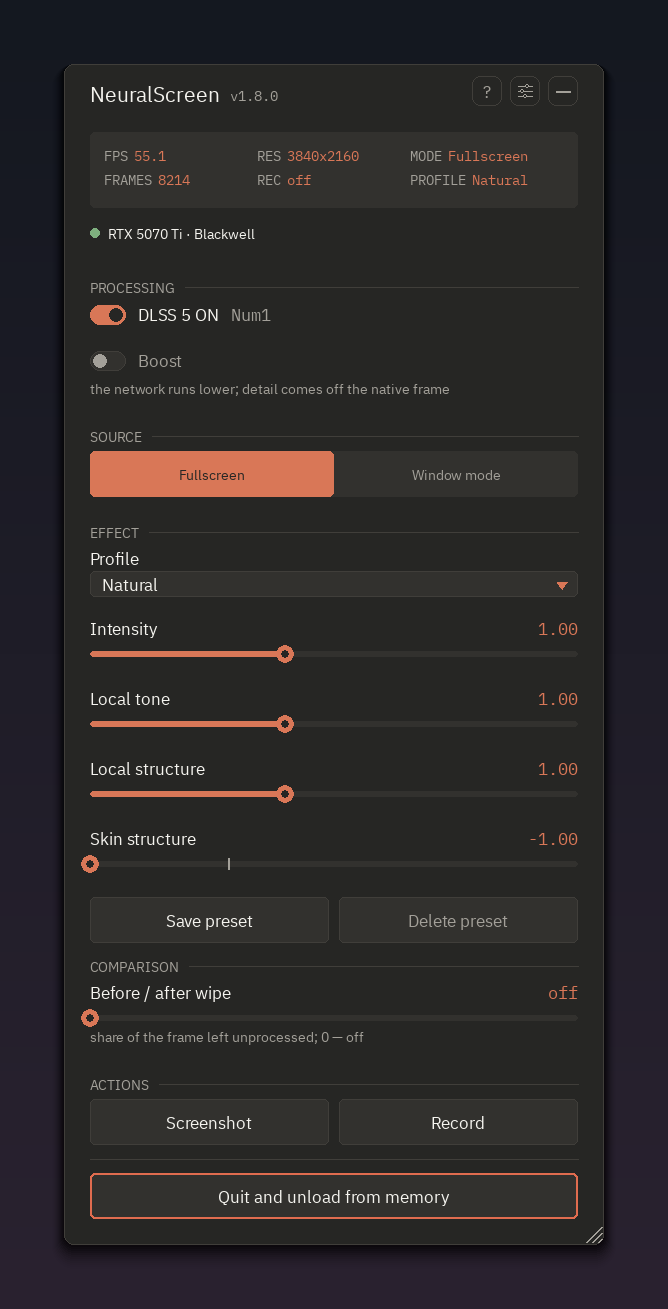
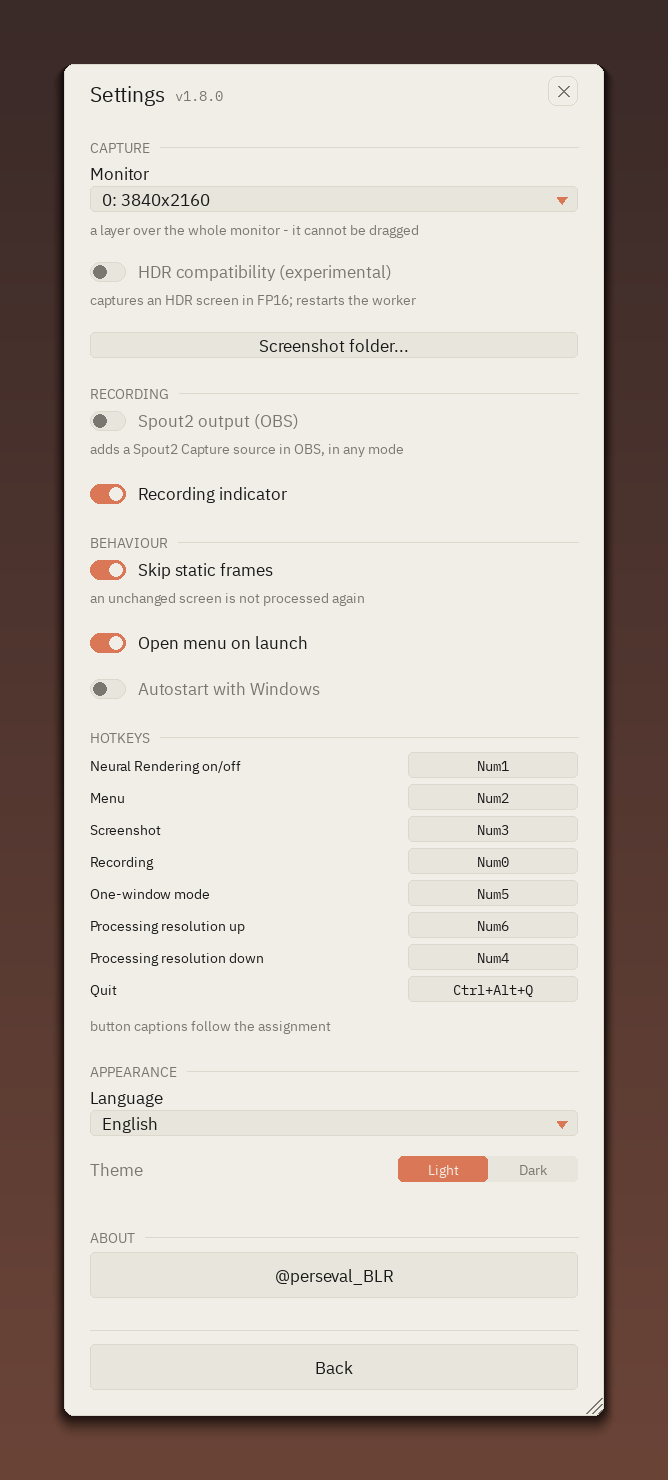
One menu inside the overlay, in a light and a dark theme; the settings page; the window list. The Before / after wipe slider splits the screen down the middle so you can see what the effect is actually doing.
-
Windows 11, or Windows 10 — reported working.
-
An NVIDIA RTX card:
Cards Status RTX 50 / RTX 40 / RTX 30 ✅ works RTX 20 (Turing) ❌ below the minimum architecture — the program starts, the picture is not processed Hybrid laptops (Optimus) ✅ works; on the iGPU display the capture falls back to a slower path -
The latest NVIDIA driver, and Windows up to date. Not a formality: the neural runtime talks to the driver directly, and an old driver is the commonest reason it refuses to start or the picture never appears.
-
Nothing installed. The release archive brings its own Python.
- Download the archive from Releases and unpack it anywhere. Everything is inside, including NVIDIA's runtime.
- Run
NeuralScreen.exe.
Windows will probably warn you about an unknown publisher — the program is not
signed with a paid certificate. Click More info → Run anyway, or use
NeuralScreen.vbs next to it.
There is no installer: to remove the program, delete the folder. Autostart is the one thing written outside it — turn it off before you move or delete it.
Do not use it in competitive online games. A fullscreen overlay over a game is what anti-cheat systems look for.
The program sits in the tray and draws over your desktop. Press Num2 for the menu. The hotkeys are on the numpad, so Num Lock has to be on.
| Key | What it does |
|---|---|
| Num2 | open / close the menu |
| Num1 | neural rendering on / off |
| Num3 | screenshot |
| Num0 | start / stop recording, with sound |
| Num4 / Num6 | processing resolution down / up |
| Num5 | capture the window under the cursor |
| Ctrl+Alt+Q | quit |
Every key can be reassigned in the menu, under the sliders icon. While the menu is open it takes the mouse and keyboard, so it works on top of a game; closed, clicks go straight through it.
The whole screen is the default. Source, at the top of the menu, switches between Fullscreen and Window mode; choosing the second opens the list of windows, and hovering a row highlights that window on the screen. Num5 is the shortcut when the window is already in front of you: point at it and press. The overlay follows the window as it moves, and resizing it — a video going fullscreen, a different player size — reconfigures the worker in place, with no black moment. Minimising the window pauses processing.
The dot next to your graphics card is green when neural rendering is really running on it, red when it is not.
- Source — the whole screen or one window, and which window.
- Profile — how strong the effect is, from Faithful to Extreme; Natural by default. The four sliders underneath are the same thing in detail. Save preset stores the current values under a name and puts it in the Profile list; Delete preset removes it. Dark scenes are brightened automatically so shadows keep their detail.
- Before / after wipe — leaves the left part of the screen unprocessed so you can see what the effect is doing. Back to 0 when done.
- Boost — on by default. The network runs at a reduced resolution and a slider under the switch chooses which: measured on a 5070 Ti at 4K, 45.7 → 72.6 frames at the default step and 83.4 at the lowest. The picture stays sharp — the network's result is composed onto your original frame, so text and edges keep full resolution. Turn it off to compare.
Everything else is behind the sliders icon: which monitor is processed and which card does it, HDR compatibility, the screenshot folder, Spout2 output, the recording indicator, leaving an unchanged screen alone, opening the menu on launch, autostart, the key assignments, the theme — and the language, of which there are 12: English, Russian, French, German, Spanish, Italian, Portuguese, Polish, Ukrainian, Chinese, Japanese and Korean.
Num0 records what you see, with system sound, into an MP4 in
recordings. Num3 saves a screenshot. The menu appears in both if it is
open, on purpose. A red dot with a timer sits in the corner while recording
(it can be turned off in the settings).
Screenshots open a Save As dialog; set Screenshot folder... in the settings once and it will start there every time.
Recording externally:
- OBS (recommended): turn on Spout2 output (OBS) in the settings, then add a Spout2 Capture source in OBS. Works in any mode. Off by default.
- NVIDIA App: it has no Spout input, so use one-window mode — pick the window, record, then switch back to Fullscreen. In that mode the overlay is visible to screen capture; in full-screen mode it hides itself.
Nothing appears after launch. Check NeuralScreen.log next to the
program — it names the cause. The commonest is a missing
native\nvngx_dlssnr.dll.
The overlay is invisible in a game. True fullscreen cannot have anything drawn over it — a Windows rule. Switch the game to borderless.
The menu pointer is missing or frozen. A fullscreen game hides the system cursor, and the overlay only shows that one. Borderless fixes it.
The picture is soft. Turn Boost off, or move its slider up a step.
Everything is too bright and the sliders do nothing. HDR is on for that display. Turn it off (Win+Alt+B), or try HDR compatibility in the settings, under CAPTURE — it is experimental; see HDR setup.
A key does nothing. Something else claimed it; reassign it in the menu.
- True fullscreen games cannot have an overlay drawn over them — borderless or windowed only.
- HDR displays: experimental, and off until you turn on HDR compatibility (settings, CAPTURE). Recording and Spout exports stay SDR. See HDR setup and limitations.
- Windows 10 and two NVIDIA cards are experimental — built or fixed from user logs rather than tested here. Reports welcome.
- A rotated display: 180° is turned back over on capture; 90° and 270° are not handled yet and come out with the sides swapped.
- Pipeline latency is 40–60 ms (17-20ms with Boost Mode) — fine interactively, not competitively; processing resolution is capped at 2560×1440, output is always your full native resolution.
The code here is MIT. NVIDIA's nvngx_dlssnr.dll is the leaked 310.8.0
runtime (sm_75/86/89/120 kernels, RTX 20-50), included as-is, no
guarantees, research-only. Interface faces: IBM Plex (OFL-1.1, fonts/OFL.txt).