
Homebrew for the Nintendo 3DS/2DS family that synchronises saves and files with cloud storage or a server on your own network.
| Remote | Direction | Status |
|---|---|---|
| Google Drive | bidirectional | stable |
| Dropbox | bidirectional | stable |
| SMB2/3 file server (NAS, Windows share) | bidirectional | stable |
| FTP / FTPS | bidirectional | stable |
| WebDAV | bidirectional | stable |
Every backend has synced from a real 3DS against real servers. Keep a backup of your saves all the same, and please report anything that goes wrong at github.com/vllni/3DSync/issues.
Full credit to Kyraminol for the original project. Extended by michvllni with Google Drive support, refresh-token auth, and full bidirectional sync.
- Open the configurator and follow the three steps. To change a file you made before, import it in the first step.
- Place the downloaded
3DSync.inion the SD card at/3ds/3DSync/3DSync.ini. - Install 3DSync, most easily through Universal-Updater.
- Launch 3DSync and press A (or tap Sync now) to sync all configured paths, or Y to sync with debug output. START exits. To leave some paths out, tap PATHS on the menu (or press X) first.
The top screen is the log; the bottom screen shows what 3DSync is doing and the choices open right now. Every touch button is also a physical button, and its label says which, so either works:
| Where | Buttons |
|---|---|
| Menu | A sync, B review first (see below), Y sync with debug output, X (or tap PATHS) choose paths, START exit |
| Choosing paths | Tap a path to tick or untick it, or move with D-pad ↑/↓ and press A. Y ticks all (or clears all), B goes back. The choice lasts until 3DSync is closed; a remote that none of the ticked paths go to is not connected |
| During a sync | START stops, the file being transferred included |
| Review first, before the transfers | A start them, B or START cancel: nothing is transferred |
| Conflict | The versions that changed are listed; A keeps the highlighted one (the 3DS's at first). Tap a version, or move to it with R or D-pad ↑/↓. X skips the file, L applies the answer to every remaining conflict, START stops. The log still scrolls with ←/→, the Circle Pad and the scroll strip |
| End of a run | A save its log, B discard it |
| Problems in 3DSync.ini, at startup | A continue to the menu, START exit; the list scrolls like the log |
The log can be scrolled at any time, including while a sync is running: D-pad ↑/↓ one line (hold to keep going), D-pad ←/→ one page, the Circle Pad, or the ▲/▼ buttons and the scroll bar on the right of the touch screen. While you are scrolled up, new output does not move the text; scroll back to the bottom and the log follows it again.
A normal sync deals with each file in turn, so a conflict can come up between two long transfers and you have to keep an eye on it. B on the menu splits the run in two:
- 3DSync lists every remote and decides every file, asking every conflict as it goes (the check for identical files runs first, so only real differences are asked). Nothing is transferred yet.
- The log lists every file it will download or upload, and the bottom screen asks once whether to start.
- The transfers then run without another question. You can close the lid: the screens go dark and the sync keeps going, which a normal sync does not (the console sleeps and drops Wi-Fi). START still stops it.
A save you play between the review and its transfer is left alone and named in the summary, so a review never overwrites newer progress.
All three ways need a 3DS running custom firmware with the Homebrew Launcher or FBI; see 3ds.hacks.guide if yours does not.
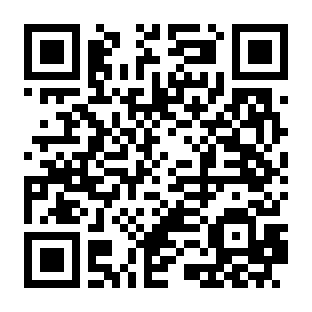
- In Universal-Updater, open Settings → Select a UniStore → +.
- Scan the QR code, or type the store URL:
https://3dsync.vllni.dev/unistore/3dsync.unistore - Select the 3DSync store, open the 3DSync entry and pick a download:
- 3DSync.cia installs it to the HOME Menu.
- 3DSync.3dsx puts it in the Homebrew Launcher.
New releases show up in the store by themselves, and the entry is flagged
when an update is available. Earlier versions stay listed as
[v0.6.0] 3DSync.cia and so on, should you need to go back.
Every release carries a QR code
for its .cia. In FBI, choose Remote Install → Scan QR Code and scan it.
Download from the latest release:
3DSync-<version>.cia— copy it to the SD card and install it with FBI.3DSync-<version>.3dsx— copy it to/3ds/3DSync/3DSync.3dsxand launch it from the Homebrew Launcher.
The .zip holds both, plus a .3ds for flashcarts.
Updating or reinstalling keeps your settings: 3DSync.ini, the sync manifest
and the debug logs live in /3ds/3DSync/ on the SD card, not inside the app.
The INI file lives at /3ds/3DSync/3DSync.ini.
[Dropbox]
AppKey=<app key from configurator>
RefreshToken=<refresh token from configurator>
Path=                     ; optional folder inside the Dropbox account
Configs with a bare Token= still work, but Dropbox access tokens expire after
about four hours — re-run the configurator to get a refresh token instead.
AppSecret= is only needed if you bring your own non-PKCE ("confidential")
Dropbox app.
The configurator logs in with 3DSync's own Google client, so there is nothing to set up in Google Cloud (3DSync 0.9.0 or newer):
[GoogleDrive]
RefreshToken=<refresh token from configurator>
Folder.saves=<Drive folder chosen for [Paths] saves>   ; optional, one per path
3DSync then sees only what it creates itself and what you choose in the
configurator: in its second step, choose the Drive folder for a path, then the
saves already in it. A path without a Folder. line gets a folder of its own
in My Drive, named after the path. A save another device adds to a chosen
folder later is invisible to 3DSync until you add it the same way (Add
saves); the file on the SD card does not change for that. Google keeps
these choices, and the 3DS refreshes its login through
https://3dsync.vllni.dev, which adds 3DSync's client secret and passes
nothing else on.
If an app on another device keeps creating new files in a Drive folder, an emulator saving there for instance, use expert mode instead: your own Google Cloud client, with access to your whole Drive (see Google Drive App Setup). It works with every 3DSync version:
[GoogleDrive]
ClientId=<OAuth client ID>
ClientSecret=<OAuth client secret>
RefreshToken=<refresh token from configurator>
FolderId=<optional root folder ID>
FolderId is the folder the paths' folders are created in. Leave it out to
use My Drive. Folder. lines work here too.
[SMB]
Server=192.168.1.10       ; IP address or hostname
Share=3ds                 ; share name, without slashes
User=<username>
Password=<password>
Domain=                   ; optional, for a Windows domain
Path=                     ; optional folder inside the share
Speaks SMB2/SMB3 — the dialects modern NAS boxes and Windows accept by default. SMB1 is not supported and does not need to be re-enabled.
[FTP]
Host=192.168.1.10
Port=                     ; optional, defaults to 21 (990 for TLS=implicit)
User=<username>
Password=<password>
Path=                     ; optional base directory
TLS=try                   ; none | try | require | implicit
Mode=passive              ; passive | active
PinnedKey=                ; optional, see "Server certificates"
CACert=                   ; optional, see "Server certificates"
VerifyTLS=                ; optional, false: don't check the certificate
TLS=try (the default) encrypts the session when the server offers AUTH TLS
and falls back to plaintext when it does not. Use require to refuse an
unencrypted session, or implicit for the older ftps:// on port 990. try
only protects against someone listening: an attacker who can alter the
connection can make the server look as if it offered no TLS, and the login
then goes out unencrypted. Use require wherever the server supports it. A
TLS= value 3DSync does not know is reported at startup and treated as
require.
An anonymous login (no User= line, or User=anonymous / User=ftp)
with TLS=try also falls back to plaintext when the server accepts TLS but
then refuses the login over it — what a stock vsftpd does
(530 Anonymous sessions may not use encryption). 3DSync reconnects once
without TLS and stays that way for the rest of the run; a debug
run says so. A named user never falls back, since that would
send the password unencrypted right after the server refused it over TLS: the
login fails, and if the server needs plaintext logins, set TLS=none.
An anonymous server usually accepts uploads in one folder only — pub on a
stock vsftpd — so point Path= there (e.g. Path=pub/3ds). Without it the
first sync fails when the server refuses to create its folder, and the 3DS
says so.
SFTP is not supported: the 3DS build of libcurl has no libssh2.
[WebDAV]
Url=https://nas.example/remote.php/dav/files/username/
User=<username>
Password=<app password>
PinnedKey=                ; optional, see "Server certificates"
CACert=                   ; optional, see "Server certificates"
VerifyTLS=                ; optional, false: don't check the certificate
Works with Nextcloud/ownCloud and any NAS with WebDAV enabled. Use an app password rather than your account password where the server offers one.
Every encrypted connection (Dropbox, Google Drive, https:// WebDAV, FTPS)
checks the server's certificate against the trusted roots 3DSync ships with
(Mozilla's list, as curl publishes it) and against the host name. A failed
check stops that remote with an explanation instead of connecting anyway.
-
The 3DS clock matters: a date that was never set makes every certificate look not yet valid. The message shows the date the 3DS has.
-
A server with its own certificate — most NAS out of the box — fails the check. Tell 3DSync what to trust instead, in that
[WebDAV]or[FTP]section; the configurator's Server certificate choice writes each of these. Dropbox and Google Drive always check against the public roots.PinnedKey=— a self-signed certificate, or a server reached by its IP address. The SHA-256 of the server's public key: exactly that key is accepted, whoever signed the certificate and whatever name it carries. To find it, sync once: the 3DS shows the key the server presented, in two lines to write afterPinnedKey=as one, and a saved log keeps it. Chrome shows it too (the padlock → certificate → SHA-256 fingerprint, Public key), and so doesopenssl s_client -connect nas:443 </dev/null | openssl x509 -pubkey -noout | openssl pkey -pubin -outform der | openssl dgst -sha256. Hex with or without colons and curl'ssha256//<base64>are all read; put a comma between two keys to accept both while a server changes its key. The pin stays valid as long as the server keeps its key, which many renewals do. A certificate's SHA-256 fingerprint (what Firefox shows) works too, but changes with every renewal.CACert=— a home or router CA that signs your servers' certificates. The CA's certificate, as base64 on one line (several separated by commas); the configurator writes it from the.pemfile, so nothing else has to be copied to the SD card. That remote then trusts only these CAs, not the public roots, and the server's certificate must still name the host 3DSync connects to. Survives every renewal of the server's certificate.VerifyTLS=false— don't check at all. The connection is still encrypted, but no longer protected against someone on the network posing as the server, who would then see the password and every file.
A
PinnedKey=orCACert=that cannot be read is reported at startup, and the remote is left out until it is fixed; it never falls back to not checking. With both,PinnedKey=alone decides. Either one overridesVerifyTLS=false.
Configure as many remotes as you like. Every file is decided once across all of them (see Bidirectional Sync Logic), and each keeps its own state in the manifest. The configurator writes all of the below: add several remotes in its first step, and choose which folders each one syncs in the second.
For a second remote of the same type, give its section a label after a colon,
like [SMB:Backup]. It takes the same keys as the unnamed one. Two keys work in
any remote section:
Role=backupmakes a remote only ever receive. It is never the source of a change and is never part of a conflict prompt, and files that exist only on it are left alone.Role=sourceis the reverse: 3DSync never writes to the remote. A change made there reaches the 3DS and every other remote, but a change made anywhere else never reaches it. A source takes no part in upload-only paths. If the 3DS changed a file and the source later changes its own older copy, that is a conflict, as it would be with any other remote.- The default is
Role=sync, which syncs both ways. ARole=that is none of the three leaves the remote out (reported at startup), so a misspelledbackupnever starts syncing both ways. Only=lists the sync paths, by their names in[Paths], that the remote takes part in. Leave it out to sync every path. Separate names with commas or spaces.
[Dropbox]                 ; syncs every path both ways
AppKey=...
RefreshToken=...

[SMB:Backup]              ; a second SMB share: a copy of the saves only
Server=192.168.1.10
Share=backup
User=...
Password=...
Role=backup
Only=saves

[Paths]
saves=/roms/saves
screenshots=/luma/screenshots
Labels are shown in lower case on the 3DS (SMB (backup)): the INI reader
does not keep the case of section names. Renaming a label makes 3DSync treat
that remote as new, so its first sync compares every file again.
On startup 3DSync checks the file, and if something is wrong it lists every
problem, with what to do, before the main menu: a remote missing a setting
([SMB] without Share=), a remote with no login, a misspelled remote type, a
Role=, Only=, TLS=, VerifyTLS=, PinnedKey= or CACert= that does
not make sense, a
[Filter] line naming no configured path, a password sealed on another
console, a credential that could not be sealed (written on more than one line,
or too long), or a line the file cannot be read at. Press A to continue anyway
or START to exit and fix the file. A remote that cannot be used is left out
of every sync, listed under "Not synced" in the summary, and the menu shows
Check config until the file is fixed.
3DSync.ini is the only way to give 3DSync your passwords and tokens, and it
lives on an SD card that gets pulled, copied to PCs and passed around. So the
first time 3DSync starts with a new file, it seals every credential in it
to that console:
[SMB]
Server=192.168.1.10
Password=enc:v1:Wm9vbGFuZCBpcyBub3QgYSByZWFsIHBhc3N3b3Jk…
The value is encrypted (AES-256-GCM) with a key derived from a secret unique
to the console. 3DSync stores neither the key nor that secret. On that 3DS,
nothing changes. On its own — a copied 3DSync.ini, a file attached to a bug
report — the value is useless. The rest of the file stays readable and
editable.
How far that goes depends on what else is on the card. The secret is the
console's LocalFriendCodeSeed, and the custom firmware guide has every user
back it up to the SD card (gm9/out/essential.exefs, made by GodMode9).
Someone holding a card that still has that backup may be able to work out the
key. Keep that backup on a PC rather than on the card, as the guide suggests
anyway.
-
Changing a password: type the new one over the sealed value in plain text. It is sealed on the next start. Or import the file into the configurator: sealed values are not shown there and are written back as they were unless you type a new one, so the file can be changed without them. Keep a remote's label when you do: a sealed value only opens in the section it was sealed in.
-
Another console, an emulator, or after a system transfer: the sealed values cannot be opened there. 3DSync says so and skips that remote rather than log in with garbage; paste the plain values back in, or make a new file with the configurator.
-
Going back to a version before 0.7.0 after sealing: older versions do not understand sealed values and fail to log in. Make a new file with the configurator.
-
Sharing one file between several consoles: turn sealing off.
[Security]
SealCredentials=false
What sealing does not do: anyone who can run homebrew on your console can derive the same key. It protects the card, not the console. What limits the damage either way is giving 3DSync as little as possible — a NAS or FTP user of its own that reaches only the save folder, a WebDAV app password, a Dropbox app with App folder access — and the configurator suggests how for each.
Four INI sections control which local paths to sync and how:
| Section | Direction | Subdirs |
|---|---|---|
[Paths] |
Bidirectional | Yes |
[ShallowPaths] |
Bidirectional | No |
[UploadPaths] |
Upload only | Yes |
[UploadShallowPaths] |
Upload only | No |
Each entry has the form RemoteName=LocalPath:
[Paths]
Checkpoint=/3ds/Checkpoint/saves
roms/nds/saves=/roms/nds/saves

[UploadPaths]
Backup=/3ds/MyGame- RemoteName is the folder on the remote (use
/for nesting, e.g.roms/nds). It is also the nameOnly=refers to. The folder keeps the spelling you write (GBA=syncs with/GBA), whileOnly=and[Filter]match the name in any case. Versions before this one lowercased it; on a server that tellsGBAfromgba(FTP, WebDAV, some SMB servers), 3DSync keeps using an existinggbafolder as long as there is noGBA. - LocalPath is the absolute path on the SD card.
- Bidirectional entries use a manifest (
/3ds/3DSync/manifest.json) to detect which side changed. - Upload-only entries push the local file to every remote taking part and never download.
A
Role=sourceremote is left out of them: 3DSync never writes to it.
By default every file under a sync path is synced. To sync only certain file types, list their extensions under [Filter]: Extensions= for every path, or a path's name from [Paths] (or the other path sections) for that path alone:
[Filter]
Extensions=sav, bin, dat   ; every path without a line of its own
roms/nds/saves=dsv         ; only .dsv in this one
screenshots=* ; every file in this one- Separate extensions with commas, spaces or both —
sav,bin,sav, binandsav, bin,srmall work (not;, which starts a comment).sav,.savand*.savall mean the same, and case does not matter. - A file is synced only if its name ends in one of them; a longer ending such as
tar.gzworks too. LeaveExtensions=empty, leave it out, or write*to sync all files. - A path's own line replaces
Extensions=for that path; it does not add to it. A path namedExtensionscannot have a line of its own, because that key is the list for every path. - A line naming a path that is not configured is reported when 3DSync starts, and that path keeps the list for every path.
- Filters apply in both directions: a filtered-out file is neither uploaded nor downloaded, and its manifest entry is kept, so loosening the filter later picks up where it left off.
- The main menu shows the filter next to FILES (
per pathonce a path has its own), and a sync prints it under each path it applies to.
Bidirectional paths ([Paths] / [ShallowPaths]) compare each file against:
-
The local file modification time (
st_mtime) and size. -
The remote file's change tag — whatever the remote can prove a change with:
Remote Change tag Google Drive MD5 checksum from the Drive API Dropbox content_hash(SHA-256 over per-4 MiB-block SHA-256)WebDAV ETag, falling back to size +Last-ModifiedSMB size + modification time FTP size + MDTM -
The manifest — a local JSON file that records the 3DS's copy (mtime, size) and each remote's tag from the last successful sync, plus a version number saying which remote holds the latest.
With several remotes configured, every file is decided once with all of them in view. The side that changed wins and its version is copied to all the others in the same run, whichever order the remotes are in. A remote that was unreachable while the file changed is simply brought up to date the next time. If more than one side changed the file, one prompt lists them all.
| Local changed? | Remote changed? | Action |
|---|---|---|
| No | No | Skip (up to date) |
| Yes | No | Upload local → remote, update manifest |
| No | Yes | Download from remote → local, update manifest |
| Yes | Yes | Conflict — 3DS shows a prompt naming every side that changed, and the version kept is copied to the others; see Controls |
| Local missing | Remote exists | Download from remote |
| Local exists | Remote missing | Upload to remote |
| Both missing | — | Remove stale manifest entry |
"Changed" means the local mtime/size, or the remote tag, differs from the last manifest entry.
On the first sync of a file (no manifest entry yet), a file on one side only is copied to the
others. A file already on both is a conflict, unless the remote holds the same bytes as the 3DS
(see Conflicts that are the same file).
A remote file whose name could reach outside the synced folder (one with a ..
segment, an empty segment or a backslash) is never downloaded or compared. The
run says so and ends with "Sync finished with errors".
Google Drive and Dropbox can verify a local file by content — their tags are an MD5 and a Dropbox content hash respectively, both computable on the 3DS — so a save whose mtime never moves (some emulators never update it) is still detected, and a remote that already holds the same bytes as the 3DS is not a conflict. On SMB, FTP and WebDAV an unchanged mtime and size is taken as unchanged.
A conflict is often no conflict at all: the same save reached both sides separately, say a remote added with the saves already on it, or a file copied back by hand. Google Drive and Dropbox prove that with their content hash. SMB, FTP and WebDAV cannot, so before asking, 3DSync downloads the remote copy and compares it with the 3DS's byte for byte. If they match, nothing is asked and nothing is copied. A different size settles it without a download. If they differ and you keep the remote's version, the copy already fetched is used, so the file is not downloaded twice.
Comparing costs one download per conflicting file, so it is limited by size:
[Sync]
CompareUpTo=4096         ; KB, the default (4 MB); 0 = no limit
CompareConflicts=false   ; never compare: every such conflict is asked about
A larger file is asked about as before. Saves are almost always far below 4 MB.
With 0 every conflicting file is compared, however large: on a slow server a
ROM can take minutes, though START stops it.
Bidirectional paths preserve the relative directory structure.
Example: local file /3ds/Checkpoint/saves/TitleA/001.sav synced with remote name Checkpoint appears at Checkpoint/saves/TitleA/001.sav.
Upload-only paths on Google Drive still use flat filenames
(saves_TitleA_001.sav) for backwards compatibility. On the other remotes,
Dropbox included, they mirror the local structure, skipping files that have not
changed.
/3ds/3DSync/manifest.json is a plain JSON file stored only on the SD card:
{
  "drive|/3ds/Checkpoint/saves/TitleA/001.sav": {"mtime": 1716905520, "size": 512, "tag": "abc123", "id": "driveFileId"},
  "smb://192.168.1.10/3ds|/roms/nds/saves/game.sav": {"mtime": 1716910000, "size": 32768, "tag": "32768:1716910000", "id": "sync/roms/game.sav", "gen": 2},
  "local|/roms/nds/saves/game.sav": {"mtime": 1716910000, "size": 32768, "tag": "", "id": "", "gen": 2}
}
Each key is the remote's identifier and the full local path, so several remotes
can sync the same folder without overwriting each other's state. A labelled
remote's identifier ends in #<label> (smb://192.168.1.10/backup#backup). Manifests
written by older versions (bare local paths, an md5 field, no local| entries
or gen) are read and upgraded automatically, and an older 3DSync can still
read a newer manifest.
Deleting it makes the next sync a first sync again: every file that exists both on the 3DS and on a remote becomes a conflict, unless Drive or Dropbox can prove the two are identical.
If the 3DS system clock differs from the remote's clock by more than 60 seconds, 3DSync will print a warning. Inaccurate timestamps may cause unnecessary uploads or missed downloads — keep the 3DS clock synchronised.
A normal sync is quiet on purpose: it prints one header per configured path, errors that stop something, and the closing summary. That means a good deal is handled without a word — a folder that does not exist yet is treated as empty, a file the remote refuses is skipped, an unreadable timestamp is read as unchanged. When a sync does something you do not expect, run it again with Y instead of A.
Debug mode prints:
- every HTTP status, the URL behind it, and the response body of anything that was not a success — including the API error that a failed download writes into the temp file, which a normal run deletes unread
- libcurl's connection and header trace, and the socket error behind a "Network error"
- what
3DSync.iniactually parsed to, including the line number of a syntax error that was skipped - the per-file decision: whether each side exists, whether the manifest knew about it, which side changed, and what was done about it
- the failures the local side hides: a
mkdirthe SD card refused, a manifest that was truncated by an interrupted write, a hash that could not be computed
Passwords, tokens and OAuth secrets are replaced with <redacted>, so the
output is safe to attach to a bug report.
The rest is not filtered — a debug run prints one line per file examined. The
log on the top screen can be scrolled back while the run is going (see
Controls), but for a bug report a file beats a photo.
So a run does not leave it at the screen: when the sync ends, 3DSync offers to
write everything it printed to the SD card, as
/3ds/3DSync/logs/debug-<date>-<time>.log after a debug run and
sync-<date>-<time>.log after a normal one. Press A to save it or B to
discard it. That file is the whole run, however long, colour codes removed and
secrets masked — attach it to the issue instead of photographing the screen.
It is written as the run goes (as …log.part, deleted if you discard it), so
if 3DSync crashes, the log up to that point is still on the card. A normal
run's log holds only what the screen showed; for a report, a debug run says far
more.
The log holds the same text the screen did, which includes the local paths you sync. Worth a look before sharing it, and it stays on your SD card until you delete it.
The version the app is running is on the lower screen, and belongs in any report.
Only needed for expert mode; the configurator's default needs none of this.
- Go to Google Cloud Console.
- Create a project, enable the Google Drive API.
- Create an OAuth 2.0 Web application client (Client ID + Client Secret).
- Add the redirect URI:
https://3dsync.vllni.dev/configurator.html. - Use the configurator to authenticate; it performs PKCE and stores the refresh token.
Note: Apps in Testing mode issue refresh tokens that expire after 7 days. Publish the app or add your Google account as a test user to avoid frequent re-authentication.
SMB support is provided by libsmb2, which
is licensed under the LGPL-2.1. It is statically linked into the released
.cia / .3dsx, so those binaries are a combined work: the LGPL's relinking
requirement is met by this repository — the full source and the pinned libsmb2
commit (see docker/3dsync-devcontainer.Dockerfile) are public, and the build is
reproducible with make. 3DSync's own code remains MIT.
The trusted certificate roots in romfs/cacert.pem are curl's extract of
Mozilla's CA list (https://curl.se/docs/caextract.html), under the MPL-2.0;
the file is unmodified, and its source is that page.
Requires devkitPro with 3DS support, plus libsmb2 for the SMB backend — the devcontainer image builds it for you.
makeOutput: output/3ds-arm/3DSync.cia and output/3ds-arm/3ds/3DSync/3DSync.3dsx.
The version shown on the lower screen comes from source/version.h, and the
Makefile reads the CIA metadata version from the same line — so a build from a
tarball or a shallow clone reports the same version a tagged release does. A
release whose tag disagrees with that header fails in CI before it is built.
make -C testsThe unit tests build for the machine you run them on, not for the 3DS, and cover
the parts that decide what a sync does: the upload/download/conflict decision
table, manifest persistence and migration, content hashing, and each remote's
response parsing driven by recorded server responses. They run on every pull
request. libmbedtls-dev enables the hashing tests; without it the rest still
run and the runner says what it skipped.
The website has its own tests, run with Node:
node --test tests/configurator/*.test.js   # reading and writing 3DSync.ini
node --test tests/worker/*.test.mjs # which file the site servesThe configurator and the Universal-Updater store at
3dsync.vllni.dev are the files in docs/, plus a
store feed, icon sheet and QR code generated from the GitHub releases. The
Pages workflow builds them on every release and every change to docs/, and
deploys them to a Cloudflare Worker (worker/) that serves each file at its
exact address. The address matters: configurator.html is the redirect URI
registered for the Google and Dropbox sign-ins, so it must never be renamed or
redirected.
To look at the site locally, open docs/index.html in a browser, or serve
docs/ the way the Worker does:
mkdir -p _site && cp -r docs/. _site/
cd worker && npx wrangler@4.151.2 dev