
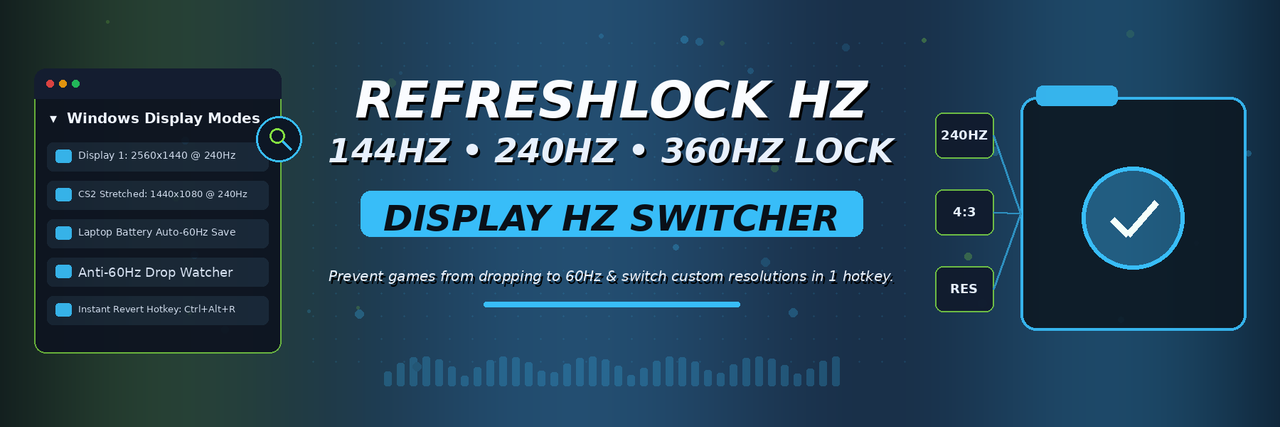



Purchased a 165 Hz, 240 Hz, or 360 Hz gaming monitor only to find certain games resetting your display to 60 Hz on launch—or tired of opening NVIDIA/Windows Display Settings every time you switch between native 16:9 and 4:3 stretched? Lock your max Hz and switch display presets in one keystroke.
RefreshLock Hz Switcher uses Windows ChangeDisplaySettingsEx APIs in a lightweight system tray tool: watching for games that drop refresh rate to 60 Hz, switching custom resolution + refresh rate profiles via hotkey, and restoring native desktop resolution automatically when the game closes.
This project is aimed at Windows 10 and Windows 11 (64-bit) PC and gaming laptop users with high-refresh-rate (120 Hz–540 Hz) monitors.
| Scenario / Issue | Cause | Solution |
|---|---|---|
| Game launches at 60 Hz instead of your monitor's 144 Hz / 240 Hz | Game engine picks the first enumerated 60 Hz EDID mode on startup | Enable Force Max Refresh Rate (240 Hz) automatically when game runs |
Switching to 1280×960 or 1440×1080 4:3 stretched for CS2/Valorant is slow |
Manually changing Windows resolution before and after gaming takes 6 clicks | Assign a Per-Game Resolution + Hz Profile that auto-reverts on game exit |
| Gaming laptop stays at 240 Hz on battery and drains in 1 hour | Windows fails to drop panel refresh rate when unplugged | Enable Auto-60 Hz on Battery / Max Hz on AC Power |
| Custom resolution causes a black screen on an unsupported mode | Applying invalid timings without a confirmation timer locks display | Built-in 15-Second Auto-Revert Safety Countdown restores previous mode |
Download RefreshLockHz.zip — Latest GitHub Release (Windows x64)
View All Releases & Changelog · Report an Issue
- Enumerates all hardware-supported
(Width × Height @ Hz)display modes across every connected monitor. - Per-game Auto-Profile: switches resolution/Hz when a game
.exelaunches and restores your native desktop mode when it exits. - Optional Laptop AC / Battery Refresh Switcher (
240 Hzplugged in ↔60 Hzon battery). - 15-second confirmation prompt +
Ctrl+Alt+Remergency hotkey guarantees you never get stuck on an unsupported resolution.
[RefreshLockHz] Display [1]: ASUS ROG PG27AQDM (Native: 2560x1440 @ 240Hz)
[OK]   Active Profile   : CS2_Stretched -> 1440x1080 @ 240Hz (Auto-reverts on cs2.exe exit)
[OK]   60Hz Drop Guard  : Enabled (Re-applies 240Hz if a game forces 60Hz)
[INFO] Safety Hotkey    : Press Ctrl+Alt+R anytime to restore native 2560x1440 @ 240Hz
The release ZIP is named RefreshLockHz.zip; the Windows executable inside is named RefreshLockHz.exe.
- Close RefreshLock Hz before updating or replacing executable files.
- Click Download RefreshLockHz.zip above.
- Right-click the downloaded archive and choose Extract All.
- Open the extracted folder and run
RefreshLockHz.exe. - Review the options and output paths before processing files.
Requirements: Windows 10 or 11 (64-bit).
- Offline & standard user permissions:
RefreshLockHz.exeruns locally without uploading your personal files and does not require disabling Windows Defender. - Windows SmartScreen: Because this is an independent open-source utility without a commercial EV code-signing certificate, Windows SmartScreen may show "Windows protected your PC" on first launch. Click More info → Run anyway after verifying the release checksum on the Releases page.
Re-asserts your monitor's maximum refresh rate whenever a game overrides display timings.
Switches desktop resolution only while your shooter is running, returning to crisp native 1440p/4K on exit.
Switches between 60 Hz on battery and 165/240 Hz on charger automatically.
Automatically rolls back any untested resolution if you don't click Confirm within 15 seconds.
RefreshLock Hz stores display profiles and per-game rules in %APPDATA%\RefreshLockHz:
%APPDATA%\RefreshLockHz\display_profiles.json
Typical directory layout:
System Tray -> RefreshLock Hz
├── Native Desktop Mode : 2560x1440 @ 240Hz
├── Game Profile [1]    : cs2.exe -> 1440x1080 @ 240Hz
├── Laptop Power Rule   : AC = 240Hz | Battery = 60Hz
└── Emergency Revert    : Ctrl + Alt + R
If Windows 11 'Dynamic Refresh Rate (DRR)' overrides your fixed Hz, set refresh rate directly in RefreshLock Hz to lock a constant refresh rate.
Follow these steps to get started:
- Extract
RefreshLockHz.zipand launchRefreshLockHz.exe. Inspect your monitor's supported resolution and refresh rate list. - Select your native desktop mode and verify Anti-60Hz Drop Guard is enabled. Optionally add a per-game
.exeresolution profile. - Remember
Ctrl+Alt+Rto instantly restore your native desktop resolution anytime. Minimizes cleanly to the system tray.
RefreshLock Hz uses standard Windows ChangeDisplaySettingsEx APIs without modifying monitor EDIDs or GPU drivers.
RefreshLock Hz displays connected monitors, active resolution & Hz, per-game auto-profiles, AC/Battery Hz rule, and emergency revert hotkey.
How do I check if my monitor is actually running at 144Hz or 240Hz?
RefreshLock Hz reads the live DEVMODE.dmDisplayFrequency directly from Windows so you can verify your true active Hz.
What if I pick a resolution my monitor doesn't like?
RefreshLock Hz shows a 15-second confirmation popup—if you don't click Keep, it automatically reverts to your previous working resolution.
Does this work on dual-monitor setups?
Yes—each monitor can have its own independent resolution and refresh rate profile.
- MonitorDim-DDCBrightnessControl — Hardware DDC/CI external monitor brightness & contrast slider
- BorderlessForce-WindowScaler — Force borderless windowed fullscreen & dual-monitor cursor lock
- AutoHDR-Win11GameEnabler — Force Windows 11 Auto HDR on any DX11/DX12 game
- MiniHUD-LightweightFPSOverlay — Compact borderless FPS, frametime & GPU temp overlay
Independent open-source desktop utility for Windows.