

A creative workspace that starts with coding.


Leela is an IDE for notebooks and code files. An assistant built on ramabana works in the same window. Lessons from abhyasa open in it as notebooks, and the screen guide draws on the page to explain them.
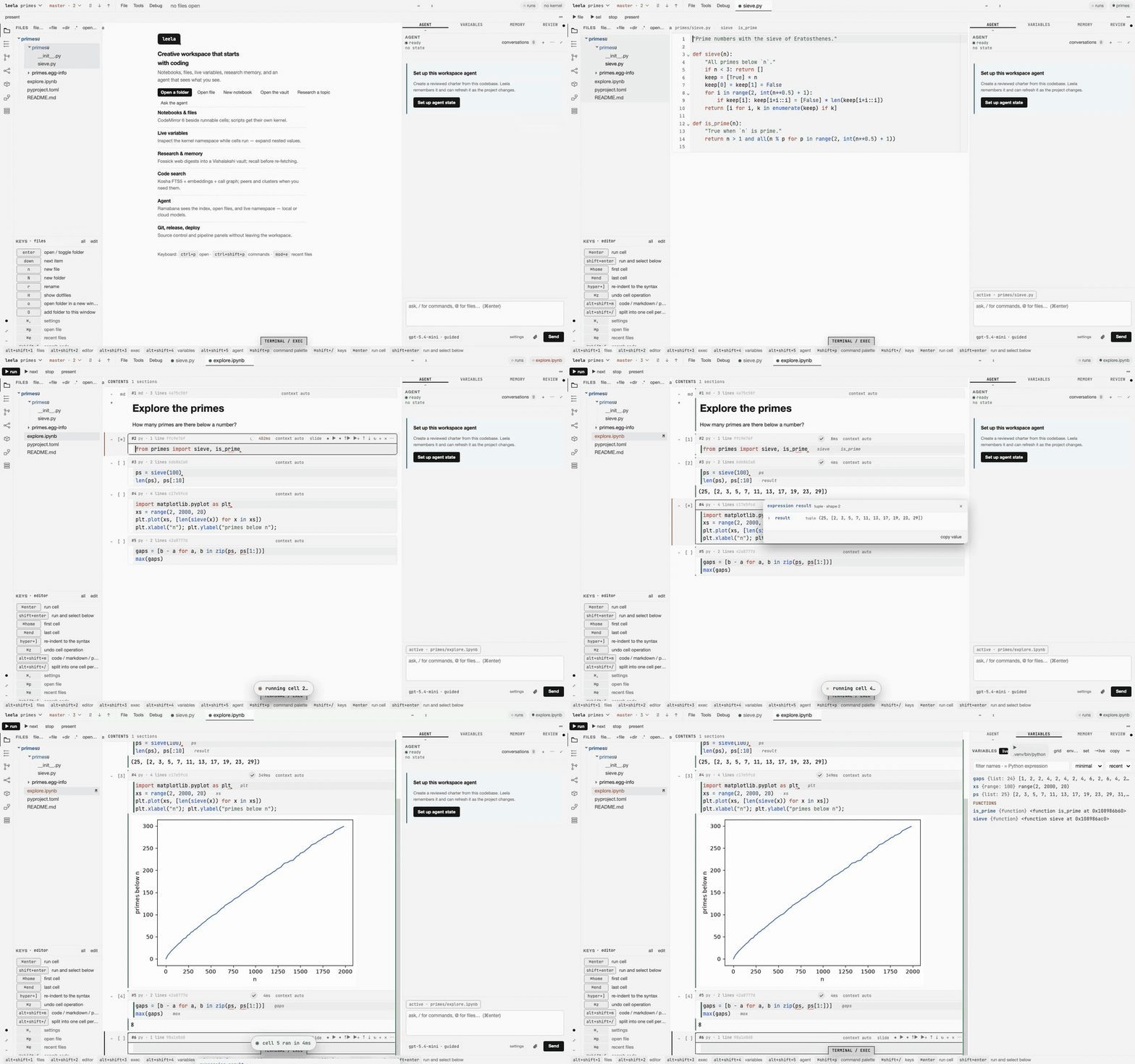
-
An editor and a file tree. Edit Python, Rust, JavaScript and other files. Command-click goes to a definition.
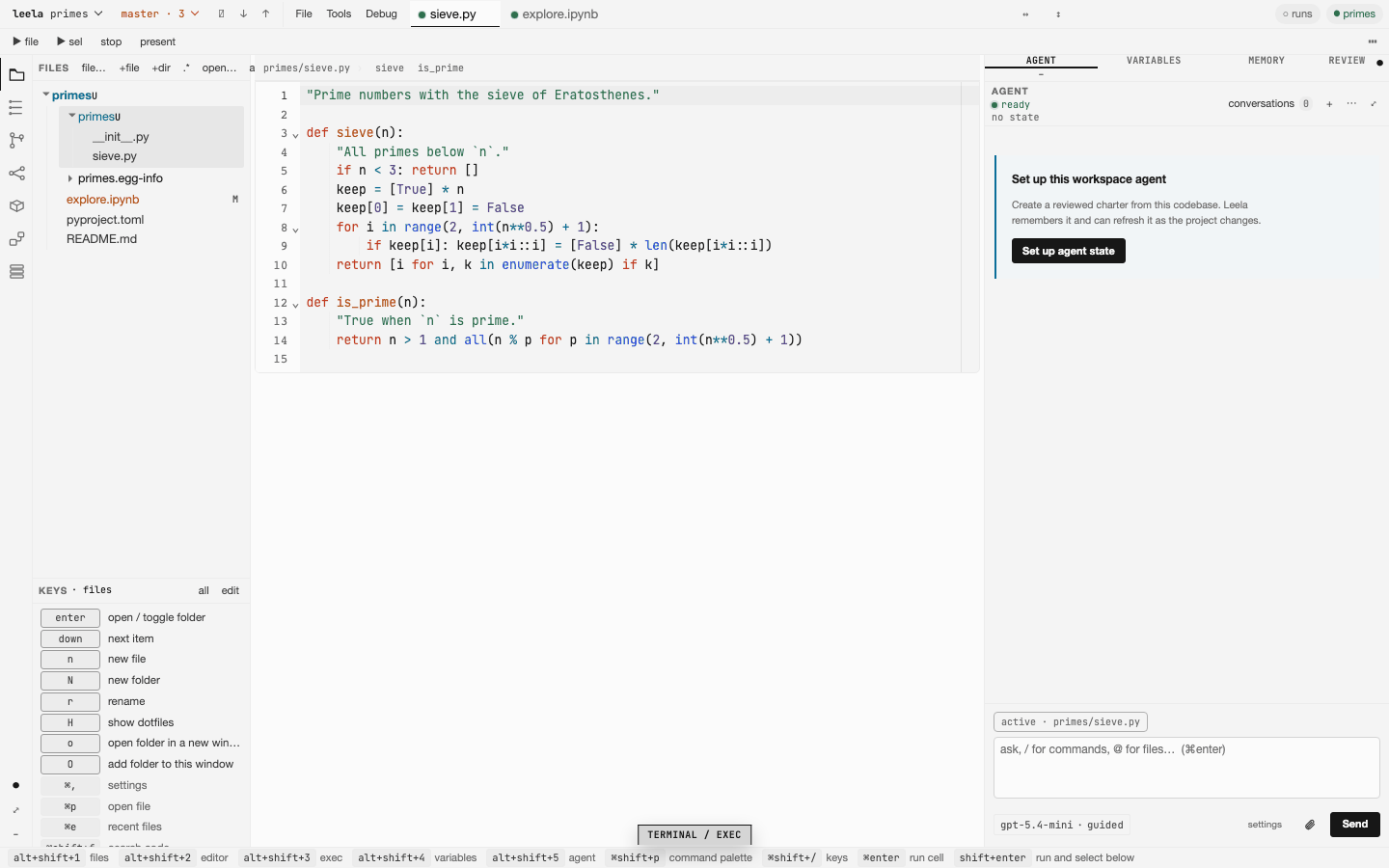
-
Notebooks that show what they make. Run Python, Rust and JavaScript cells. Plots show under the cell. The variables pane shows every name a cell makes, while the cell runs.
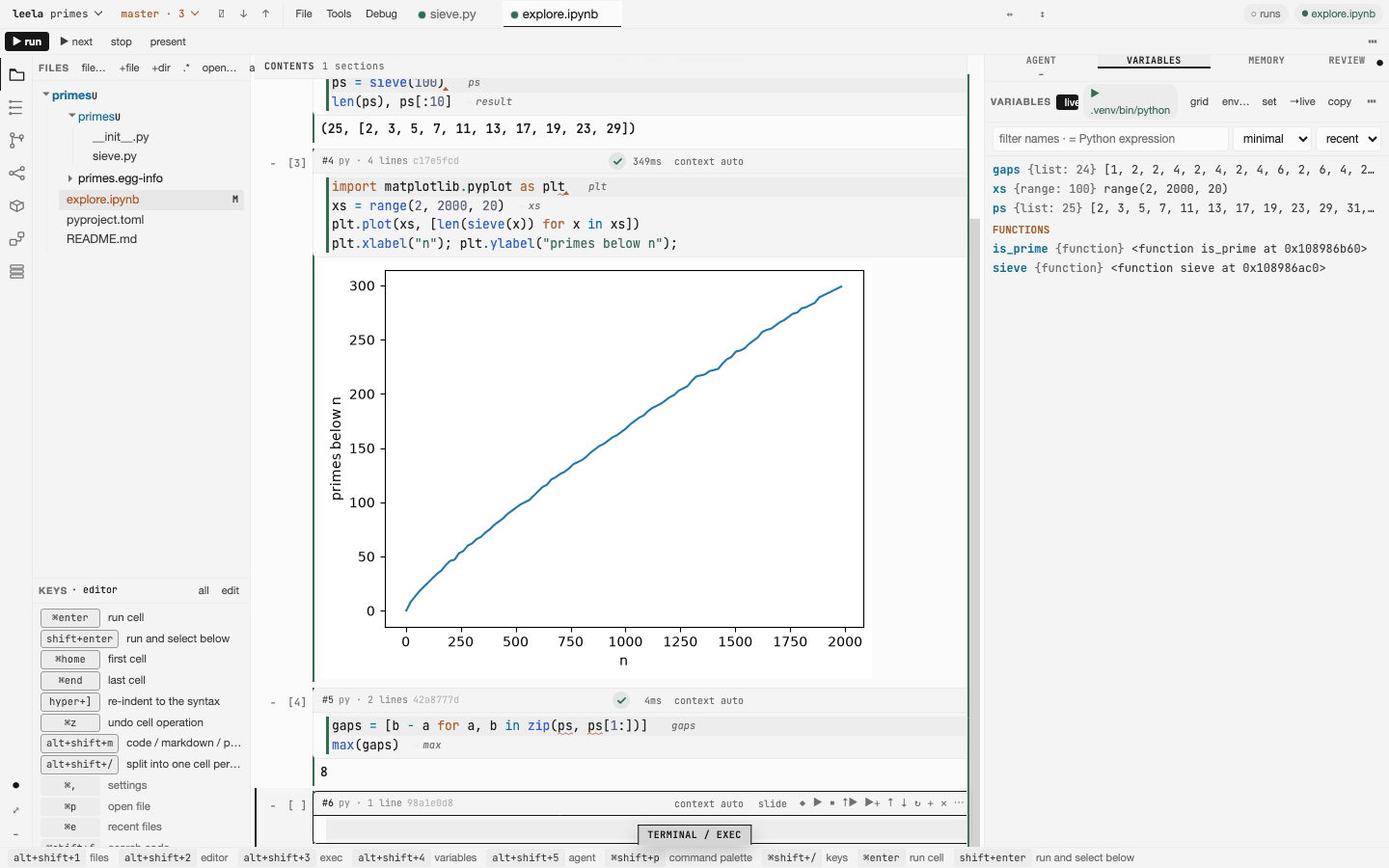
-
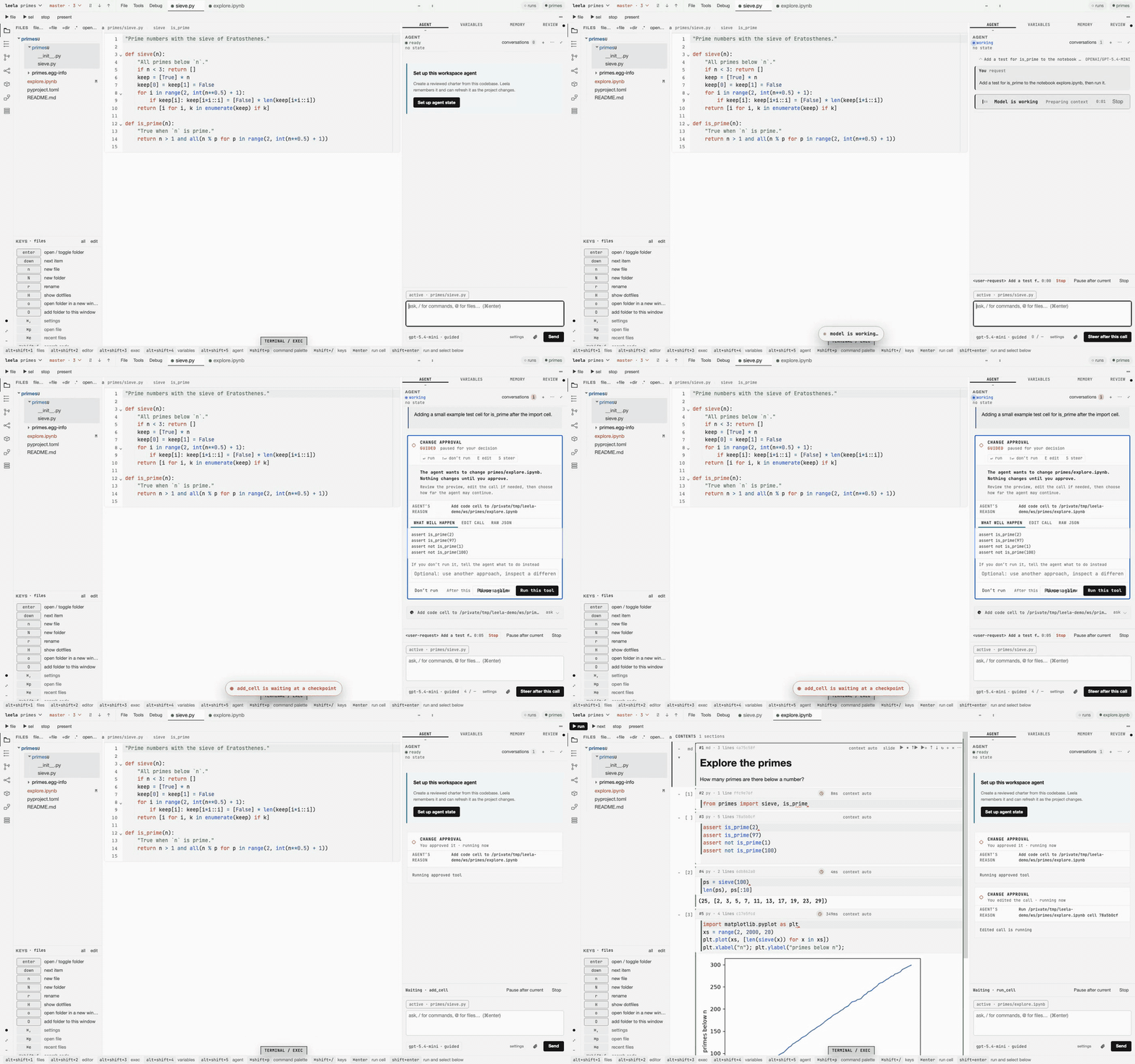
An assistant that asks first. Ask it to explain, change, run or test your code. It shows each change before it makes it, and nothing changes until you approve. It runs on a cloud model or on a model on your computer.
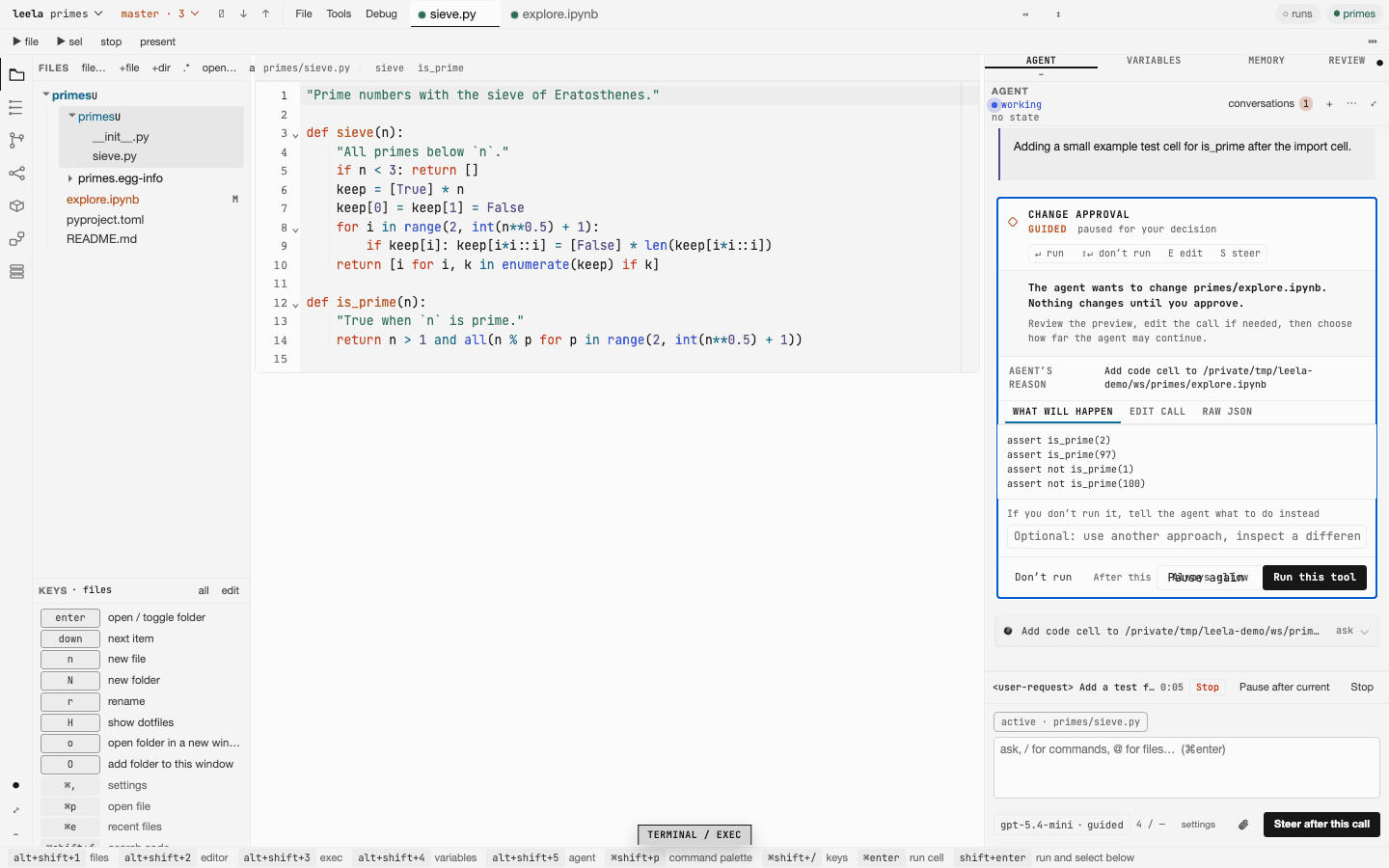
-
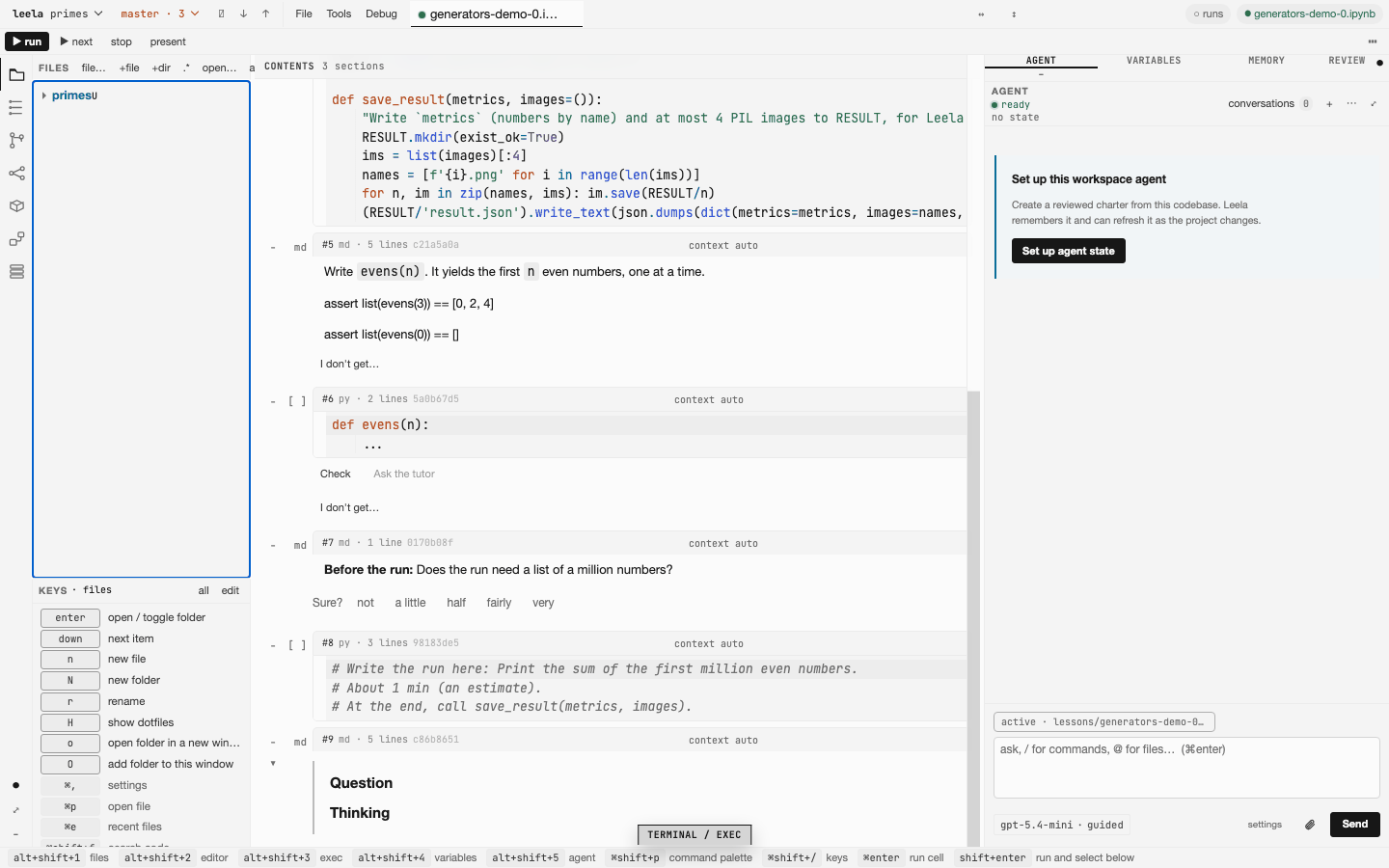
Lessons from abhyasa. In abhyasa, press Open in Leela on a step. Leela opens the step as a lesson notebook, with the passage from the source, a task, tests, and a Check button.
-
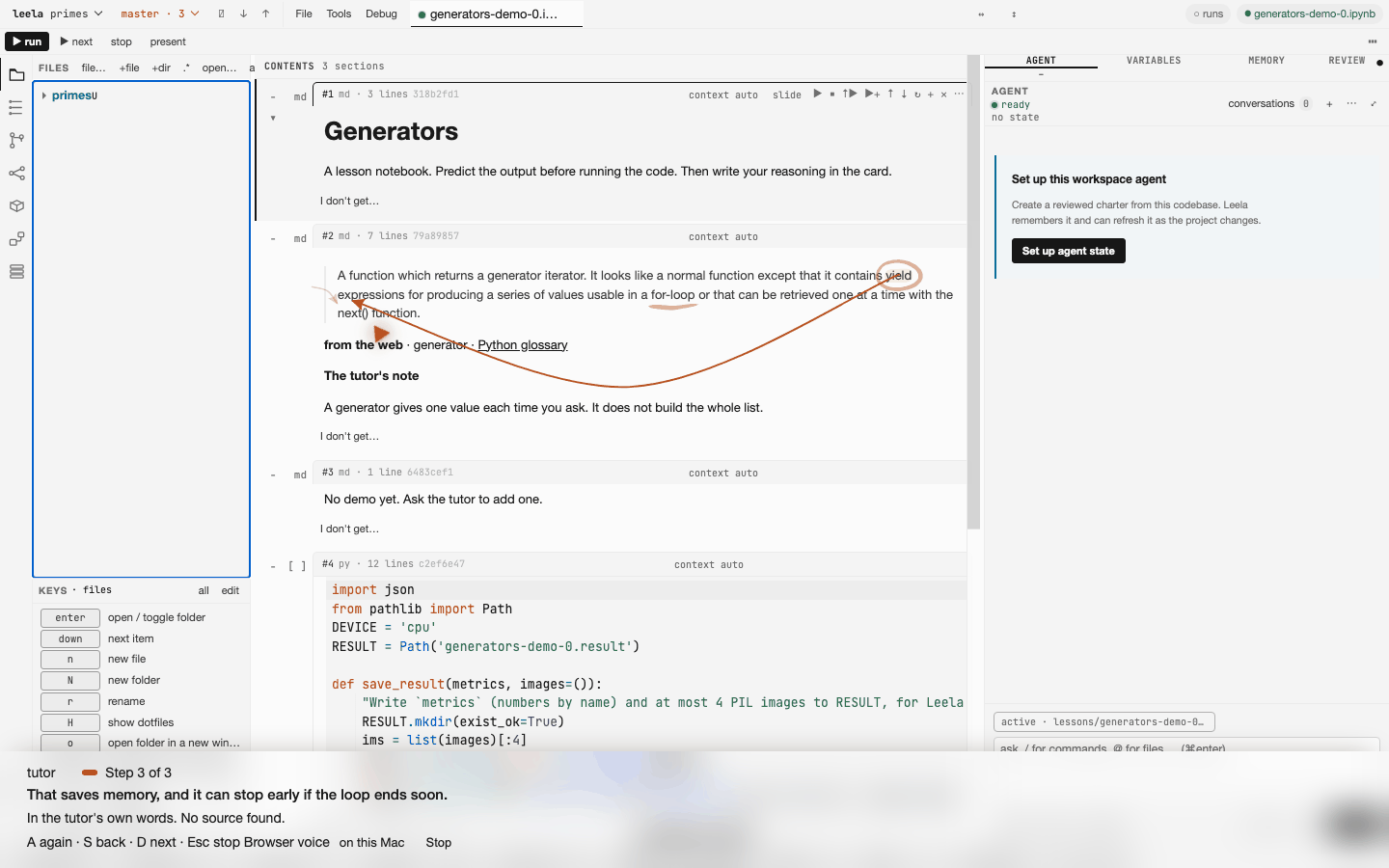
The screen guide's board. Press "I don't get…" on a lesson cell and say what you do not understand. The guide explains it step by step and draws on the cell.
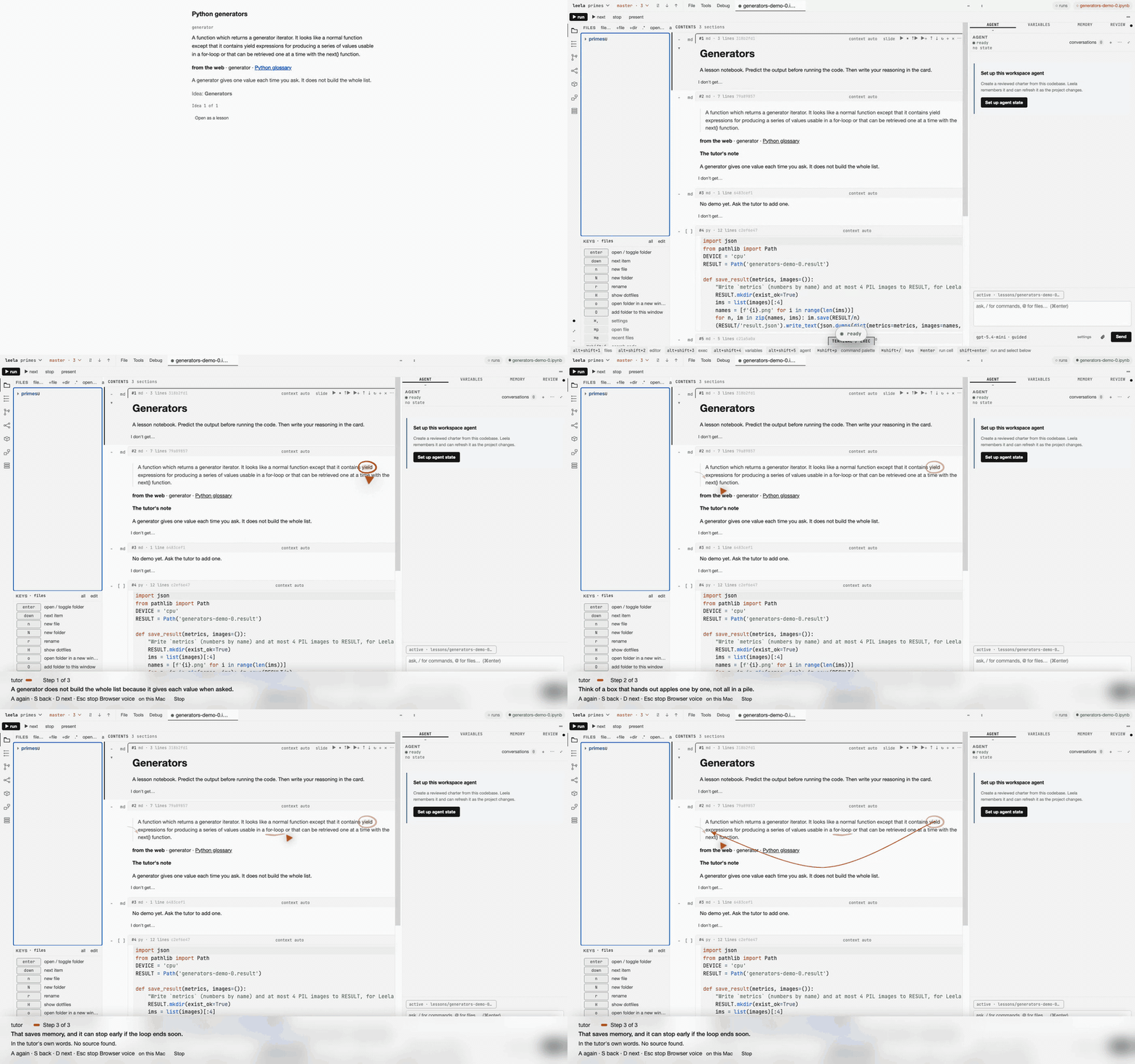
Leela also presents a notebook as slides and runs its code live (how), searches your code and your saved pages, papers and videos (how), and stages, commits, merges and releases with its git tools. The guide explains each part.
You need a Mac with Apple silicon and macOS 14 or later.
With Homebrew:
brew install --cask vedicreader/tap/leelaThe cask also installs uv. Lessons and project environments use uv.
Or download Leela-macOS.dmg from the latest release, open it, and drag Leela into Applications. If you do not have uv, run brew install uv. The app is signed with a Developer ID and notarized by Apple.
The Mac app checks for a new release at start and each hour, and shows a bar when one is out. In a Homebrew install, press Update and then Restart Leela. A DMG install shows a link to the release page. See updates.
On Linux, or on Windows inside WSL, run Leela from the command line. It opens in your browser at http://localhost:5010:
uv tool install git+https://github.com/vedicreader/leela
leela .- The
leelapackage on PyPI is a different project. - On Windows, export model keys such as
OPENAI_API_KEYin the WSL shell, not in Windows, and start Leela withleela --shell none ..
- Open Leela. On the welcome screen, press Open a folder and pick a project.
- Open a notebook or a file in the file tree, or press ⌘P and type its name. Put the cursor in a cell and press ⇧↩ (Shift+Enter) to run it. A Python project with no environment shows a notice above the editor. Press Set up .venv to make one.
- Write a question in the agent pane and press ⌘↩ (Ctrl+Enter). If no model is set up, the pane lists the providers that you can use, and + model adds one.
| Mac | Windows and Linux | Action |
|---|---|---|
| ⌘O | Ctrl+O | Open a file or a folder |
| ⌘P | Ctrl+P | Go to a file by name |
| ⌘1 to ⌘5 | Ctrl+1 to Ctrl+5 | Go to the files, editor, exec, variables or agent pane. In a browser tab, use ⌥⇧1 to ⌥⇧5 (Alt+Shift+1 to Alt+Shift+5). |
| ⌘↩ | Ctrl+Enter | Run the cell. In the agent pane, send. |
| ⇧↩ | Shift+Enter | Run the cell and select the next one |
| ⇧⌘↩ | Ctrl+Shift+Enter | Run all cells |
| ⇧⌘P | Ctrl+Shift+P | Command palette |
| ⇧⌘F | Ctrl+Shift+F | Search code |
| ⇧⌘/ | Ctrl+Shift+/ | Show all keys |
| ⌥S | Alt+S | Check the exercise that has the cursor |
| ⌥R | Alt+R | Present the notebook from the selected cell |
A selected notebook cell also takes the Jupyter command keys, such as A, B, M, Y and D D. You can change each key in keys.json. See keys and buttons.
- Using Leela: the command-line options, each part of the app, lessons, and the keys.
- Developing Leela: get the code, the code layout, the desktop builds, the release steps and the tests.
- All docs: the design notes and the decisions.
- Release notes
Apache-2.0