🌐 Live Demo / Project Page: https://shyjun.github.io/git-interactive-rebase-gui-tool/
A clean visual GUI for git rebase -i — reorder, squash, split, rephrase, drop, and refine commit history, plus browse any branch and cherry-pick commits — all with an intuitive interface.
A Python-based Git Interactive Rebase GUI tool to visually manage commit history. Built with PySide6, this tool simplifies the complex process of rewriting Git history with a faster and more visual workflow.
Keywords: git rebase gui, interactive rebase tool, git history editor, git squash commits gui, git cherry-pick gui
- Visual Reordering: Drag and drop commits to reorder your history, or use the Move Commit context-menu actions. In multi-select mode, drag a block of adjacent checked commits to a new position together.
- Interactive Squash: Squash a commit with its neighbor, or multi-select any range of commits to squash into one — with a dedicated dialog and real-time feedback.
- Multi-select Actions: Select multiple commits, then apply an action to all of them — Squash selected commits (any adjacent range), Mark selected commits, Drop selected commits (dropped one by one, newest first, with per-commit failure recovery), or drag a contiguous checked block to reorder it in one go.
- Smart Rephrase: Effortlessly update commit messages without leaving the app.
- Instant Drop: Remove unwanted commits with a single click (with preview).
- Split Commits: Split a commit's changes into multiple commits.
- Split every file change into its own commit
- Split all changes into separate commits
- Move one or more files' changes out of a commit (multi-file selection with filewise/treewise tabs, checkboxes, bidirectional sync, and collapsible file lists)
- Drop one or more files' changes from a commit (same multi-file UI as Move)
- Hunk-Level Refinement: Selectively manipulate individual hunks within a commit.
- Keep only selected hunks
- Drop selected hunks
- Move selected hunks to a new commit
- Edit hunks using a lightweight patch editor
- Copy hunk patches to clipboard
- Revert & Reset: Revert individual commits, reset hard to any SHA, or reset HEAD to a commit keeping changes as unstaged (
git reset --mixed). - Archive Safety: Logs important commit SHAs (
START_TIME_HEAD,BEST_COMMITID,Undo), so you can always recover an earlier state — with visible failsafe reset buttons. - Marking: Mark/unmark commits for manual tracking (highlighted in the list).
- Single commit by SHA: Cherry-pick one commit via the Cherry-pick 1 Commit button.
- From the branch browser: Select a commit (or check multiple commits in multi-select mode) in a read-only browse window and inject them into your current branch with Cherry-pick selected commit(s).
- Oldest-first ordering: Multi-commit cherry-picks apply oldest to newest so the history stays linear.
- Pre-flight confirmation: Shows the exact order the selected commits will be applied in (numbered, with commit subjects and target branch).
- Smart failure handling: If a commit fails to apply, you are told why (conflict, already applied/no change, or other) with the conflicting files listed. You then choose:
- Undo entire cherry-pick — reset back to the starting state
- Skip and continue with the next commit
- Stop and handle manually
- Transparent results: After the operation a summary shows how many commits were cherry-picked / skipped / not applied, with every SHA listed. Nothing is left in a half-finished cherry-pick state.
- Handle Staged Changes dialog: Repo menu → Handle Staged Changes… opens a persistent dialog with actions for staged files. The dialog stays open after each action and refreshes automatically.
- Commit / Unstage Staged Changes Selectively: Choose exactly which staged files to commit, amend, or unstage — with file checkboxes, tree view, and live diff preview.
- Commit Selected Files — commit only the checked staged files
- Amend HEAD with Selected — amend only the checked staged files into HEAD
- Unstage Selected — unstage only the checked files (
git reset HEAD -- <files>)
- View Staged Diff: 3-tab diff viewer (Plain, File-wise, Tree-wise) for all staged changes.
- Unstage All: Unstage all staged changes (
git reset HEAD). - Discard Staged Changes: Discard all staged changes with confirmation (
git reset HEAD). - Amend HEAD Commit: Amend staged changes into HEAD with the commit message pre-filled from HEAD (editable).
- Stash Changes: Stash all changes (staged and unstaged).
- Staged changes warning: If staged changes exist at startup, the Repo button is highlighted and an info dialog suggests using Handle Staged Changes.
- Live search & filter: Instantly find commits while you type.
- Advanced commit filtering: Search by SHA (short, partial, or full 40-character), commit message, filenames, or diff content (with a per-keystroke debounce and a ≥3 character hint), plus Match Case, Whole Word, and Display Only Matching search options (matching commits are bolded). The Whole Word option always starts off on each app launch. Use the
</>buttons next to the search bar to jump to the previous / next matching commit (wraps around). - Search inside diffs: Press Ctrl+F to search within the currently displayed diff, with match-case, whole-word, and next/previous navigation.
- File-wise diff viewer: Browse commit changes file by file for easier review (renames shown as one
old => newrow). - Consolidated Diff: Set a start commit, then diff any range of history (or from HEAD down to any commit) in one combined view.
- View PR Diff: Open a read-only PR Preview showing the combined branch diff vs its merge-base.
- Browse Branch: Open a separate read-only window for any other branch's history (with dimmed "viewer" styling so you always know it is read-only), then cherry-pick from it.
- Browse File Log: Open a separate read-only window showing the history of a single file, via Browse File Log… in the Repo menu or Browse file log in the file-wise view's right-click menu. History follows renames (
git log --follow), and the diff pane is scoped to that file. - Browse Log of a Commit: Open a read-only history window for any commit (SHA or ref), prompted via Browse Log of a Commit… in the Repo menu with the number of commits to show.
- Browse Reflog: Open a read-only window of the repository's HEAD reflog, with Copy SHA and Show log actions and double-click to open a commit's history.
- Browse Stashes: Open a read-only window of the repository's stash list with an always-visible diff pane, plus Apply + Keep, Apply + Drop, and Drop actions (toolbar buttons and right-click menu) with confirmations and auto-refresh.
- Find Merge-base: Compute the merge-base between the current branch and any other branch, with one-click Copy SHA to clipboard (Repo menu → Find Merge-base…).
- Apply Patch: Apply a unified-diff/format-patch file via Apply Patch… in the Repo menu. Choose whether the changes are committed (using the patch's own commit message) or left unstaged in the working tree; failures are detected with a dry-run check so the repository is never left partially applied. The original patch file is not modified or deleted.
- Create Patch: Export any commit as a format-patch file via Create Patch in the commit right-click menu. The patch keeps the commit's own message, so it round-trips through Apply Patch.
- Create patch(s) from selected commits: In multi-select mode, the Perform action on selected commits menu offers Consolidated single patch (all changes combined into one unified-diff file) and Multiple patches (one format-patch per commit in a chosen folder).
- Non-modal viewer windows: The tabbed View Commit window, PR Diff, and consolidated-diff windows stay open while you keep using the main window — switch freely between them without closing the viewer.
- Rebase onto: One-click
git rebase main/git rebase master, or rebase onto any branch/SHA you type. - Origin helpers:
git fetch,git reset --hard origin/<branch>, andgit push --force. - Stash management: Unstaged changes at startup can be stashed, committed (per file or all at once), amended into HEAD, or discarded. The app-created stash is tracked and offered for pop at exit, with conflict warnings before doing so.
- Commit Selectively: Instead of committing everything at once, choose exactly what to commit from the unstaged-changes dialog:
- Per-file checkboxes with
+N -Mstats; the bottom pane previews the combined diff of the checked files, with separator lines between files (like the main diff pane) - Commit Selected Files — a single commit containing only the checked files
- commit --amend selected files — amend only the checked files into the HEAD commit, with the message pre-filled from HEAD (editable)
- git add -p — interactive hunk-by-hunk selection: pick individual hunks of the checked files, grouped per file with
Select All / Deselect Alland a live counter, then finish withgit commitorgit commit --amend. Unchecked hunks stay untouched in the working tree (see the full walkthrough in docs/screenshots.md) - Unchecked files stay completely untouched, and cancelling at any point leaves the repository unchanged
- Per-file checkboxes with
Note: History-rewriting operations (rephrase, drop, squash, split, reorder, refine) require a clean working tree and index — no staged or unstaged changes.
git commit --amendis different: staged changes can be intentionally included in the amended commit, so amend remains available when appropriate.
- Adaptive Themes: Toggle between a refined Dark Theme (VS Code-inspired charcoal palette) and a clean Light Theme.
- Global consistency: Every button, scrollbar, and dialog follows the chosen theme.
- Persistent settings: Theme, font family, font size, and UI preferences are saved across sessions.
- Per-window font zoom: Adjust the code font-size with the +/- (zoom) buttons in the status bar.
- Visual feedback: Instant "Copied" notifications for clipboard actions (SHA, message, or both).
- Resizable dialogs: Long result/confirmation dialogs can be resized to read all the details.
- Crash report dialog: If an unexpected error ever crashes the tool, a dialog shows the complete traceback (in your configured font) with Copy to Clipboard and Open GitHub Issue (issue title/body pre-filled), plus Noted. Continue to keep the app running or Exit App to quit cleanly.
- Auto-background on launch: When run from a terminal, the tool automatically detaches and runs in the background, returning the terminal immediately.
- Tree view in file dialogs: Stage files and commit staged changes dialogs include a Tree View tab with folder hierarchy, checkboxes, and stats.
- Full Height Diff View: Toggle button below the diff pane maximizes diff viewing area by collapsing commit details and hiding bottom controls — click again to restore.
- Collapsible commit details: Click the disclosure arrow (▼/▶) on the commit header to collapse/expand the message, giving more space to the diff.
- Collapsible file lists: Click File-wise Diff or Tree-wise Diff tab titles to toggle file list visibility. Switching to a tab auto-expands its file list; selecting a new commit resets both to collapsed.
| Shortcut | Action |
|---|---|
/ |
Focus the search bar |
Esc |
Clear search, close dialog (except progress dialogs), or exit multi-select mode |
Ctrl+F |
Focus the diff search bar (available in every diff view) |
Ctrl+Q |
Exit application |
Ctrl+Z |
Undo last operation (disabled while editing text) |
F5 |
Refresh / rescan commit history |
Right-clicking any commit gives you quick access to:
- Mark / unmark a commit, view the commit (opens the tabbed Plain / File-wise viewer)
- Create Patch — save the commit as a format-patch file (re-appliable via Repo → Apply Patch…)
- Tag — create a lightweight or annotated git tag on the commit
- Reset hard to a commit, reset HEAD to here (keep changes), set the BEST commit, revert
- Rephrase, drop
- Squash commits submenu — squash with above/below, or multi-select any range to squash (also via the Perform action on selected commits menu)
- Move Commit submenu — move up/down or drag to reorder (drag also works on a contiguous block of checked commits in multi-select mode)
- Split Commit submenu — split, per-file split, move file(s) out, drop file(s), refine hunks
- Consolidated Diff submenu — set start commit, diff to here, or diff HEAD to here
- Copy SHA / message / both to clipboard
See the Screenshots & Feature Guide for visual documentation of all features.
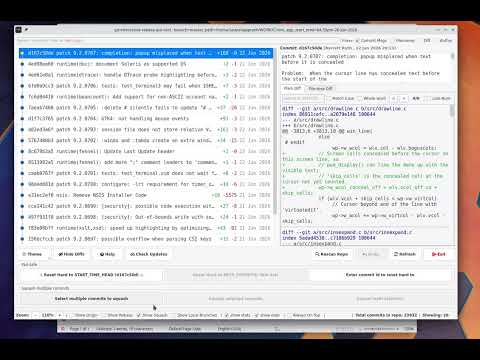
Interactive rebasing in Git is powerful, but repeatedly editing raw rebase todo files can become tedious during commit cleanup workflows.
This tool is designed as a lightweight visual helper around Git interactive rebase, especially useful while cleaning up a feature branch before raising a PR.
Useful when a commit accidentally contains mixed changes — for example: feature work + debug code, code + documentation, or unrelated edits inside the same file.
-
Uses native Git under the hood
All operations are executed using standard Git commands. No custom Git implementation or hidden logic.
This also means that when Git itself improves or adds new capabilities, the tool automatically benefits from them.
-
Lightweight setup
No heavy installation or large Git client required.
-
Focused specifically on interactive rebase
Instead of being a full Git client, the tool focuses only on commit history cleanup workflows:
- reorder/squash/split/rephrase/drop commits
- cherry-pick commits between branches
- refine file changes
- move changes to new commits
- clean up history before PR creation
Key Strength: Uses native Git under the hood — all operations are executed using standard Git commands.
- Core: Python 3.x
- GUI Framework: PySide6 (Qt)
- Styling: Global QSS with dynamic color mapping.
- Git Integration: Direct subprocess communication with the Git CLI.
- Persistence:
QSettingsfor storing theme, font size, and UI preferences across sessions.
- Python 3.10+
- Git CLI installed and available in PATH (
git --versionshould work). PySide6installed (pip install PySide6).
pip install git+https://github.com/shyjun/git-interactive-rebase-gui-tool.gitThen run:
git_interactive_rebaseIf you prefer to run directly from source:
python3 git_interactive_rebase.pyThe tool auto-detects the type of positional arguments (file, branch, tag, or commit ref):
python3 git_interactive_rebase.py                         # auto-detect base, show history
python3 git_interactive_rebase.py <branch>                # browse a branch (read-only)
python3 git_interactive_rebase.py <tag>                   # browse from a tag (read-only)
python3 git_interactive_rebase.py <file>                  # open file log (read-only)
python3 git_interactive_rebase.py <commit-ref>            # start from a specific commit
python3 git_interactive_rebase.py <branch> <file>         # browse branch, filtered to file
python3 git_interactive_rebase.py <tag> <file>            # browse tag, filtered to file
Other options:
python3 git_interactive_rebase.py --viewer-mode           # read-only viewer mode
python3 git_interactive_rebase.py -C /path/to/repo       # different repository location
python3 git_interactive_rebase.py --update                # update tool and exit
python3 git_interactive_rebase.py --version               # print version and exit
Detection priority for positional args: file → branch → tag → commit ref → error.
If no arguments are given, the tool automatically detects your branch base and shows the commits since that point. If detection fails, it falls back to the 200 most recent commits with a Load 100 more option to extend further.
This project is actively under development, with new features and improvements added regularly.
- Click Configure → Check for updates.
- If a newer version is available, click Update Now — a progress bar runs while the tool updates itself, then reports success or failure.
- Restart the tool to apply the update.
By default, the tool checks for updates in the background when it starts. If an update is available, an Update(<sha>) available label appears in the status bar next to the Configure button. Click it or go to Configure → Check for updates to apply.
To disable this, uncheck Configure → Check for updates at startup. The preference is remembered across sessions.
When running from a cloned repository, press Ctrl+Shift+F5 after updating to restart the tool with the latest code — no manual restart needed.
The update can run while the app is open; only the files on disk are changed, and the running session keeps working on the old version until you restart.
If you'd rather update later, the same dialog offers Copy to clipboard with the command to run manually. The app figures out how to update itself depending on how it was installed:
- pip install →
git_interactive_rebase --update - cloned repository →
python3 <tool-folder>/git_interactive_rebase.py --update
For a cloned repository, the update refuses to run if your local clone has uncommitted changes — commit or stash them and try again.
pip uninstall git-interactive-rebase-gui-tool
pip install git+https://github.com/shyjun/git-interactive-rebase-gui-tool.gitgit pullYou can also press Check Updates in the app to compare the running version against the remote.
The repository uses GitHub Actions for linting and import tests.
When the workflow fails, it can send notifications to a mobile device through:
If you fork this repository:
- GitHub Actions workflows are copied to your fork.
- Repository secrets are not copied.
- CI checks will still run, but failure notifications will not work until you configure your own notification credentials.
To enable notifications in your fork, add these repository secrets under:
Settings → Secrets and variables → Actions
| Secret | Description |
|---|---|
APP_TOKEN |
Pushover application token |
PUSHOVER_USER_KEY |
Pushover user key |
TOPIC |
ntfy topic name |
Use your own Pushover account, application token, and ntfy topic. Do not commit notification credentials to the repository.
The notification step uses curl to call the Pushover and ntfy HTTP APIs. No Pushover or ntfy application needs to be installed on the GitHub Actions runner.
Security note: An ntfy topic can act like a password when anonymous publishing is enabled. Use a private, unpredictable topic and configure authentication if the topic must remain protected.
This project is licensed under the MIT License.
⭐ If this tool helps you, consider starring the repository!