

Open-source SSH for Android, iPhone, and iPad. Run your Herdr workflow from your phone or tablet.
Chat with Claude Code, Codex, OpenCode, and Pi, review their changes, and work in remote terminals from a native Android or iOS interface.
Whip website · Getting started · Download Whip









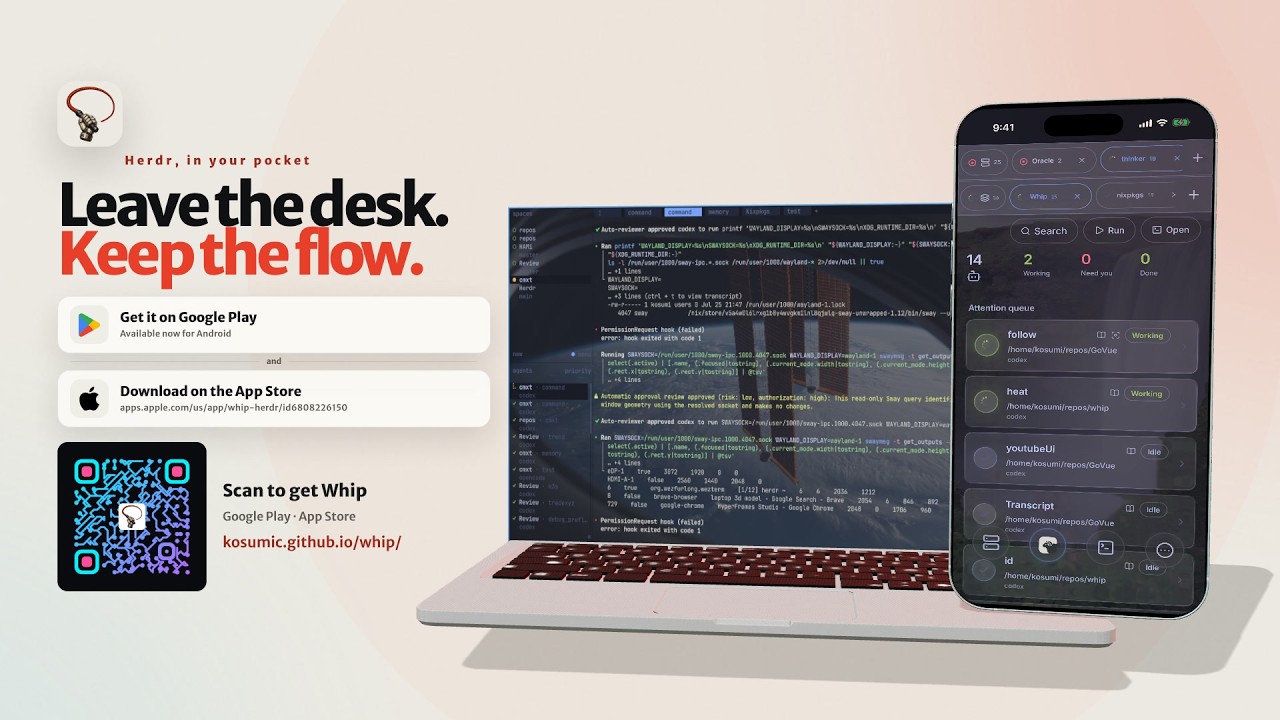
Whip gives Herdr a touch-friendly mobile interface without exposing Herdr itself to the network. No extra host software is needed when SSH and Herdr are already running. Opt-in push notifications use a Herdr host plugin and remain off until explicitly enabled for each device and session. Whip connects to your machine over SSH—directly, through saved jump hosts, or with Tailcat mode—and rebuilds the management experience as native screens. Watch the whole herd, follow Claude Code, Codex, OpenCode, and Pi conversations, dictate a prompt, review a Git diff, or attach to a full terminal. Plain SSH hosts work too, with multiple independent shell tabs even without Herdr.
With Phone Use, a remote Claude Code, Codex or OpenCode agent can also use Whip's browser and phone tools, inspect connected hosts, and coordinate other Herdr agents through the same SSH connections.
Native terminal delivery: Rust sends output directly to the Android or iOS WebView running xterm.js. Normal frames and write-completion credits bypass the React Native JavaScript thread. Architecture and measurements.
The app separates connection management from daily supervision: Hosts manages saved SSH endpoints, saved chats, and browser access; Herd brings connected agents into a searchable, scoped queue; Terminal keeps pane sessions, SSH shells, and native Chat View within reach; and More holds security, notification, appearance, and terminal preferences.
Whip is not developed, maintained, or endorsed by the Herdr project or its authors.
- Opinionated by design
- Preview
- What you can do
- Install Whip
- Connect your first host
- How it works
- Performance
- Architecture
- Development
- Community
- Tip jar
- Credits
- License
Whip is opinionated: Herdr is the only tool that will receive first-class support. Our native supervision, navigation, and agent workflows are built around Herdr's hosts, spaces, tabs, and panes.
Herdr is not required for ordinary SSH work: connect to a host and open independent login-shell tabs, browse files, or forward a web preview.
We will not add first-class support for tmux, Zellij, or Mosh. This focus lets us build a cohesive mobile experience for Herdr.
 |
 |
| Manage every host See live connection state, latency, and saved authentication at a glance. |
Watch the whole herd Focus a host, switch spaces from the rail, and follow its attention queue. |
 |
 |
| Native Chat View Follow agent replies, inspect tool calls, and review file diffs inline. |
Chat naturally Write or dictate a prompt, attach a file, and send it to your agent. |
 |
|
| Coordinate by voice Check host and agent status and coordinate your work by voice. |
|
 |
 |
| Give agents phone tools Let a remote agent inspect connected hosts and use Whip's browser and device tools through Phone Use. |
Bring the filesystem with you Browse, transfer, edit, and preview remote files, including large text, Markdown, diagrams, PDF, and media. |
 |
 |
| Review the changes Read highlighted Git diffs, expand context, and draft questions for the agent from selected lines. |
Open the preview Browse public websites or SSH-forwarded local services, keep tabs open, and let agents use Phone Use. |
 |
 |
| Work from anywhere Switch between warm Herdr panes or independent SSH shells with controls that adapt to the keyboard. |
Read your remote docs Preview the project's README with its images and links directly from the host. |
Captured from Whip 2.0.0 on an iPhone 17 Pro simulator running iOS 26.5, with a custom background and glass appearance. Terminal and Chat View use full-screen mode. See the capture notes for the source captures and refresh steps.
- Monitor every open host in one native attention queue, with per-host and per-space scopes.
- See working, blocked, done, idle, and unknown agents, including their host and space context.
- Keep connected hosts first and order them by the same agent-status priority as the Herd queue; see each host's agent count, Herdr protocol, measured latency, and jump-host route.
- Move through Herdr hosts, spaces, tabs, panes, and agents without living in a terminal.
- Search the Herd by tab name or working directory, and follow Herdr's agent view and ordering.
- Create, focus, rename, split, zoom, inspect, and close space resources, including swipe-to-close Herd tabs.
- Launch agents and chat through a native multiline composer with mobile keyboard, dictation, selection, and suggestion support.
- Run editable commands from the Herd screen and reuse the same persistent input history available in the terminal.
Whip uses local agent alerts by default. Remote push notifications are opt-in and stay off until enabled separately for each device and saved Herdr session. Once enabled, they can notify you when an agent needs attention or finishes, even when Whip is not running.
- Connect to the saved host, open its ⋯ detail screen from Hosts, and find Server-side push notification.
- Turn on the push notification switch. Whip installs or enables the
whip-notifyHerdr plugin over SSH if needed, then registers this device. Grant notification permission and keep Whip open for delivery verification. - After registration, turn on End-to-end encryption (E2EE) if you want notification previews to hide agent details. New registrations start with E2EE off.
Installing the host plugin alone does not opt any device into remote push.
Privacy: By default, push previews can show the tab, agent, status, and task title, and the notification relay and push providers can read those details. Turn E2EE on to show only generic system previews while keeping agent details encrypted for this device. Existing encrypted registrations stay encrypted until you change the setting. Tap a notification to reconnect and open its pane, if it still exists.
The plugin requires Herdr 0.9.5+, Git, curl, and either sha256sum or shasum. Prebuilt binaries support arm64/x86_64 Linux and Apple Silicon macOS; no Rust compiler is needed on the host. Push travels through Whip's default notification relay and Expo Push Service to FCM on Android or APNs on iOS. You can select a Custom relay per saved host.
While local alerts are enabled, notification permission is granted, and the connection and event stream are healthy, Whip renews a device lease over SSH approximately every 3 seconds. The host suppresses remote push while that lease is younger than 10 seconds, using its own clock. Each device/session registration has an independent lease.
On iOS, backgrounding stops renewal. On Android, renewal can continue while background monitoring is enabled and the app's timer keeps running. Renewal stops if the app is suspended or terminated, the connection fails, or local alerts are disabled.
The lease expires 10 seconds after its last renewal on the host; subsequent blocked or done events can trigger remote push. Expiration does not itself send a notification or replay events suppressed while the lease was fresh. A crash just after renewal can leave a suppression window of up to 10 seconds, plus any in-flight renewal; delivery is best effort.
Use Unregister to stop push for this device on the selected host/session. Uninstall from host removes the plugin for the SSH account across its Herdr sessions and devices. Local alert preferences remain in More → Settings → Notifications. See the remote notification guide for setup details, encryption, delivery limits, and relay deployment.
Chat View supports Claude Code, Codex, OpenCode (v1 and v2), and Pi panes. Tap the book icon in the terminal controls to replace that terminal with a full-screen, native transcript; tap it again to return to the same warm terminal. Each terminal remembers its own Terminal or Chat View across tab switches and app restarts. Offline hosts restore cached Chat when available.
- Read a normalized, OpenCode-style conversation instead of terminal scrollback, including user prompts, Markdown responses, plans, reasoning, an inline Working indicator, token and timing metadata, attachments, and images.
- Keep the relevant user prompt pinned while reading earlier replies. Tap it to reveal the original message. When you scroll away from live output, a compact activity strip can show the agent's current tool or progress; tap it to return to the latest output and resume following. See chat interactions for details.
- Inspect expandable tool activity without duplicate shell rows. Related read, list, and search operations are grouped; shell commands, output, diagnostics, and changed-file diffs remain available on demand.
- Render GitHub-flavored Markdown, highlighted code, clickable remote file references, math, Mermaid diagrams, and SVG code blocks on Android and iOS.
- Search chat and terminal text with inline highlights, inspect per-turn metadata and expandable JSON tool output, and read agent questions and permission notices.
- Read CJK text with UKai across chat, code, tables, and the composer; Latin text keeps Inter or JetBrains Mono.
- Load existing history once, then follow new agent records incrementally over SSH. View transcript metadata and cache status, or open a saved chat from Hosts without reconnecting to the host.
- Keep using the terminal control strip in Chat View. Its Compose control opens the same native composer, draft, attachments, and per-tab send queue used by Terminal; closing the composer leaves Chat View open.
- Dictate with the composer's microphone on Android and iOS. Whip uses the draft and recent chat or terminal text as recognition hints, then appends the result to your draft for review before sending. Paste clipboard images or attach photos and files, and add selected chat or terminal text directly to the composer.
- Start voice chat with the waveform button in an empty live-chat composer. Take turns with the agent using strictly on-device recognition, local VAD, and the voice selected in Settings. Interrupt spoken replies by speaking on devices with echo cancellation. Smart Turn is available as an on-demand download. Android Telecom and iOS CallKit provide system call controls and audio routing.
- Enable Voice announcements in Settings to announce agent status changes and read new replies from the focused chat aloud on Android and iOS, including in the background or with the screen locked. Announcements are off by default and skip loaded history, reasoning, tools, and code blocks. Shake the device to stop speech; switching to Terminal or leaving the session also stops chat reading. Android's ongoing notification has a Stop listening action.
- Follow Whip's existing system, GitHub Light, and Tokyo Night themes. When the app background and glass mode are enabled, Chat View applies the same translucent material while keeping the transcript legible.
- Open the in-app browser from Hosts, or follow a link from a terminal or conversation. Public sites open directly; localhost and private-network services use the selected host's SSH connection.
- Keep multiple tabs with navigation history. Inactive pages can suspend and restore, and matching terminal links reuse an existing tab.
- Switch between mobile and desktop browser profiles or choose a custom viewport size. Profile changes reload open pages immediately. Desktop mode uses a wider automatic viewport; custom dimensions take precedence.
- Download files with the page's login session into the phone's Downloads library. Track progress, cancel a transfer, open completed files, and receive completion notifications.
- Enable Phone Use to let a supported agent operate browser tabs and phone tools. Ordinary browsing does not require it.
Phone Use is available on Android and iOS for Claude Code, Codex and OpenCode (v1 and v2). Enable it per agent to expose a whip MCP server with browser, device, saved-host, and Herdr tools.
- In the Herd command launcher, enter a
claude,codexoropencodecommand, turn on Phone Use, and run it. The switch starts off and is offered only for supported commands. - For an existing agent, long-press its Herd row, enable Phone Use, then tap Restart when it shows Restart to enable. Restart resumes the same conversation; Whip asks before interrupting a busy agent.
- Use Open Browser for that pane to view or interact with the agent's browser. Closing the browser hides it while retaining its tabs.
The preference saves immediately and survives app restarts. Turning it off revokes that pane's access immediately. Copy starts a new conversation in another tab with the same preference; each agent then has independent access.
On Android, enabling Phone Use also offers Allow Shizuku access for that session. It starts off, including for copied agents. Turn it on only for sessions that should use privileged Android tools; turning it off cancels that session's running Shizuku commands.
Set a Global AGENTS.md in Settings and an optional Host AGENTS.md in each host editor. Phone Use agents read the global instructions first, then the target host's instructions before connecting or operating on it.
| Capability | What the agent can do |
|---|---|
| Browser | Navigate websites and SSH-forwarded previews, inspect and extract page content, fill forms, click controls, manage tabs, capture screenshots, and run page-context JavaScript. |
| Downloads | Download a file using the browser's login session and transfer it to the SSH host over SFTP with browser.download. |
| Hosts and agents | List and connect saved hosts, read per-host agent instructions, inspect Herdr state, and manage workspaces, tabs, panes, and agents through Whip's existing SSH connections. |
| Phone | Read device, battery, network, location, and motion/sensor information; read or write clipboard text; trigger haptics, local notifications, and speech. |
| Android Shizuku | Check Shizuku status and run commands on the phone as Shizuku's shell/root identity after you enable Allow Shizuku access for that session and authorize Whip in More → Settings → Phone Use → Shizuku → Pair with Shizuku. |
For example, ask the agent:
- “Use Whip's browser to open http://localhost:3000 and check the mobile sign-in form.”
- “Download the report from the page I'm signed into and save it to ~/report.csv on the host.”
- “Read my phone's clipboard and send me a phone notification when the build finishes.”
Keep Whip in the foreground for location, clipboard, and sensor access. Tools request OS permissions when needed; location returns a single fix. Shizuku authorization is handled separately in More. Phone tools act on the mobile device; the agent's usual shell tools still act on the SSH host.
The SSH server must allow reverse TCP forwarding (AllowTcpForwarding). Whip configures MCP for the launched process and carries requests between loopback endpoints over the existing SSH connection, with no additional host software or permanent agent configuration. Temporary connection loss shows Recovering; interrupted tool calls are cancelled and are not replayed automatically.
See the browser and device tool reference, agent Restart and Copy behavior, and Shizuku setup and commands for details.
- Attach to any selected pane through an immersive, xterm-compatible terminal.
- Open a plain SSH login shell when Herdr is stopped, unavailable, or not installed yet.
- Turn off Herdr in host details to use a plain SSH host. Herdr is enabled by default; disabling it collapses its settings, skips Herdr socket discovery and connections, and opens an SSH shell. Your Herdr command, session, and socket settings are retained for later.
- Open multiple independent SSH shell tabs on the same host, using the same tab controls to create, switch, rename, and close them.
- Keep multiple terminal surfaces warm while switching or swiping between tabs, with a buffered composer, ANSI colors, modifier keys, touch scrolling, Page Up/Down, selection, live resizing, and configurable appearance.
- Use controls that adapt to keyboard visibility, with text selection, copy feedback, and Add to chat composer for selected terminal text.
- Keep reading an open Herdr pane when its live connection drops: Whip switches the terminal to a local, read-only virtual Herdr backend backed by a bounded cache of recent ANSI output. Arrow keys, Page Up/Down, Home, End, and touch scrolling remain available while terminal writes stay disabled.
- Queue native-composer submissions in a per-terminal outbox while offline, review or move them back into the composer, and send them in order when that terminal reconnects.
- Reuse persistent input history, copy previous commands with a long press, and configure volume-key and double-tap actions and the number of cached xterm surfaces.
- Scan terminal scrollback for web links and open local or LAN services in the in-app browser through an on-demand SSH tunnel.
- Recover open control connections after network changes and app resume without restarting healthy sessions.
- Browse the active terminal's current directory over SFTP, remember a location per terminal, and sort by name, modification time, or size.
- Upload, download, edit, or swipe-delete remote files; preview code, text, Markdown with remote links and images, raster images, SVG, standalone Mermaid diagrams, streamed PDF, audio, and video, and sandboxed HTML.
- Follow SSH download progress, recent transfer speed, and estimated time remaining from the file menu or preview. Saving to your selected location is shown as a separate stage.
- After saving succeeds, use Open in file browser to find the local destination. Android opens the saved folder or system document navigator; iOS opens the system document picker. Some providers may start in another folder. Missing files or expired access show an error without restarting the download.
- Read large UTF-8 files in pages, including files without an extension, with line numbers and horizontal scrolling. Long-press a file for its context menu.
- Upload a photo, file, camera capture, or clipboard image to the host and paste its remote path into the terminal composer.
- Switch the remote file browser to Git changes to inspect the working tree without leaving Whip.
- Read highlighted diffs, expand surrounding context, and move between changed files while retaining your review position.
- Select diff lines and choose Ask agent to draft a question with the file and line context in the chat composer.
On the connected SSH host, install GitHub CLI (gh) and sign in with gh auth login. GitHub requests run on that host through the existing SSH connection using its CLI login.
- Open the GitHub terminal control when the active directory belongs to a repository with a
github.comremote andghis available in the host's login-shellPATH. Discovery does not require signing in. With multiple GitHub remotes, Whip prefersorigin, thenupstream, then another matching remote. - Browse Issues, PRs, Actions, Releases, and Commits inside an opaque, full-screen viewer. Lists use Previous/Next controls with 10 entries per page and retain only the current page. Paging controls stay hidden when all results fit on one page. Search issues and PRs, filter open or closed conversations, and choose a branch for commits or workflow runs.
- Create issues, close or reopen them, and reply to issues and PRs with a Markdown toolbar and Write/Preview editor. Submit PR approvals or change requests and inspect reviews, checks, changed files, and highlighted diffs.
- Merge PRs using merge commits, squash, or rebase-and-merge, or close and reopen them. A Changes/Status summary shows file totals, commits, checks, and merge status. Merge confirmation pins the reviewed head commit, and GitHub enforces repository permissions and branch rules.
- Read workflow jobs, steps, and searchable logs; cancel active runs, rerun completed runs, or rerun only failed jobs. Read release notes and download release assets to a chosen directory on the phone, including assets from private repositories.
- See stars in the repository header. The count is cached for five minutes across viewer opens. Changing tabs, paging, refreshing lists, and posting comments leave it untouched.
- Import, inspect, copy, remove, or generate SSH keys, and reuse them from a biometric-protected global keychain.
- Authorize a generated, global-keychain, or clipboard public key by scanning a one-time QR code from
whipair, using the host's existing SSH port without a relay. - Route connections through nested, OpenSSH-compatible jump hosts and optionally forward a profile's key as an SSH agent without copying the private key to the server.
- Connect across networks with Tailcat mode, carrying SSH inside a WireGuard-encrypted tunnel with NAT traversal and relay fallback, without a Tailscale account.
- Verify every direct and jump-host connection against a global known-hosts list, prompting for unknown fingerprints and rejecting changed host keys.
- Store each host's password or private-key credential in Android Keystore or iOS Keychain, with encrypted, device-authenticated Block Store recovery on supported Android devices.
- Keep several named Herdr hosts open and switch between their live sessions.
- Hide the status bar across the app or while a terminal is open with Rancher fullscreen settings.
- Configure local agent alerts with notifications and vibration, enable voice announcements (off by default), or opt in to remote push notifications per saved host.
- Set the duration of background agent alerts, dismiss active alerts by returning to Whip, and customize terminal gestures, controls, history, fonts, and cached sessions.
- Use the app in English, French, Japanese, Spanish, Simplified Chinese, or Traditional Chinese, with system, light, GitHub Light, dark, and Tokyo Night appearance options.
- Track time spent in Whip with the usage charts and keep settings sections expanded or collapsed as you prefer.
- Choose an app background image and optionally layer translucent glass bars, rows, controls, and navigation over it.
Custom app and terminal backgrounds, glass surfaces, and fullscreen settings are Rancher features. The previews above show this appearance.
Get Whip opens the appropriate store on your phone. You can also scan the QR at the top of this README.
For sharing or printing, use the PNG or SVG. Publishing instructions.
Whip is available as a production release on Google Play. Google Play is the recommended installation source.
Signed ARM64 APKs are also published as normal latest releases on GitHub Releases. They use the project's existing release key and include a SHA-256 checksum alongside the APK.
- Read the security policy, privacy notes, and Terms of Service.
- Install through Google Play, or download
whip-arm64.apkand its checksum from the latest GitHub release. - Allow installation from the app that downloaded the APK, then open Whip.
- Make the host reachable over SSH, through a Tailnet you trust, a saved jump host, or Tailcat mode. Whip can open a plain SSH shell even when Herdr is not installed.
Whip supports Android 7.0 and newer (minSdk 24). The current direct APK distribution targets 64-bit ARM Android devices. Keep using the same distribution source when updating: Google Play may re-sign store builds through Play App Signing, so Android can require an uninstall when switching between Play and GitHub packages.
Install Whip Herd from the App Store on an iPhone or iPad running iOS or iPadOS 16.4 or newer. Make your host reachable over SSH, through a Tailnet you trust, a saved jump host, or Tailcat mode.
CI also compiles a thin unsigned device app and uploads whip-ios-unsigned-compile-only.app.zip as a short-lived GitHub Actions artifact for compile validation. That artifact is not signed or directly installable. For a locally signed device build, follow the development instructions below.
Connect to an existing SSH server, or use Tailcat's built-in SSH service. No extra host software is needed when SSH and Herdr are already running. Enter the SSH details in Whip, pair with the QR helper below, or set up Tailcat for access across networks. Opt-in remote push notifications use a separate Herdr host plugin; they are not required for SSH or local alerts.
Managing Herdr needs a host that can execute /bin/sh, such as Linux, macOS, or WSL.
Whip runs its setup and start scripts through /bin/sh, so the SSH login shell itself
does not need to be POSIX: Fish works. A Windows host whose sshd DefaultShell is
PowerShell or cmd.exe has no /bin/sh, so it reports Cannot run Herdr setup
commands, and its SSH terminal tabs keep working.
On the Mac or Linux computer you want to access, paste this prompt into your coding agent. It can download Whipair directly from GitHub.
Set up this computer so I can connect to it from the Whip mobile app.

1. Check this computer's operating system and CPU architecture. Install Tailcat if it is missing, following https://github.com/tailscale/tailcat/blob/main/INSTALL.md.
2. Download the latest matching Whipair binary from the whipair-v* releases at https://github.com/kosumic/whip/releases?q=whipair-v. Verify its SHA-256 checksum against the release checksum file and make the binary executable. Use the native binary directly.
3. If Herdr is installed, run commands in Herdr. Run whipair --tailcat. Use Tailcat's built-in SSH service so a system SSH server and SSH keys are not required. Do not change my system SSH configuration.
4. Keep the process running in a terminal I can return to, and show me its Whip pairing QR code so I can scan it on my phone. Tell me how to stop it when I am done. Keep the QR code and tc address private.
In Whip, open Add host → Scan pairing QR → Quick connect with Tailcat to copy this same prompt or scan the QR when your agent is ready. Keep the computer's terminal running while using Whip.
In Whip, open Add host and choose Scan pairing QR. On the Mac or Linux host, run the pairing helper with any one of these package managers:
# Nix (GitHub flake)
nix run github:kosumic/whip#whipair

# uv
uvx whipair

# npm
npx whipair

# Cargo
cargo install --locked whipair
whipair
Select the reachable network and confirm the SSH port, then open Add host in Whip. Choose a newly generated key, a key from the global keychain, or a public key from the clipboard; scan the displayed QR and approve the key in the host terminal. Pairing uses the existing SSH port and automatically stores the verified SSH host key. A clipboard public key has no private credential in Whip, so it authorizes and saves the host without making it immediately connectable from that device.
The uv, npm, and Cargo versions require ssh-keyscan from an OpenSSH client
package. The Nix app includes it. See the
whipair documentation for the protocol, security
boundaries, local-checkout Nix command, and nonstandard-port options.
To enter the host without QR pairing:
- Tap Add your first host.
- Enter a reachable hostname or IP address (such as a Tailscale DNS name or
100.x.y.zaddress), SSH user, and password or private key. You can import, paste, or generate an Ed25519 key in the app. - Leave Command as
herdr, or enter its absolute path if it is not in the non-interactive SSHPATH. - Choose the Herdr session name and connect.
- On first connection, compare the displayed SSH fingerprint with the host through an independent trusted channel, then choose Trust host. Whip refuses a changed key on later connections.
Whip saves the credential after you save or connect to a host, enabling one-tap reconnects. Host profiles can also reuse a key from More → Global SSH keychain.
After connecting to a host, open Edit host → Install public key to authorize
another key using the saved SSH credentials and jump-host route. Select a key
from Whip’s keychain, paste an OpenSSH public key, or scan a Whip public-key QR.
Review the fingerprint, then install it in ~/.ssh/authorized_keys; existing
entries are preserved and duplicate keys are skipped. To share a key, long-press
it and choose Show public key QR code. The QR contains only the public key.
For a destination that is not directly reachable, save and connect to the outer host first. Edit the destination, select that profile under Jump host, and connect. Jump hosts can themselves use another saved jump host; each hop keeps its own authentication, host-key verification, and optional agent-forwarding setting. Manage trusted fingerprints under More → Known SSH hosts.
If Herdr is not installed yet, Whip keeps the SSH connection open and offers Install Herdr in Herd. Review the official command, curl -fsSL https://herdr.dev/install.sh | sh, and the Herdr website link in the glass confirmation popup, then confirm to run the installer for your SSH user without sudo. The installer defaults to ~/.local/bin. The popup closes and Whip opens an Install Herdr SSH terminal tab showing the command and live output. Use the terminal’s Ctrl+C control to cancel. Herd shows Installing Herdr… and an Open terminal button that returns to that same tab. You can switch hosts while installation continues; each host installs independently. The terminal remains available after completion, and reconnecting never reruns the installer. Whip starts Herdr and refreshes the host after installation. Open SSH shell remains available for manual setup or troubleshooting. Whip never installs Herdr automatically or replaces a custom command path.
Whip accepts Herdr releases that report protocols 17 through 22 and rejects other protocol versions to avoid sending incompatible commands. The About Whip screen shows both sides of the active connection.
Start with the coding-agent prompt for a guided setup. Install Tailcat separately and run whipair --tailcat to display a Whip QR using the built-in, tunnel-authenticated SSH server. Arguments after -- go directly to tailcat serve, and its output passes through. For example, whipair --tailcat -- --key=my-server uses an existing saved key; whipair --tailcat -- 2222 forwards the host's SSH port instead. Keep the command running until you finish.
Tailcat mode carries SSH inside a WireGuard-encrypted tunnel across networks, without a Tailscale account or a separate Tailscale app on your phone. It tries a direct UDP connection first and falls back to an encrypted relay when needed; relay connections can increase typing latency. Host-key verification applies in every mode. The built-in no-auth-ssh service authenticates access through the tunnel; forwarded SSH and the key-authenticated built-in service use SSH credentials.
- Install Tailcat on the laptop or server you want to access.
- In Whip, open Add host → Enter host manually, then enable Tailcat mode in the editor. You can also enable the mode when editing a saved host. It defaults off for each host.
- Choose one of the server options below. Expand How it works and server setup in the host editor for copyable commands matching your settings.
- Leave
tailcat serverunning and paste its completetc…address into Tailcat address. No separate SSH hostname or IP is required. Enter the SSH credentials, connect, and verify the SSH fingerprint through a trusted channel before choosing Trust host.
Leave Use Tailcat’s SSH server off. On the server, create a saved Tailcat identity once, then start the tunnel:
tailcat genkey --key=whip --fixed-region
tailcat serve --key=whip 22
Replace 22 with your SSH daemon's port if needed, and enter the same port in Whip along with your usual SSH username and password or private key. Reuse --key=whip on future starts to keep the server identity.
Enable Use Tailcat’s SSH server and select or generate an SSH private key in Whip. A system SSH daemon is optional with this service. After creating the saved Tailcat identity with the genkey command above, run the editor's generated command as the account you want to access:
tailcat serve --key=whip --ssh-authorized-keys='<selected-SSH-public-key>' sshThe placeholder is the public key corresponding to the private key selected in Whip; copying the generated command fills it in. This service requires SSH key authentication, uses tunnel port 22, and runs shells as the user who starts Tailcat. It has a separate SSH host key from your system SSH daemon. Restart Tailcat after changing its authorized SSH keys.
For Herdr connections, browser previews, and outbound port forwarding, install OpenBSD netcat (nc) with -N and -U support on the server. Shells and SFTP work without it. The built-in SSH service does not support reverse port forwarding, so Phone Use is unavailable, and SSH agent forwarding is disabled. Use an existing SSH daemon through Tailcat when you need those features.
Node-key allowlisting is off by default; SSH authentication is still required. Whip creates and securely saves a separate Tailcat client identity for each host. To restrict the tunnel to that identity, copy Restart with node-key allowlist from the editor's setup help, stop the running Tailcat server, and run the copied command. It adds --allow=nodekey:… using that host's saved client public key and preserves the selected SSH service and authorized key. The node key is separate from the SSH key.
Keep the tc… address private. Whip stores it and the client identity with the host credentials; switching Tailcat off retains them and the original SSH address. A Tailcat host can be the first hop in a jump-host chain, but cannot itself connect through another jump host. See the transport documentation for implementation and build details.
Whip connects from the mobile device to the configured SSH host, directly, through its saved jump-host chain, or over a Tailcat tunnel. In Tailcat mode, the embedded client carries SSH over WireGuard with direct UDP or encrypted relay fallback. Terminal and Herdr traffic use the authenticated SSH connection, and Herdr remains bound to the host as usual. Strict known-host verification applies to every hop.
Native screens read snapshots and live events from Herdr's local API sockets through the authenticated SSH connection. Actions use the same structured API, while each open pane terminal uses Herdr's client-protocol socket for live input, resize, scroll, and render frames. The remote file manager and terminal attachments use SFTP on that connection. Links found in terminal scrollback open directly when they are public; loopback and private-network addresses are forwarded through SSH first.
When enabled, opt-in remote push notifications use a separate path: the whip-notify Herdr status hook sends notifications over HTTPS through a Whip-operated or custom relay, then Expo and APNs/FCM. The hook opens no new listening port on the host. Device registration and lease renewal use the existing SSH connection.
Chat View reads agent conversation records rather than terminal scrollback. The Rust host runtime follows Claude Code session logs, Codex rollout JSONL, Pi session JSONL, and the installed OpenCode version's export/database interfaces, matching each conversation to Herdr's native session identity. These sources become one typed Rust transcript model on the device. The embedded Rust Turso database stores transcript checkpoints for fast reopening and saved-chat reading without an SSH connection; live updates resume when the host is available.
For an open, visible Herdr terminal, Whip periodically caches a bounded recent ANSI transcript in memory. If the terminal transport is connecting, disconnected, or in error, a local virtual backend owns that transcript and its per-terminal logical scroll position while the renderer presents it read-only; it does not run Herdr or an agent on the mobile device. Messages submitted through the native composer wait in an in-memory, per-terminal outbox and are retried in order after the live connection returns. The transcript, scroll position, and outbox are session fallbacks, not durable offline storage, and do not survive an app restart.
An unknown server key requires explicit fingerprint approval before Whip stores it in the device-wide known-hosts list. A changed key is rejected until you investigate it and deliberately forget the old entry. See SECURITY.md for the current security posture and PRIVACY.md for the data flow and on-device storage details.
An October 20, 2026 capture on a Pixel 9 Pro, running Android 17, WebView 155.0.8059.43 and an arm64 Android release, recorded 1,175 native terminal batches:
| Measurement | Median | 95th percentile |
|---|---|---|
| Native callback to two-animation-frame acknowledgement | 15.84 ms | 24.63 ms |
This is a presentation proxy measured from Android callback entry, rather than socket arrival or compositor-confirmed display. SSH network round-trip time is separate. The legacy JS path recorded 28.00 ms median / 48.43 ms p95 from JS frame receipt; its different timing boundaries prevent a direct end-to-end speedup claim. Native captures contain no terminal-frame UniFFI callbacks.
Whole-app CPU and memory improvements are not established: follow-up CPU/RSS observations were higher, and process history and retained application work were not held constant. iOS native compilation passes; iOS device performance remains unverified. See native terminal delivery and the measurement report for workload, phase timings, CPU/RSS results, validation, and remaining verification gaps.
The October 1 capture recorded 31.14 ms median / 59.64 ms p95 under an older build, workload, and timing marker. Earlier Android measurements preserve the historical results and definitions.
Whip is split between the React Native presentation layer and one Whip-owned
Rust/native core. React Native owns presentation and platform integration;
Rust AppCore owns application/session state across hosts above the
authoritative per-host runtimes. The diagrams below show those ownership
boundaries together with the terminal and remote-host paths.
Terminal frames use bounded Rust mailboxes, Android JNI or iOS WebKit, and the owned terminal WebView. xterm.js remains the authoritative terminal parser and renderer, and its write-completion credits return directly to Rust. React Native owns visibility, input, renderer configuration, and lifecycle; renderer identities and generations fence replacement and reconnect delivery.
The diagrams also show Rust-owned credential and connection workflows, Phone Use MCP, and local/cloud voice services. Platform adapters provide secure storage, browser and device effects, and native audio capture/playback. Tailcat optionally carries the SSH transport over WireGuard.

Edit the React Native frontend diagram.

Edit the Whip Rust Core diagram.
react-native-whip-ssh exposes one New Architecture module and links one Rust
static library with one Tokio runtime. Immediately below that boundary, Rust
AppCore owns application sessions, active-session and client workspace/tab/pane
selection, selection repair, logical terminal rails, multi-host Herd aggregation,
and revisioned typed application views. It references one HostRuntime per
application session without taking ownership of Herdr server truth. Each
HostRuntime owns its authoritative HostState, reconnect/restoration lifecycle,
monitoring and diagnostics, terminal transports, agent sessions, and remote
operations. Its stable HerdrConnection is the sole owner/coordinator of the
currently installed authenticated SshSession and generation; Rust services
request guarded logical streams instead of retaining transport handles.
React Native caches the actual AppCoreProjection; presentation selectors join
saved host profiles and format snapshots without maintaining another session or
terminal domain model. Rust serializes terminal resume data as an opaque string
for the Rust Turso app-data store, including migration of older records. Terminal font sizes are
stored separately as presentation preferences. React Native sends typed semantic
operations through thin AppCore adapters and the HerdrClient runtime facade.
It still owns navigation, sheets/forms, pickers/share and previews, presentation
preferences, and the mounted WebView/xterm rendering lifecycle. Rust coordinates
credential transactions, recovery, SSH connection workflows, and retained
reconnect credentials; platform adapters perform secure-storage and authentication
effects. Cloud voice retrieves saved credentials directly through a native-to-Rust
boundary. QR-pinned WP4 pairing and key-management/native-diagnostic utilities
share the same native module.
Per-host Phone Use serves launch-scoped MCP over SSH reverse forwarding, routes saved-host and Herdr operations through Rust, and delegates browser/device effects to platform adapters. Transcript services normalize Claude Code, Codex, OpenCode v1/v2, and Pi records into native chat views with durable offline checkpoints.
Voice orchestration stays in Rust: Whip integrates voice-call-local for on-device
turn policy, voice-call-openai for Realtime/GPT-Live sessions, voice-call-media
and audio-ingress for native media, and mobile-speech for speech arbitration.
Android/iOS own audio devices, platform speech adapters, routing, and system call
controls. Native PCM delivery bypasses React Native JavaScript; cloud voice uses
its own provider connection alongside the SSH host connection.
After editing either Mermaid source, regenerate the committed SVGs from nix develop with npm run generate:readme-diagrams.
Whip uses Expo SDK 57 with custom Android and iOS native builds. It cannot run in Expo Go because the shared Rust SSH transport, platform credential stores, and terminal renderer use native modules.
On NixOS, the included development shell provides Node.js 24, JDK 17, and the required Android SDK and NDK versions. Start Metro in one terminal, in offline mode with Whip's explicit development-client scheme and a LAN bind so the USB-reversed IPv4 endpoint works:
nix develop
npm ci
npm start -- --scheme whip --host lan --offline
Then connect an ARM64 device and build only its architecture from a second development shell:
nix develop
adb reverse tcp:8081 tcp:8081
ORG_GRADLE_PROJECT_reactNativeArchitectures=arm64-v8a npm run android -- --no-bundler
If the development client does not open the project automatically, launch the USB-forwarded localhost URL with Whip's scheme:
adb shell am start -W \
  -a android.intent.action.VIEW \
  -d 'whip://expo-development-client/?url=http%3A%2F%2Flocalhost%3A8081'
On other systems, install Node.js 24.3 or newer in the Node 24 LTS line, JDK 17, Android SDK Platform 36, Build Tools 36.0.0, NDK 27.1.12297006, and CMake 3.22.1, then use the same npm and adb commands with ANDROID_HOME set.
See DEBUG.md for the complete emulator and physical-device loop.
Mermaid diagrams in chat, file previews, and Markdown render locally with bundled Pele in WebViews. Existing Mermaid syntax works offline. Remote code previews and editing use bundled CodeMirror 6 with language detection, completion, folding, search and replace, multiple selections, undo/redo, and keyboard shortcuts. The editor includes One Dark syntax colors, frosted controls, and pinch-to-zoom text with independent zoom controls.
On macOS, the Nix shell supplies Node.js, CocoaPods, and the pinned Rust target while Xcode supplies the Apple build toolchain:
nix develop
npm ci
cd ios
bundle exec pod install
Open ios/HerdR.xcworkspace in Xcode for a signed device build. scripts/install-ios-device.sh provides a guided local build and in-place install, while CI invokes scripts/build-ios-app.sh --unsigned for reproducible thin-ARM64 compile validation.
The device install script reuses JavaScript dependencies, CocoaPods, and the Rust
framework when their inputs and generated files are unchanged. TypeScript UI
edits only require bundling JavaScript and an incremental Xcode build. Cargo still
checks Rust dependencies on every normal install, and native interface or
dependency changes automatically refresh the affected steps. Local installs
default to the GitHub distribution channel. --skip-deps bypasses these checks
entirely, so use it only when the native bridge is already current.
After authenticating and initializing the Expo project:
npx eas-cli build --profile development --platform android
npx eas-cli build --profile preview --platform android
npx eas-cli build --profile ios-simulator --platform ios
The development profile creates an Expo development client, preview creates an installable Android APK, and ios-simulator creates an unsigned iOS simulator build.
The manually triggered EAS iOS Build and Submit GitHub Actions workflow builds
the production iOS app and uploads that exact build to App Store Connect. It waits
for both the build and EAS Submit to finish, so a failed build or upload fails CI.
The workflow reads EXPO_TOKEN from the existing google-play environment and
uses the App Store Connect API key stored with the Expo project. Configure that
key for EAS Submit with npx eas-cli credentials --platform ios if needed.
submit.production.ios.ascAppId in eas.json selects Whip's existing Apple app.
After Apple processes the upload, the build appears in TestFlight. To publish it on the App Store, create the matching version in App Store Connect, select the build, update the release notes, and submit it for App Review. A successful EAS upload does not submit the app for review or make it publicly available.
To upload an already completed EAS build without rebuilding:
nix develop -c npx eas-cli submit --platform ios --profile production --id BUILD_ID --waitThe root package.json version is the only marketing version source. Use
MAJOR.MINOR.PATCH (without a v prefix or prerelease suffix) for both mobile
stores. Expo reads it in app.config.js, Android Gradle reads it for versionName,
and Xcode's Prepare app Info.plist phase reads it for
CFBundleShortVersionString. Xcode writes its intermediate plist under DerivedData;
no version file is generated or committed in the source tree. Do not add a version
to app.json, the iOS plist template, or Xcode's MARKETING_VERSION settings.
Keep EAS's existing local version source and manual build-number management.
Because the iOS plist is prepared during compilation, EAS CLI may report that it
cannot read versions before the build; the compiled app carries the package
version, and the macOS CI build verifies it from the finished app.
For example, to bump 1.8.6 to 1.8.7:
nix develop -c npm version 1.8.7 --no-git-tag-version
nix develop -c npm run check:app-version
nix develop -c android/gradlew -p android :app:checkAppVersion -PreactNativeArchitectures=arm64-v8a
Commit package.json and package-lock.json. Android versionCode and iOS
CURRENT_PROJECT_VERSION remain separate build identifiers; increment them as
required for store uploads. This fix does not bump or reset either identifier.
The Build Android APK workflow accepts v1.8.7 or 1.8.7 only when the
package version is exactly 1.8.7. It rejects mismatches before compiling and
checks the finished APK with apkanalyzer before uploading or updating a release.
The Play workflow checks the finished AAB with pinned, checksum-verified
bundletool, and validates the tag too when dispatched against a tag.
Normal CI checks Expo/iOS configuration, evaluates all Android variant versions, and verifies the built Android and iOS artifacts. To inspect a local APK:
nix develop -c bash scripts/verify-android-version.sh android/app/build/outputs/apk/release/app-release.apkExisting mislabeled releases remain unchanged. Choose the next intended release version, bump the package, and rebuild; changing a GitHub tag alone cannot change an already installed binary's version.
The manually triggered Publish Android app bundle GitHub Actions workflow builds a signed ARM64 .aab and uploads it through EAS Submit using the production profile. It submits a production release for review with a full rollout and requires no profile selection.
The production profile sets releaseStatus to completed and changesNotSentForReview to false. Google's review still applies. After approval, the release publishes automatically unless managed publishing is enabled in Play Console, in which case you must publish the approved changes there.
Before the first run, create a Google Play service account with Play Console access and an Expo access token, then configure these GitHub repository or google-play environment secrets:
ANDROID_UPLOAD_KEYSTORE_BASE64: the base64-encoded Play upload keystoreANDROID_UPLOAD_KEYSTORE_PASSWORDANDROID_UPLOAD_KEY_ALIASANDROID_UPLOAD_KEY_PASSWORDGOOGLE_PLAY_SERVICE_ACCOUNT_JSON: the complete service-account JSON documentEXPO_TOKEN
For example:
base64 -w 0 /path/to/upload-keystore.jks | gh secret set ANDROID_UPLOAD_KEYSTORE_BASE64
gh secret set ANDROID_UPLOAD_KEYSTORE_PASSWORD
gh secret set ANDROID_UPLOAD_KEY_ALIAS
gh secret set ANDROID_UPLOAD_KEY_PASSWORD
gh secret set GOOGLE_PLAY_SERVICE_ACCOUNT_JSON < /path/to/google-play-service-account.json
gh secret set EXPO_TOKEN
Increment versionCode in android/app/build.gradle for every Play upload, commit the release, and submit to production for review and a full rollout with:
gh workflow run publish-play.ymlThe contents of android/app/src/main/assets/ and
modules/whip-terminal-assets/ios/TerminalAssets/ are generated and ignored by
Git. Edit scripts/sync-terminal-assets.ts, its imported helpers, or the
canonical fonts and manifest in assets/terminal-fonts/ instead.
npm ci regenerates these files through postinstall. Direct Gradle builds
also regenerate them from declared inputs and outputs. On iOS, pod install
generates files before CocoaPods discovers resources, and the resource bundle
build phase refreshes them before packaging. Run pod install after updating
the Podfile or adding/removing generated resource names.
To regenerate manually, including before tests after deleting generated assets:
nix develop -c node scripts/sync-terminal-assets.ts
nix develop -c node scripts/sync-terminal-assets.ts --check
The check verifies both rendered HTML and copied dependencies, fonts, and licenses without changing files.
Run the primary JavaScript and Rust validation sets before opening a pull request:
nix develop -c npm run doctor
nix develop -c npm run check:scripts
nix develop -c npm run check:terminal-callback-cleanup
nix develop -c npx tsc --noEmit
nix develop -c npm run worker:check
nix develop -c npm run lint
nix develop -c npm test -- --runInBand
nix develop -c npm run bundle:ios
nix develop -c npm run check:license-notices

nix develop -c cargo fmt --manifest-path packages/react-native-whip-ssh/rust/Cargo.toml --check
nix develop -c cargo clippy --manifest-path packages/react-native-whip-ssh/rust/Cargo.toml --locked --all-targets -- -D warnings
nix develop -c cargo test --manifest-path packages/react-native-whip-ssh/rust/Cargo.toml --locked
CI additionally runs the live OpenSSH integration test, RustSec audit, ARM64 Android lint/build, unsigned thin-ARM64 iOS compile, and XCFramework validation. To reproduce the native compile checks locally, use nix develop -c android/gradlew -p android app:lintRelease app:assembleDebug -PreactNativeArchitectures=arm64-v8a --no-daemon on Android or nix develop -c scripts/build-ios-app.sh --unsigned on macOS after installing pods.
The native core is maintained in
packages/react-native-whip-ssh. Both mobile
platforms link the same Rust/Russh library and expose the same WhipSsh
TurboModule; there is no legacy or second SSH native fallback.
- Read CONTRIBUTING.md before opening a pull request.
- Ask usage and design questions in GitHub Discussions.
- Use the issue forms for reproducible bugs and scoped feature requests.
- Follow the Code of Conduct.
Feedback is especially useful around Android and iOS device compatibility, real-world Herdr workflows, terminal ergonomics, and safe SSH trust UX.
If Whip is useful to you, you can support its development with an optional tip.
Scan a QR code or copy its address, then select the matching token and network in your wallet before sending. The QR codes contain only the recipient address. Send any amount. GitHub builds also offer More → Tip jar, with QR codes and address copying. See the tip jar documentation for details.


0x5424bcf743D265BA8Ac4ACdE0d0A5DfC187eeB05


59Nqb3jEvexJV7HAwHJDMrqnipaxhN7VJbJe7C7pz7uV
Whip learned from Voltius during the early stages of development. We are grateful to the Voltius maintainers and contributors for sharing their work.
Whip's Chat View is inspired by and adapted from the conversation design of OpenCode Web. Whip's git diff viewer is also inspired by OpenCode v2. OpenCode is available under the MIT License; its copyright notice and complete license text are included in Third-Party Notices.
Whip is licensed under the GNU Affero General Public License v3.0 or later.
Packages published to crates.io, npm, or PyPI use MIT: whipair,
agent-browser-control, agent-transcript-core, herdr-protocol, whipair-protocol, tailcat-client,
and whip-notify
each carry their own LICENSE file. Original third-party attribution and license
terms are retained.
agent-transcript-view, extracted from Whip’s row and search implementation,
uses MIT and retains the OpenCode attribution in its NOTICE. Its parser dependency agent-transcript-core remains MIT.
Third-party work remains subject to its original terms; see Third-Party Notices.