███████╗███╗   ███╗ █████╗ ██╗  ██╗
██╔════╝████╗ ████║██╔══██╗██║  ██║
█████╗  ██╔████╔██║╚█████╔╝███████║
██╔══╝  ██║╚██╔╝██║██╔══██╗╚════██║
██║     ██║ ╚═╝ ██║╚█████╔╝     ██║
╚═╝     ╚═╝     ╚═╝ ╚════╝      ╚═╝
💜 A synthwave-infused dual-pane TUI file manager, forged in Rust 💜
Version 0.14.0 ▀▄▀▄ Neon Dreams Edition
⚠️ WARNING: ALPHA SOFTWARE⚠️ 🚧 This is a work in progress! 🚧
Things will break. Features may eat your files. Use at your own risk. Back up your data. Trust no one. Not even this README.
We're still soldering the circuits on this one, choom. 🔧
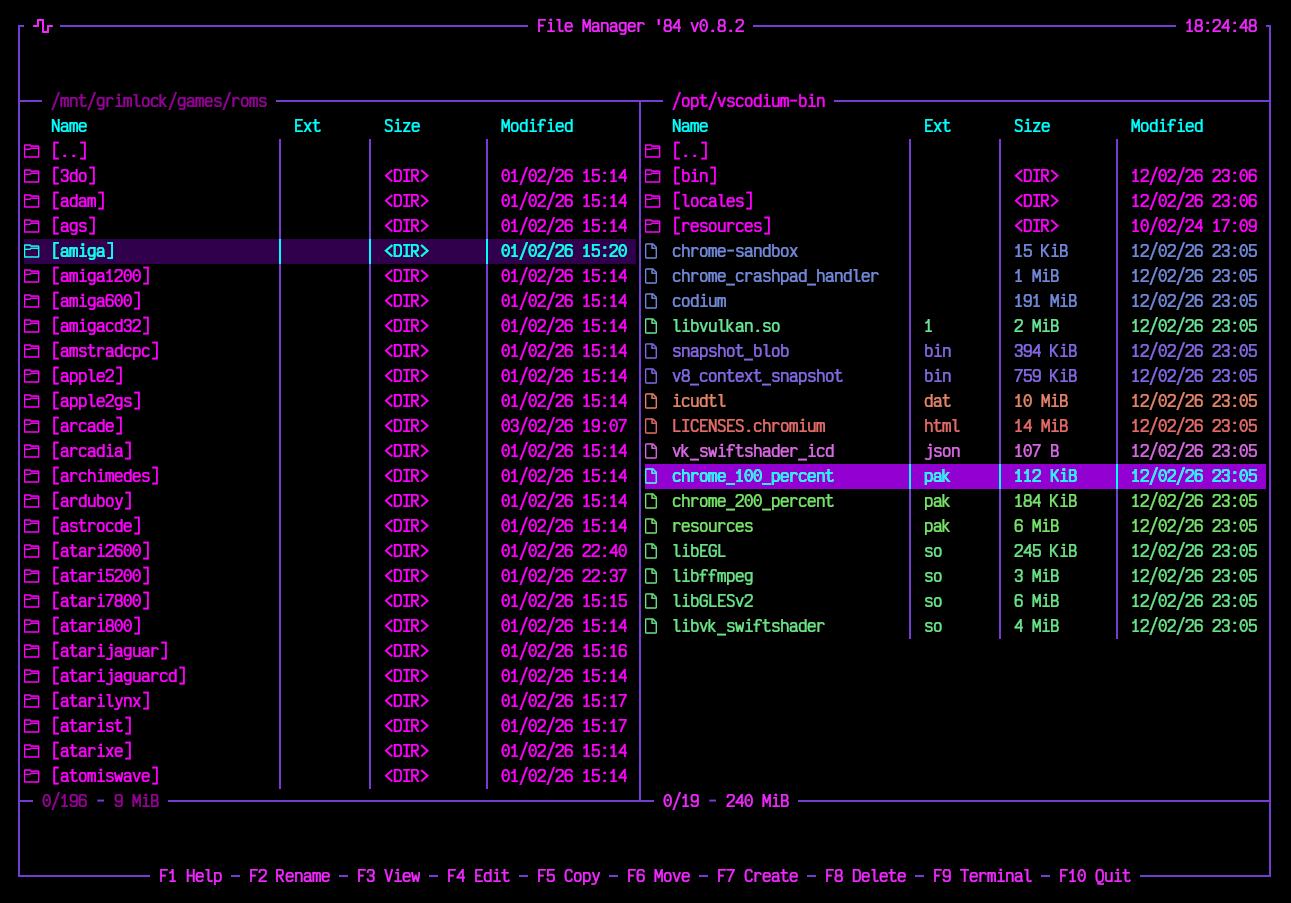
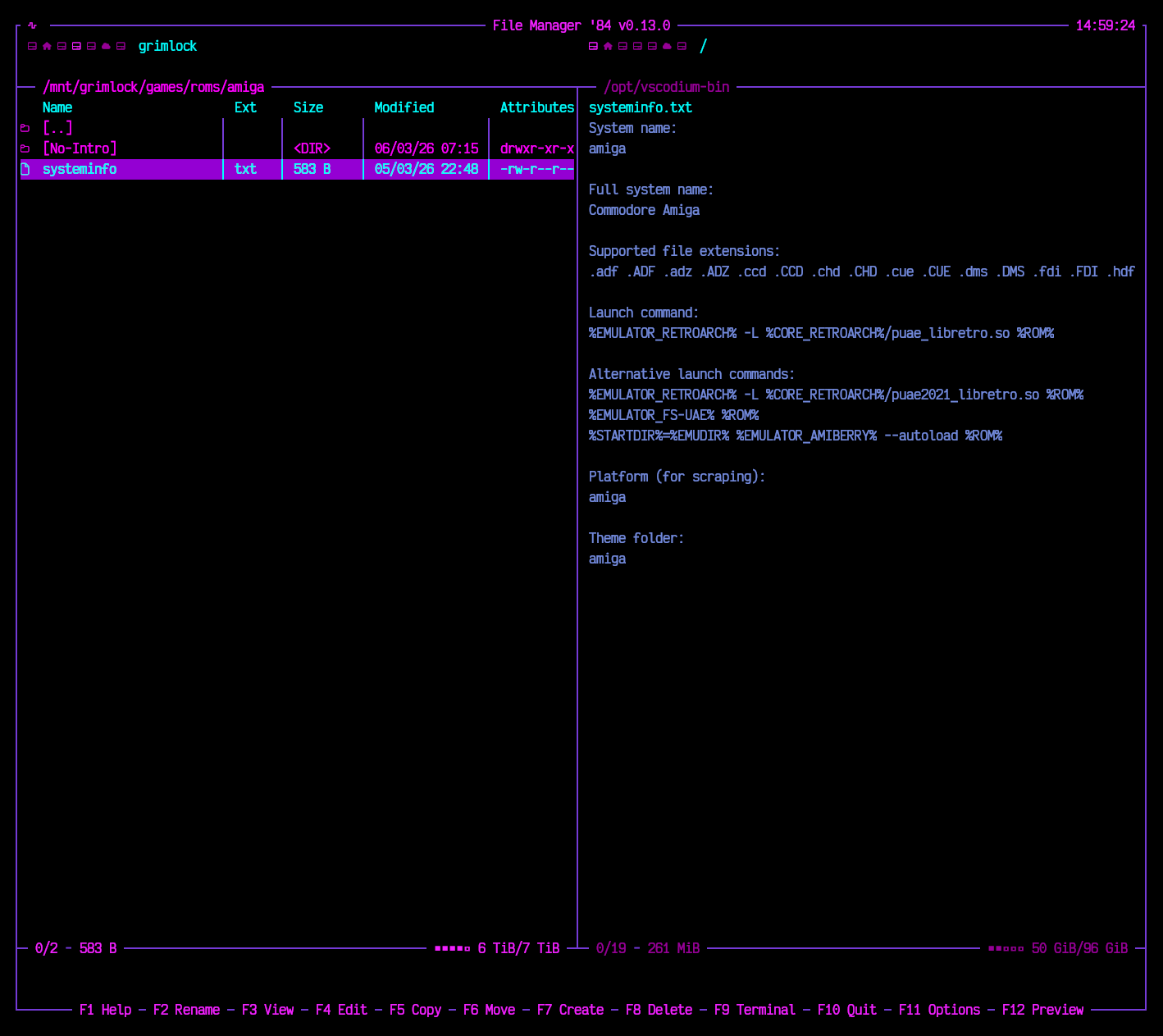
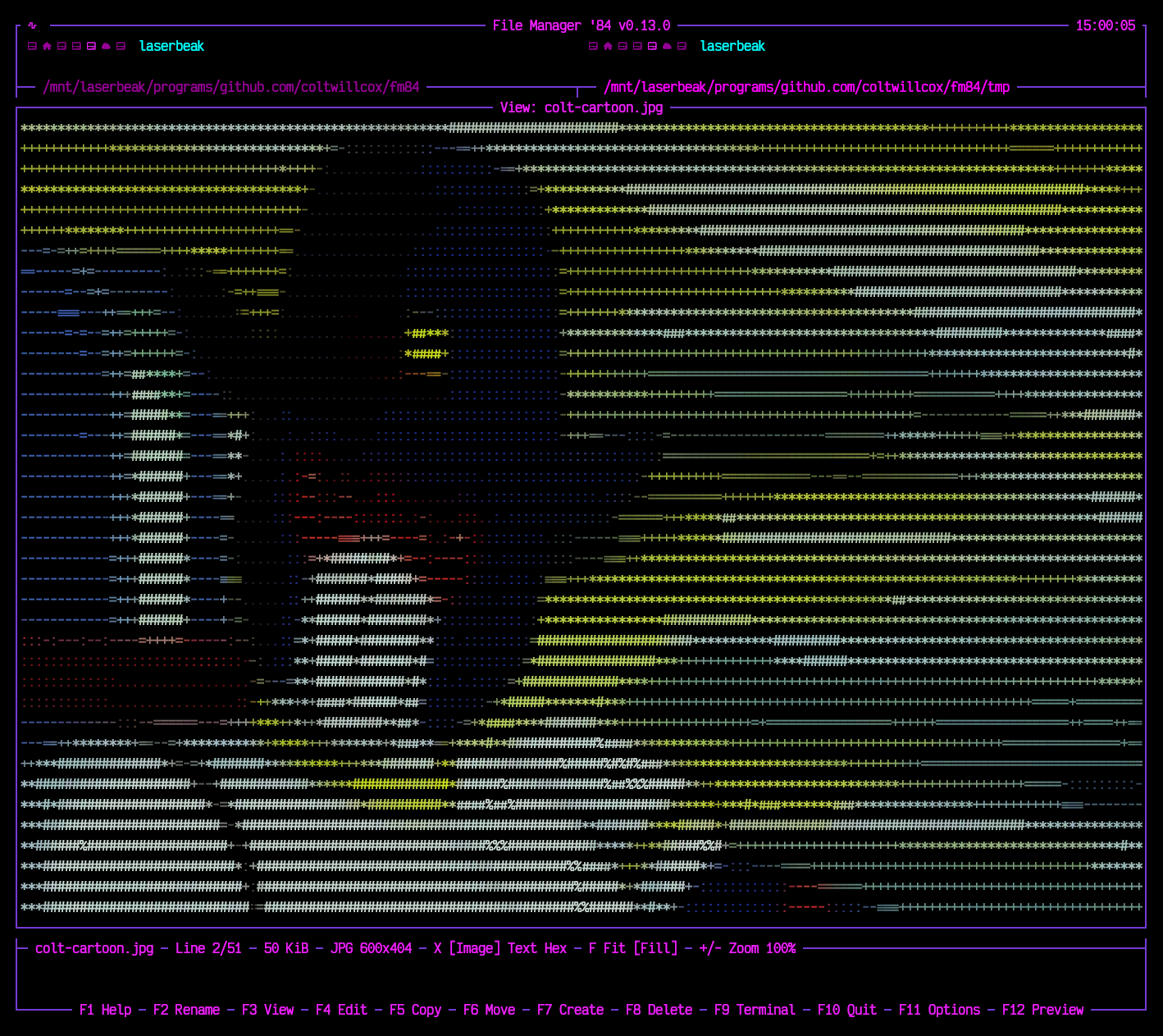
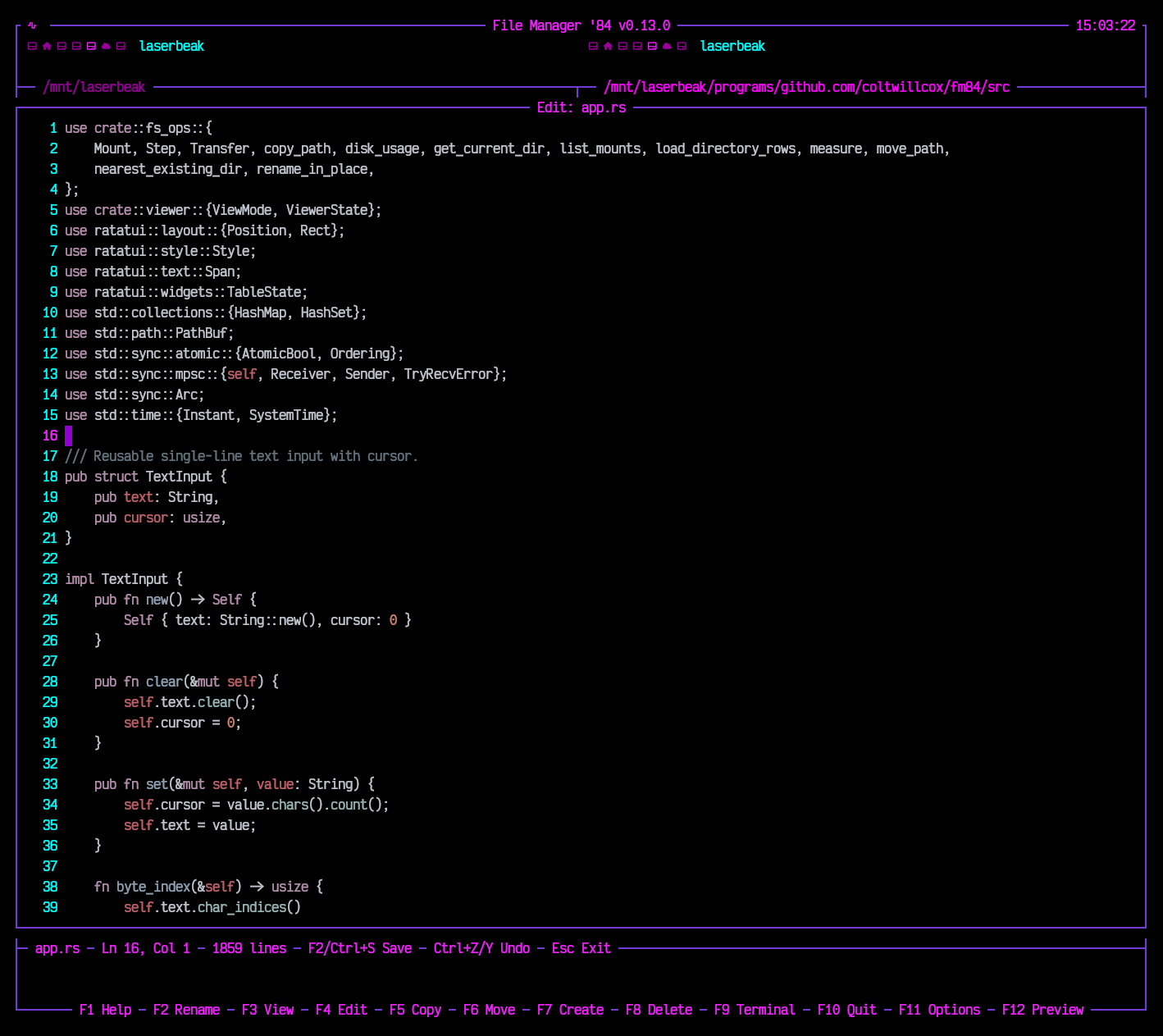
Step into the neon-lit streets of '84. Where files flow like synth waves and directories pulse with purple energy. FM84 is your retro-futuristic companion for navigating the filesystem - dual-pane style, just like the legends intended.
Built with 💜 in Rust using Ratatui + Crossterm.
- 📁 Dual-pane layout - because one panel is never enough
- ⌨️ Arrow keys - glide through your files
- 🏠 Home/End - teleport to the edges
- 📄 PageUp/PageDown - cruise in style
- 🔀 Tab - switch between panels like flipping cassettes
- ↩️ Enter - dive into directories
- ⬅️ Backspace - ascend to parent realm
- 🔗 Symlinked directories - listed and entered like the real thing
- 💿 Drive switcher - click a drive icon, or use Alt+F1 / Alt+F2 (or Ctrl+F1 / Ctrl+F2), to send either panel to a mount; removable and optical media get their own icons
- 🔎 Type-ahead search - just start typing to find files
- ⬆️⬇️ Navigate matches - Up/Down arrows jump between results
- 🧹 Esc - clear the search vibes
- F1 💡 - Help/About
- F2 ✏️ - Rename files & folders
- F3 👁️ - View files (text, hexdump, or images as ASCII art)
- F4 📝 - Edit files with syntax highlighting (Ctrl+S to save, unsaved changes prompt, mouse click to position cursor)
- F5 📋 - Copy to other panel (selected items or cursor item)
- F6 📦 - Move to other panel (selected items or cursor item)
- 📊 Progress while copying, moving and deleting - a bar with the current file, how far along it is and the transfer rate; Esc cancels, and a cancelled copy cleans up the half-written file. The work runs off the interface thread, so a slow or stalled disk cannot freeze the display
- 🚪 A way out of an operation that will not finish - F10 during one offers to leave; a second F10 takes it, for a disk that has stopped answering and never notices the cancel
- F7 📂 - Create new directories (Shift+F4 for an empty file)
- F8 / Delete 🗑️ - Delete files & folders (selected items or cursor item, with confirmation and progress)
- F9 💻 - Open external terminal in current directory
- F10 🚪 - Exit to the void
- Space / Insert ✅ - Select/deselect files for batch operations
- 🖱️ Double-click - open directories or view files
- 🖱️ Mouse scroll - scroll content in Viewer, Editor, and file panels
- 👀 Automatic refresh - panels notice when their directory changes on disk and reread themselves
- ⌨️ Ctrl+R - force an immediate reload of both panels
- 🧭 Vanished directories - if the open directory is deleted, the panel climbs to the nearest surviving parent
- 🤫 Stays out of the way - never reloads while a dialog, Viewer or Editor is open
- 📋 Name, Ext, Size, Modified, Attributes - permissions written the way
ls -lwrites them - 📐 Priority when space runs short - columns drop from the right, Name always stays and keeps the leftover width
- 📈 Panel stats - selected/total file count and size shown per panel
- 💽 Disk usage - a meter and used/total for each panel's filesystem, shortening then stepping aside on narrow terminals
- 🎨 Active/inactive styling - active panel stats highlighted, inactive dimmed
- 🖼️ Bordered frame with filename title bar
- 📊 Line numbers in the gutter
- 🔢 Status bar - filename, line count, file size, detected syntax
- 🔢 Hex view - binaries open as a
hexdump -C;Xtoggles hex for any file, so you can eyeball a BOM or CRLF endings - 🖼️ Images as ASCII art - PNG, JPEG, GIF, WebP and BMP drawn in colour;
Xcycles Image, Text and Hex,Fswitches between fitting the whole picture in, centred, and filling the viewer - 🔍 Zoom -
+and-scale a picture from a quarter of the fitted size to four times it, keeping whatever is in the middle of the view in the middle - 🖱️ Mouse selection - drag to select, Ctrl+C to copy
- 🛡️ Escape sequences neutralised - a file full of control codes can't hijack your terminal
- ❓ Large file prompt - asks before pulling anything over 64 MiB into memory, and before decoding a picture that needs over 256 MiB of it - a few hundred KB of PNG can unpack to hundreds of MB
↔️ Horizontal scrolling - Left/Right keys and mouse scroll wheel, stopping at the longest line- 🖱️ Mouse scroll - vertical and horizontal scrolling with the scroll wheel
- 🌈 Syntax highlighting for Rust, Python, JS, TS, JSON, TOML, YAML, Markdown, Shell, C/C++, HTML, CSS
- ⚡ Incremental highlighting - typing re-parses from the edited line, so speed doesn't fall off in long files
- ↩️ Line endings preserved - a CRLF file stays CRLF when saved
- 🖼️ Bordered frame with filename and modified indicator in title bar
- 📄 Full text editing - cursor navigation, insert, delete
- ✂️ Select, cut, copy, paste - Shift+arrows to select, Ctrl+A for all, Ctrl+X/C/V (or Ctrl+Insert, Shift+Insert, Shift+Delete)
- ↩️ Undo and redo - Ctrl+Z, then Ctrl+Y or Ctrl+Shift+Z, 200 steps deep, one step per action rather than per keystroke burst
- 📋 System clipboard - copies reach it over OSC 52, pastes arrive as bracketed paste, both without linking a clipboard library
- 💾 Save - F2 or Ctrl+S
- 📍 Line/Column tracking - always know where you are
⚠️ Unsaved changes prompt - Save/Discard/Cancel dialog on close↔️ Horizontal auto-scroll - viewport follows cursor past the right edge- 🖱️ Mouse scroll - vertical and horizontal scrolling with the scroll wheel
- 🖱️ Mouse click and drag - click to position the cursor, drag to select
- 🪞 Opposite panel - shows the head of whatever the cursor is on, and follows it
- 📁 Directories - item count instead of contents
- 🪶 Bounded - reads at most 64 KiB, never prompts, never loads a whole file
- 📏 Calculated on select - press Space on a directory to calculate its size
- 📌 Persistent display - sizes stay visible after deselecting
| Key | Action |
|---|---|
↑ ↓ ← → |
Navigate |
Tab |
Switch panels |
Enter |
Open directory / Execute |
Backspace |
Go to parent directory |
Home / End |
Jump to first / last item |
PageUp / PageDown |
Page navigation |
[a-z0-9] |
Quick search |
Esc |
Clear search / Close dialogs |
F1 |
Help |
F2 |
Rename |
F3 |
View file |
F4 |
Edit file |
F5 |
Copy to other panel |
F6 |
Move to other panel |
F7 |
Create directory |
Shift+F4 |
Create empty file |
F8 / Delete |
Delete (selected items or cursor item) |
Esc |
Cancel a running copy, move or delete |
F9 |
Open terminal |
F10 |
Quit (twice during an operation) |
F11 |
Options |
F12 |
Preview cursor file in other panel |
Alt+F1 / Alt+F2 |
Choose a drive for the left / right panel (Ctrl works too, or click an icon) |
X |
Toggle hex view; cycle Image, Text, Hex for images (in Viewer) |
F |
Fit or fill an image (in Viewer) |
+ / - |
Zoom an image in or out (in Viewer) |
Shift+arrows |
Select text (in Editor) |
Ctrl+A |
Select all (in Editor) |
Ctrl+X / Ctrl+C / Ctrl+V |
Cut / Copy / Paste (in Editor) |
Ctrl+Z |
Undo (in Editor) |
Ctrl+Y / Ctrl+Shift+Z |
Redo (in Editor) |
Ctrl+C |
Copy selection (in Viewer) |
Space / Insert |
Select/deselect file |
Ctrl+R |
Reload both panels |
Scroll |
Scroll content (panels, Viewer, Editor) |
# 🦀 Clone the future
git clone https://github.com/coltwillcox/fm84.git
cd fm84

# ⚙️ Compile with cargo
cargo build --release

# 🚀 Launch into the neon grid
cargo run --release
Debug builds compile dependencies optimised too, so a plain cargo run still decodes images at full speed. The first debug build takes a little longer for it.
Pre-built binaries beam down from the neon sky:
| Platform | Architecture | Format |
|---|---|---|
| 🐧 Linux | x86_64, ARM64 | .tar.gz |
| 🍎 macOS | Intel, Apple Silicon | .tar.gz |
| 🪟 Windows | x86_64 | .zip |
# 📥 Download from GitHub Releases
# https://github.com/coltwillcox/fm84/releases

# 🎮 Extract and run
tar -xzf fm84-v*.tar.gz
./fm84
No cargo? No problem. Grab a binary and jack in. 🔌
- 🦀 Rust (2024 edition)
- 🖥️ ratatui - TUI framework
- ⌨️ crossterm - Terminal magic
- 🎨 syntect - Syntax highlighting
- 🖼️ image - Decoding pictures for the Viewer
- 🕐 chrono - Time vibes
╔══════════════════════════════════════╗
║  VIOLET DREAMS • PURPLE HAZE • NEON  ║
║    ▓▓▓▓▓ SYNTHWAVE FOREVER ▓▓▓▓▓     ║
╚══════════════════════════════════════╝
The color palette channels pure 80s energy:
- 💜 Violet borders -
#743AD5 - 🔮 Purple selections -
#9400D3 - 💗 Magenta directories -
#FF00FF - 🩵 Cyan accents -
#00FFFF - 💙 Soft purple files -
#7289DA
- 🌅 FM-84 (the band, obviously)
- 🖥️ Midnight Commander
- 🎮 Total Commander
- 🌆 Synthwave aesthetics
- 📼 That retro terminal feel
Ride free through the neon grid.
💜 FM84 💜
Where every file operation feels like a synth drop
▀▄▀▄▀▄ v0.12.1 ▄▀▄▀▄▀