
A plugin for Obsidian to draw circuits on a canvas. It is based on the code-forge-temple/circuit-sketcher-core.
⭐️ Love this project? Please consider starring the repository on GitHub and supporting development to help me continue building amazing features!





- Draw and edit circuit diagrams directly within Obsidian.
- Save and load circuit designs.
- Customizable component library, organized in groups and subgroups, with the published components one
Sync...away. - Rotate circuit nodes, zoom and pan the canvas.
- Save the whole circuit as a PNG image.
- Responsive design with automatic resizing.
- Embed circuit diagrams in notes: Reference
.circuit-sketcherfiles in your notes (e.g., by dragging and dropping the file into a note). In read mode, an image of the circuit will be displayed automatically.
- Open Obsidian and go to
Settings⇒Community Plugins⇒Browse. - Search for
Circuit Sketcher. - Select the
Circuit Sketcherplugin and pressInstall, then pressEnable.
or
- Open Community Plugins Page in browser.
- Select
Install, then pressEnable.
- Use the ribbon icon, command palette, or right-click on a target folder in the file explorer and select Create new Circuit Sketcher file to create a new circuit sketcher file.
- Start drawing your circuit on the canvas:
- On the canvas, right-click to show the canvas menu, and select
Create Node. - Right-click on the node to show the node menu, select
Change Image, and choose an image relevant to your circuit node. - Right-click on the node to show the node menu, select
Add Port..., and choose the port location and type. - You can rename the circuit node label or port label by double-clicking on the label. The port or port label can also be deleted (right-click on the port to show the port menu and proceed from there).
- You can relocate ports, either to a different node side or rearrange the ports on the same side, by dragging and dropping the port to the desired location within the dotted blue area.
- You can rotate a circuit node by right-clicking on it and selecting
Rotate, then90° Clockwiseor90° Counterclockwise. Its ports turn with it and its connections are routed again. - After you are satisfied with your changes to the circuit node, and if you wish to save the circuit node to reuse it in the current or a different
.circuit-sketcherfile, you can right-click on the circuit node and pressSave Node to Library(this will update the vault's.circuit-sketcher/circuit-sketcher.libfile). - You can reuse the node by right-clicking on the canvas and selecting
Library..., then the desired node (nodes in a group are in that group's submenu). - To organize the library, right-click on the canvas and select
Library...->Manage Library.... There you can create groups and subgroups (New subgroup), drag nodes and groups into other groups, rename or delete them (deleting a group keeps its nodes: they move up a level),Import...a library or node file into any group, andExport...a node, a group or the whole library. Thedefaultgroup is read-only and only offersSync...(see Component Library). - Connections between circuit nodes can be made by dragging and dropping one port to the destination port (if it is a compatible port). You can delete a connection by selecting it and then pressing the Delete key.
- You can drag the entire circuit by holding the mouse scroll button and moving the mouse.
- You can zoom with the mouse wheel (around the mouse pointer), or with the
+and-buttons in the bottom-right corner of the canvas. The square button below them goes back to 100% and centers the circuit. The zoom is saved with the file. - To save the whole circuit as a picture, right-click on the canvas and select
Save As Image. You getcircuit.png: the entire circuit at 100% on a transparent background, whatever part of it is in view.
- On the canvas, right-click to show the canvas menu, and select
A short video tutorial on how to use the plugin:
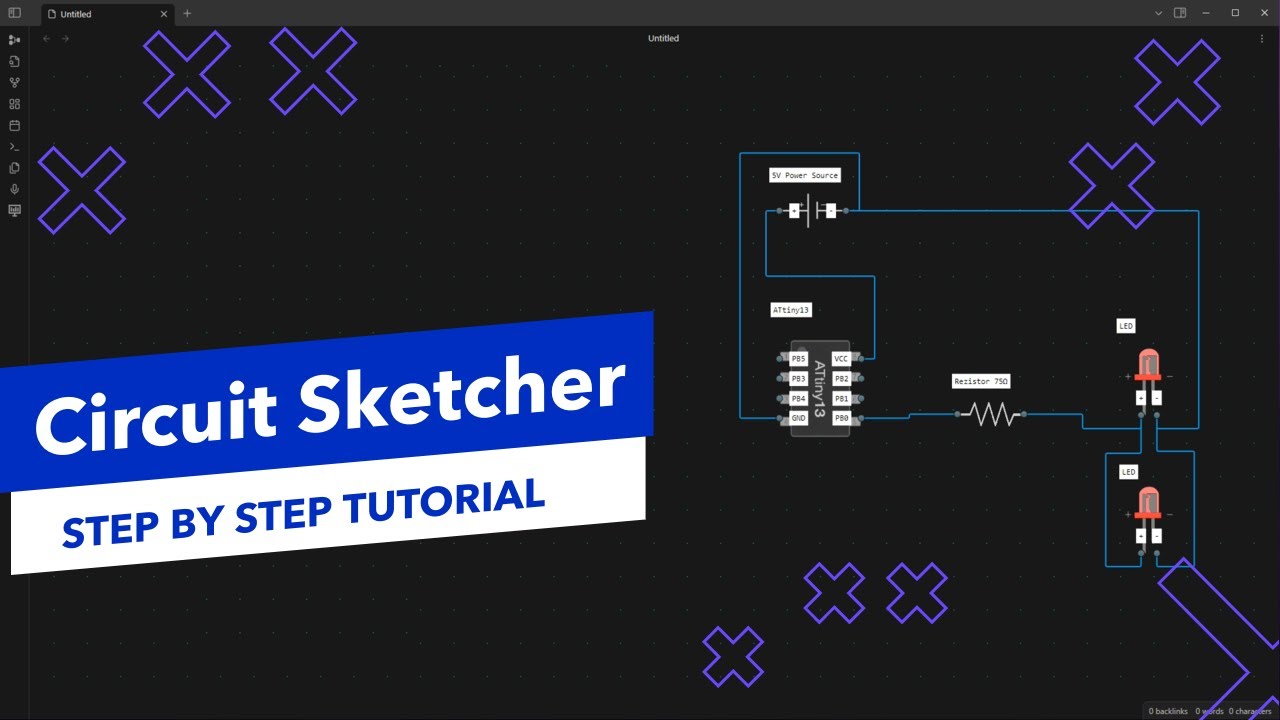
To help you get started with Circuit Sketcher, we provide a curated library of circuit components at circuit-sketcher-lib.
Sync the default library (quickest):
- Right click on canvas to show the menu, then
Library...->Manage Library...->Sync...on thedefaultgroup. It downloads the latest components from circuit-sketcher-lib intodefault; pressSync...again any time to pick up new ones. defaultis read-only: every sync replaces its content. To change one of its components, place it on the canvas, edit it and useSave Node to Library- your version is saved outsidedefault.- Network use: this is the only time the plugin goes online.
Sync...downloads library.json from GitHub; nothing is ever uploaded.
Import the entire library:
- Download the complete component library: library.json
- Import it directly into Circuit Sketcher to get access to all available components (right click on canvas to show the menu, then
Library...->Manage Library...->Import...on theLibraryrow, or on any group to import into that group)
Import individual components:
- Browse individual components: assets/nodes
- Download specific
.jsonfiles for the components you need - Import them one by one into your Circuit Sketcher workspace (right click on canvas to show the menu, then
Import Node)
This project is licensed under the GNU General Public License v3.0. See the LICENSE file for more details.
✦ Agentic Signal – Visual AI agent workflow automation platform with local LLM integration - build intelligent workflows using drag-and-drop interface, no cloud dependencies required.
✦ ScribePal - An Open Source intelligent browser extension that leverages AI to empower your web experience by providing contextual insights, efficient content summarization, and seamless interaction while you browse.
✦ Local LLM NPC An interactive educational game built for the Google Gemma 3n Impact Challenge.