Plugin Widgets Reference
This page serves as a comprehensive visual and functional guide to every widget in the Incremental Everything (Plus) plugin.
- 1. In-Queue Widgets
- 2. History & Progress Tracking
- 3. Prioritization & Sorting Widgets
- 4. Analysis & Visualization
- 5. List & Overview Views
- 6. Utility Popups
- 7. Mastery Drill
(Flashcards only)
Displayed immediately below flashcards in the queue, this widget shows the card's priority, review statistics, and FSRS memory state.

Features:
- (1) Priority Indicator: Shows the card's priority value (explicit, inherited, or default) with a color-coded badge.
- (2) Card Priority Shield: A real-time counter showing how many of your highest-priority cards are still due. See Priority Shield for details.
- (3) Weighted Shield: An exponential priority-weighted metric (if enabled in settings) showing the fraction of your total learning workload that has been processed. Clicking it opens a detailed percentile bucket breakdown. See Weighted Shield for details.
- (4) Reps & Time: Total number of reviews (with lapses in red parentheses), cumulative time spent on this card, the card age (time since first review), and the cost (time spent per year of age or coverage). Hover over it for an explanatory tooltip.
- (5) FSRS DSR Analytics: Difficulty (D), Stability (S), and Retrievability (R) computed by the plugin's embedded FSRS v6 engine. The exact time passed since the last review is shown next to Stability. Hovering over this section reveals the projected Next Difficulty for all four grading options (Again, Hard, Good, Easy).
- (6) SInc (Stability Increase): The multiplier showing how much stability will grow after a successful review. Hover to see projections for Hard / Good / Easy.
- (7) 🔬: Opens the Flashcard Repetition History popup
- (8) Incremental Rem Status Indicator: An icon displayed on the right border whenever the current card is also an Incremental Rem, providing instant visual feedback of its dual-status.


Installed directly into the native RemNote Queue Toolbar, this widget guarantees that the absolute priority of the current item (both Flashcards and Incremental Rems) is persistently visible during review.
Unlike the Card Priority Display, which lives at the bottom of flashcards and can be easily scrolled out of view on long documents, the Queue Toolbar Priority widget is anchored to the top toolbar, making it accessible instantly.
-
Supports both types: Shows absolute priorities for both Incremental Rems (e.g.
P10) and Flashcards (percentile rank - relative priority - is shown on hover and also indicated by the badge color). -
Opt-in setting: Controlled via the
Display Queue Toolbar Priorityplugin setting (enabled by default).

(Incremental Rems only) An info bar shown below the answer buttons when reviewing an Incremental Rem in the queue. It displays review stats, the Priority Shield counter, and a 📊 button to open the IncRem Repetition History.

(PDF and HTML Incremental Rems only)
When reviewing a PDF or HTML Incremental Rem, you can click the 📝 Document Notes icon in the document's top bar (next to the breadcrumbs) to open the current document's Rem in the Right Sidebar.
This dedicated widget allows you to seamlessly view and edit the document's notes, add child rems, and organize your thoughts side-by-side with the reading material without losing your place in the queue. It intelligently synchronizes with your queue state, showing the document notes only when an applicable IncRem is being reviewed, and gracefully displaying an empty state during flashcard turns.

(Flashcards only)
A detailed popup for regular flashcards, enriched with FSRS analytics. Open it via the 🔬 button on the Card Priority Display, or press Ctrl+Shift+H while a flashcard is showing. Press Esc to close.

Features:
- Rem Name Header: Identifies the parent Rem holding the flashcard, plus Card ID and Rem ID.
- Total Reviews & Time: Aggregate review count, cumulative time spent, card age, coverage (time from first to next scheduled review), and cost (ignoring any reviews that occurred before a manual Date Reset).
- Date Summaries: Next repetition scheduled, optimum next repetition (Last practice + Stability), date the card becomes stale (Last practice + 2× Interval), and current interval with stability ratio.
- Retrievability Gradient: R is displayed with a dynamic color gradient — red (≤ 70%) through green (100%).
- SInc per grade: Color-coded Stability Increase projections for 🟠 Hard / 🟢 Good / 🔵 Easy with hover tooltips showing projected stability.
- History Table: Every review with rating (color-coded), response time, target vs. practice date, delay, next interval, per-step D & S (in friendly units), SInc ratio, and pluginData.
- Color-Coded Markers: Visual markers distinguish standard reviews, queue reschedules (📅), editor command reviews (⌨️), and manual date resets.
📖 Full documentation: Card Stats & FSRS Integration
(Incremental Rems only)
Two interconnected popups for Incremental Rems, both accessed via Ctrl+Shift+H:
-
Single History — triggered on an individual IncRem (in the queue via the 📊 button, or in the editor via
Ctrl+Shift+H). Shows the Rem's full repetition log: date, time spent, scheduled interval, priority at the time of review, and event type markers (📅 reschedule, ⌨️ editor review, etc.).

- Aggregated History — triggered on a Document or Folder that contains incremental descendants. Displays a hierarchical tree of all child IncRems with aggregated metrics (total reps, total time, item count) for each node and its subtree. A toggle button in the header lets you switch between Single and Aggregated views.

The Ctrl+Shift+H command intelligently routes to the right view: Single for individual items, Aggregated for folders. If triggered on a flashcard, it opens the Flashcard Repetition History instead.
(Right Sidebar)
A distinct widget that serves as a chronological log of all your Incremental activity — unlike the popups above which show per-item review details, this widget tracks what you saw and when, now including creation events.
- Tracks up to 200 items, filtered by the current Knowledge Base.
- Shows a unified timeline of review sessions and creation events sorted chronologically (most recent first).
- Each entry shows a color-coded pill badge: 🟢 Created (the Rem was first made Incremental) or 🟣 Reviewed (a review session).
- Searchable by text content; shows "seen X ago" (reviews) or "created X ago" (creation events).
- Useful companion to the History and Final Drill plugin.

(Right Sidebar)
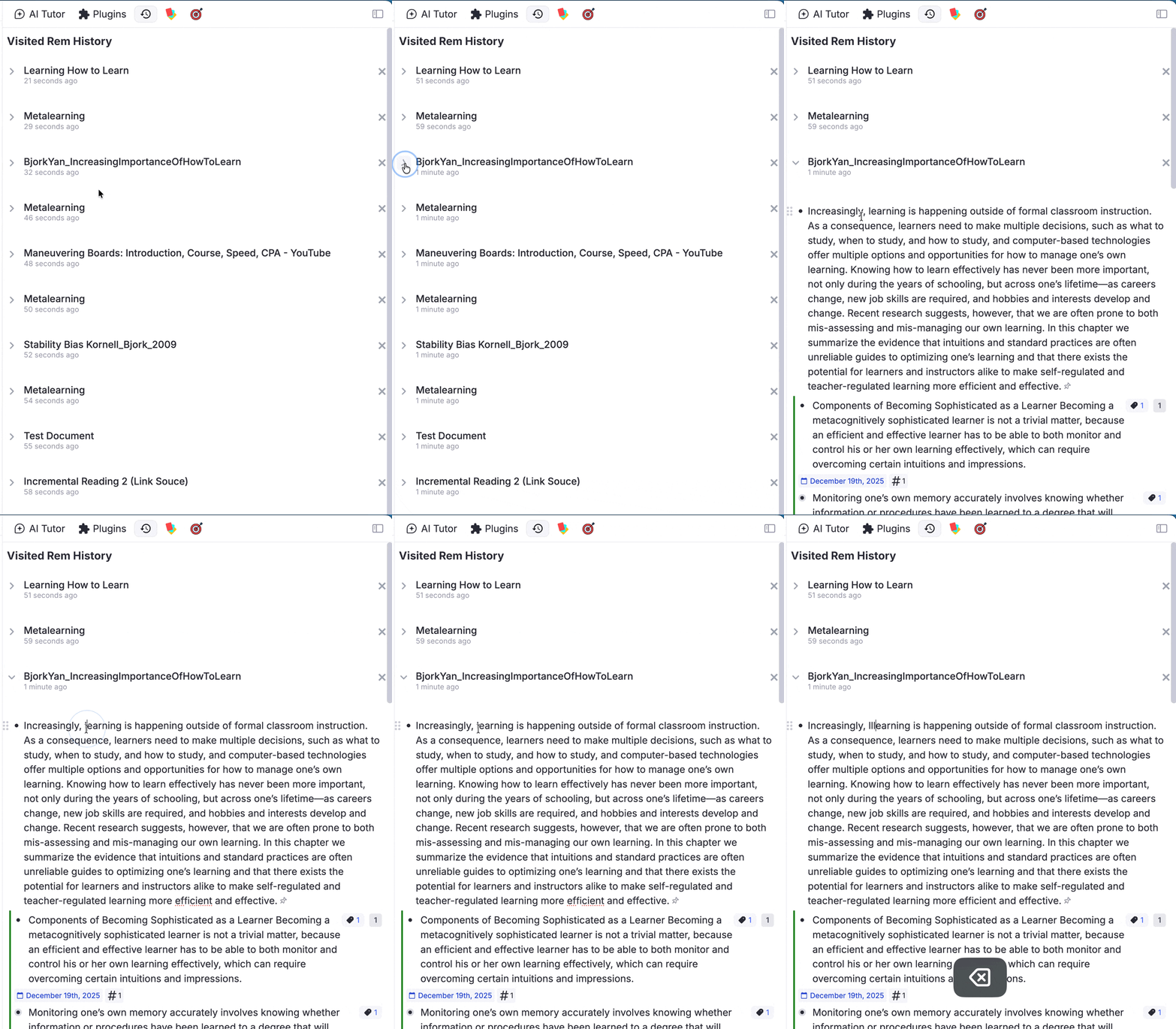
A chronological log of the Rems you have navigated to in the Editor. Helps you quickly jump back to documents you were just working on.
- Tracks up to 200 items, filtered by the current Knowledge Base.
- Searchable by text content with multi-word query support.
- Each entry can be expanded and edited inline in the sidebar.
📖 Full documentation: Visited Rem History
(Right Sidebar)
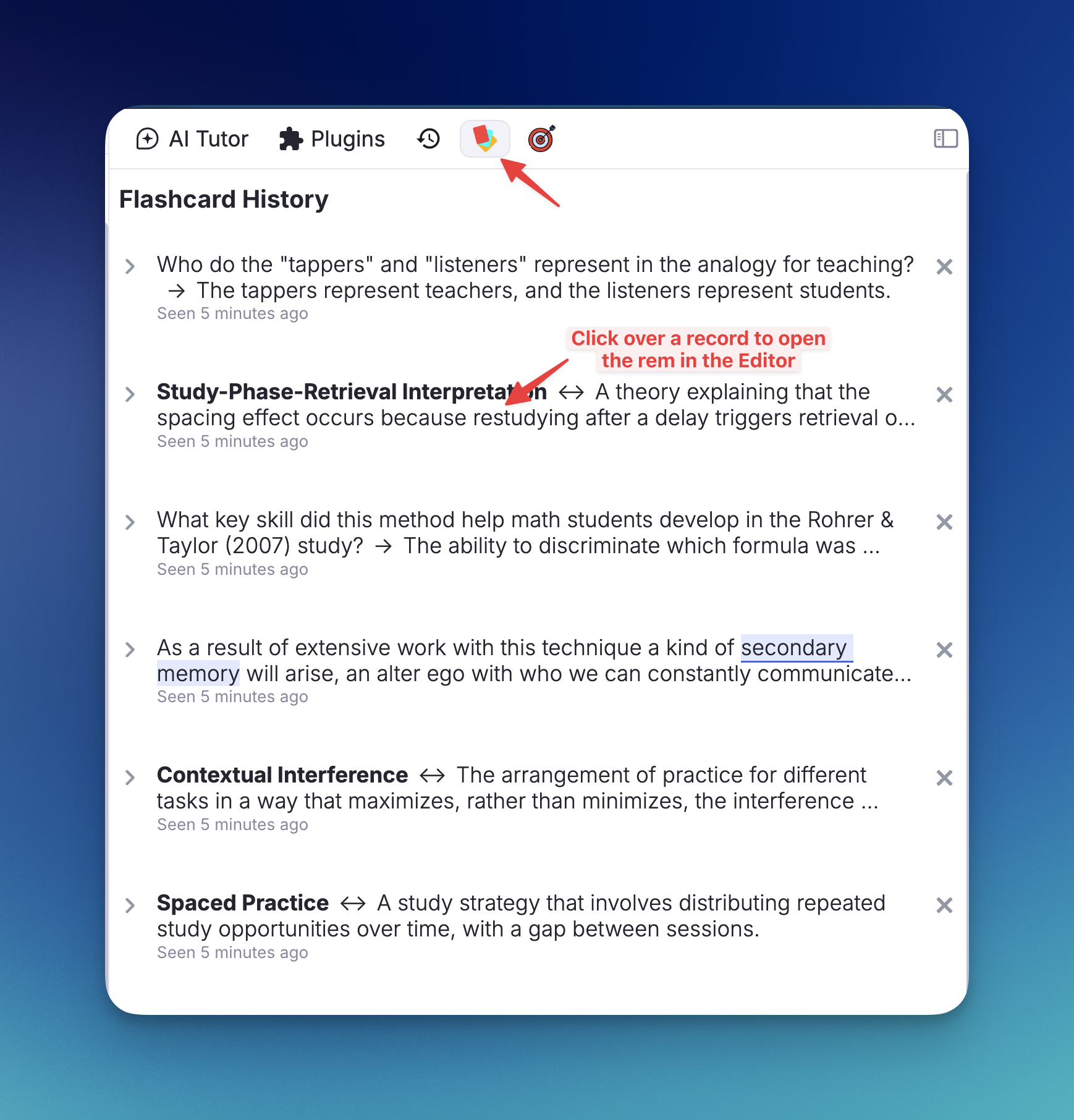
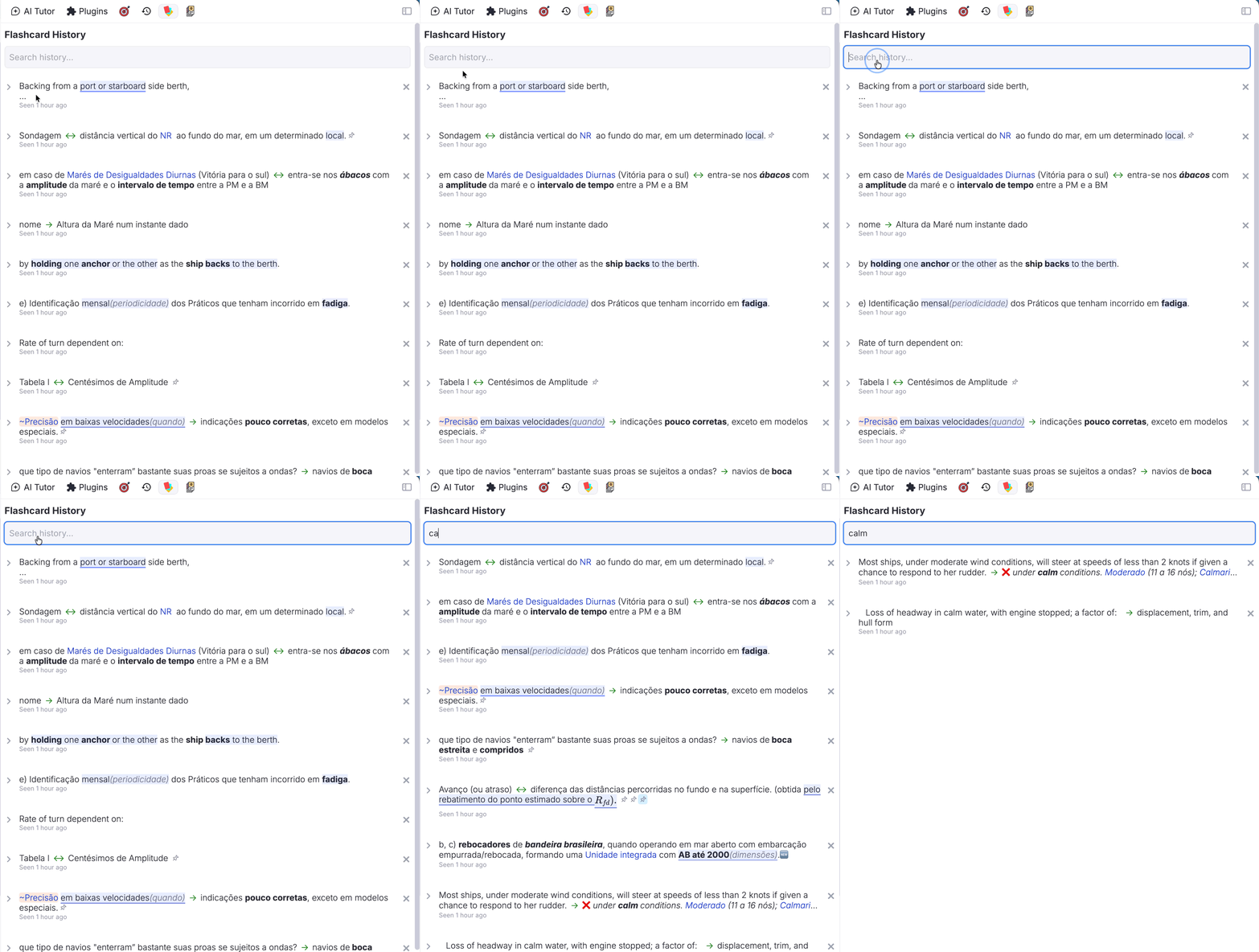
Records the chronological history of every flashcard reviewed in the queue (cluster-aware: each sibling in a card cluster is logged individually as it becomes visible).
- Searchable by both front and back text of cards.
- Click any entry to open the Rem in the Editor.
- Holds up to 999 entries, filtered by current Knowledge Base.
📖 Full documentation: Flashcard History
Shortcut: Opt+P (or /Prioritize, or the Change Priority button in the queue)
The comprehensive priority interface. Context-aware: the sections it displays adapt to what the focused Rem is.
Sections (shown based on Rem type):
| Section | When shown | What it controls |
|---|---|---|
| 📖 Incremental Rem | Rem has the incremental powerup |
The IncRem's reading queue priority (0–100) |
| 🎴 Flashcard Priority | Rem has its own flashcards | The cardPriority powerup value for those cards |
| 🌿 Inheritance Priority | Rem has neither (or IncRem + no cards) | A cardPriority anchor for descendant flashcards to inherit |
Each section includes an absolute slider (0–100), a color-coded relative percentile rank within the current scope (KB-wide or document), and an ancestor context chip showing the nearest ancestor with a priority.
Conflict handling: When a Rem is both an IncRem and has flashcards with different priorities, the widget warns you and offers one-click sync options ("Use IncRem priority for both", "Use Card priority for both", or "Save both as-is").
Clear Card Priority button: When only the Inheritance Priority section is shown and the Rem has no flashcards of its own, a Clear Card Priority button appears. This removes the cardPriority inheritance anchor from the Rem in a single click — the only in-widget path to do so without manually deleting the tag in the editor. The popup closes instantly (fire-and-forget); the actual powerup removal runs in the background tracker.

Shortcut: Ctrl+Opt+P
A zero-lag alternative that opens instantly by skipping expensive KB-wide calculations. Provides absolute-priority sliders for both Incremental Rem and Flashcard priorities, with keyboard arrows and acceleration for rapid adjustment. Ideal for routine adjustments on mobile, web, or during fast review sessions.

Triggered by: Extract with Priority (Opt+Shift+X), Create Incremental Rem (PDF/web highlight menu), Toggle Incremental Rem (document menu)
A combined popup that appears automatically when a new Incremental Rem is created, letting you set both its priority and its first review interval in a single step.
Features:
- Rem Name Header: Confirms which rem you just created (truncated, with full tooltip on hover).
- Priority Slider (auto-focused): Same color-coded gradient slider as the Light Priority Widget; supports ↑/↓ arrow acceleration.
- Interval Input: Orange number field (same style as the Reschedule widget) specifying how many days until the first queue appearance. Defaults to your configured Initial Interval setting and shows a live "Next review: [date]" preview.
- Tab Cycling: Tab moves focus through all interactive elements — priority → interval → Save → Next 7 Days → Next 30 Days → priority (wraps). Shift+Tab reverses the direction.
-
Preset Buttons:
- Next 7 Days — saves priority and schedules in 7 days.
- Next 30 Days — saves priority and schedules in 30 days.
-
Batch Mode: When triggered via
Alt+Shift+Xwith multiple Rems selected, the popup shows a blue "📋 N rems selected" banner instead of a single Rem name. On save, the chosen priority and interval are applied to all selected Rems at once. - Enter saves; Esc cancels without saving.


Access: Three-dot menu in the top-right corner of the queue (or using the Sorting Criteria command)
Controls three aspects of your queue algorithm: IncRem Randomness (how strictly the queue follows priority order), Flashcard Randomness (used for Priority Review Documents), and Flashcard Ratio (the balance between flashcards and IncRems per session).

📖 Full documentation: Prioritization & Sorting — covers the priority system, inheritance, all priority tools, sorting criteria, and the Priority Shield.
(Right Sidebar)
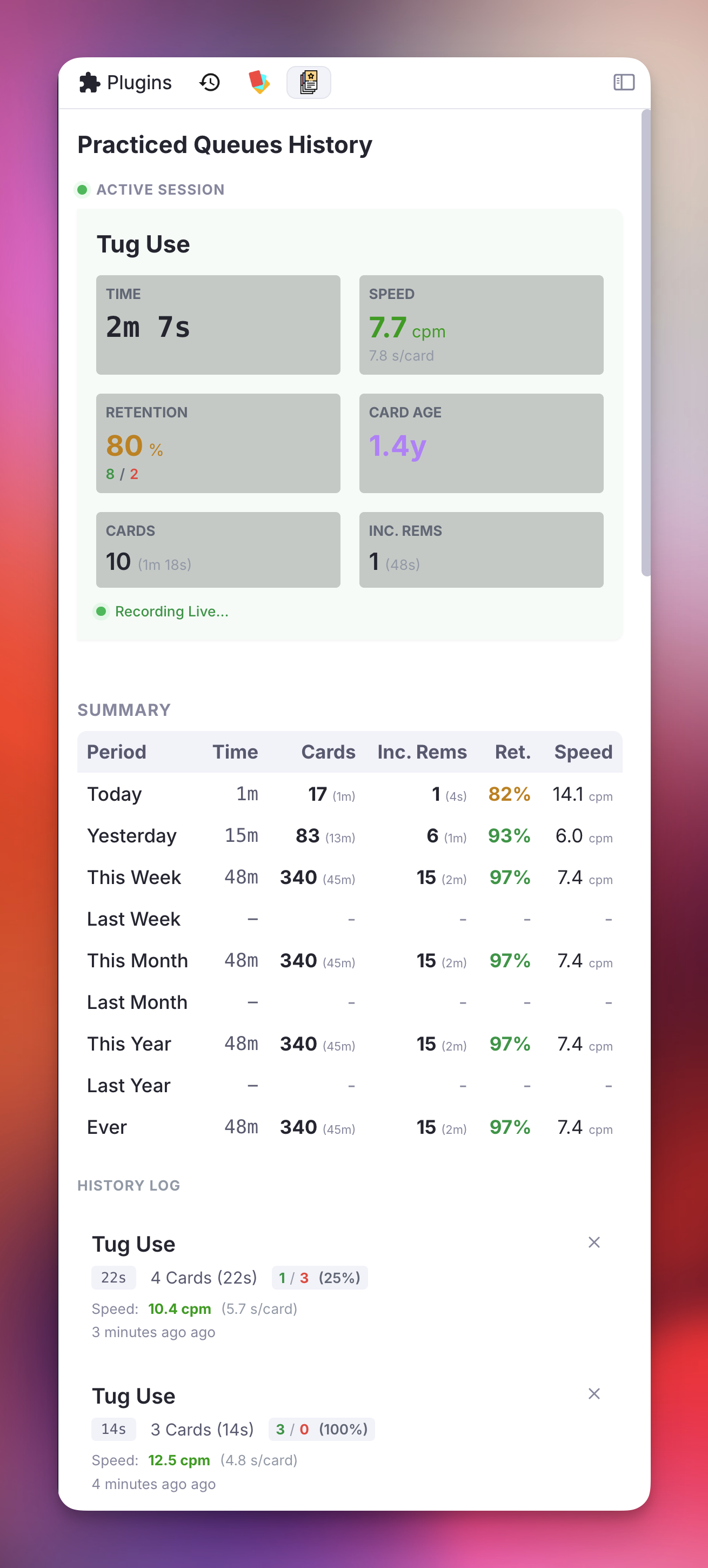
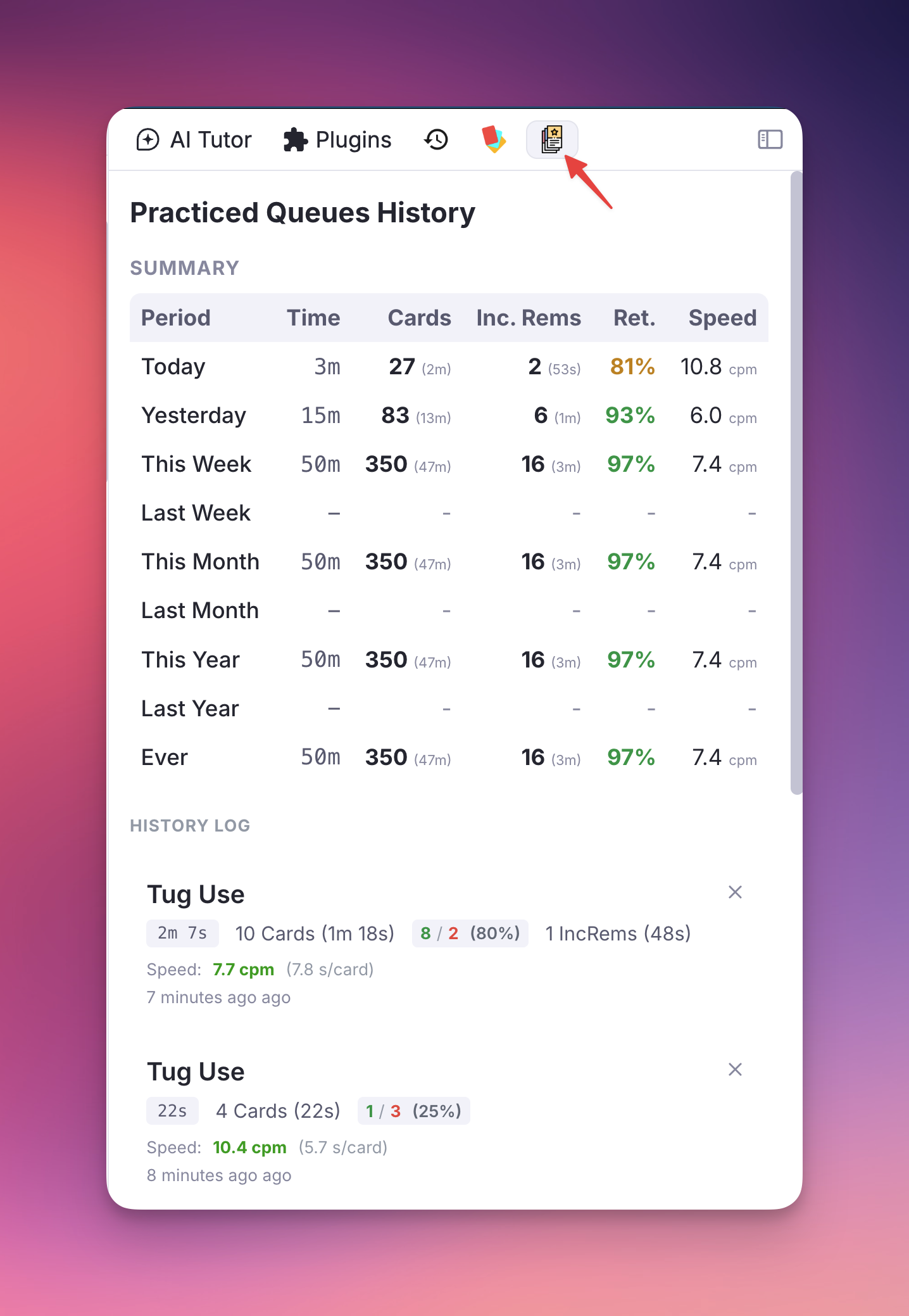
Tracks every practice session with a real-time live view and a full history table.
Live Dashboard (active during a queue session):
- Current speed (CPM and s/card), retention rate, card age, cost, and interval for the card on screen.
- Separate breakdowns for Flashcards and Incremental Rems.
History Table (completed sessions):
- Aggregated stats for Today, Yesterday, This Week, Last Week, and custom ranges.
- Per-session detail: total time, card count, flashcard/IncRem split, speed, retention.
- Click a session to open its source document in the Editor.
- Export/Import session history to a local JSON file for backup.
📖 Full documentation: Practiced Queues History & Live Dashboard
Access: 📊 button on the IncRem Counter widget (document-level) or the All Inc Rems main view (KB-wide)
Visualize how your items are distributed across the priority scale. Two views are available:
- Absolute Priority View: Shows item counts per priority bucket (0–100).
- KB Percentile View: Shows how items in the current scope rank relative to the entire Knowledge Base.
Document Level:

Knowledge Base Wide:

These graphs are also embedded at the top of generated Priority Review Documents, so you can verify the effect of your randomness settings.

📖 Full documentation: IncRem List & Main View — Priority Distribution Graphs
Access: Three-dot menu in the queue → "Priority Shield History", or the Open Priority Shield Graph command
Plots your daily Priority Shield values over time, helping you identify trends in your capacity to process high-priority material.
Features:
- Logical Organization: Graphs are grouped into Document-level (IncRem & Card) and Knowledge Base-wide scopes.
- Visual Separator: A horizontal divider clearly distinguishes between Document and KB-wide data for better scanability.
- Interactive Drag-to-Zoom: Click and drag horizontally on any graph to zoom into a specific date range. A Reset Data Range button appears in the top-right corner to return to the full view.
- Optimize Priorities Zoom: A dedicated button automatically scales the absolute and relative priority Y-Axes to perfectly frame the visible data in your current zoom window. Highly beneficial for viewing subtle metric changes over time!
- Scoped Scaling: The Y-axis (Universe Size) for each chart automatically scales based on the visible data range, ensuring a clear view of your progress even in the Knowledge Base charts.
-
Dismissed Rems Tracking (IncRem Graphs): The IncRem shield graphs track your process progression with a stacked area chart:
- Green Line: Your active Incremental Rems universe.
-
Black Dashed Line: Your Total Universe (IncRems + items marked with the
dismissedpowerup). - Yellow Area: The visual volume of your dismissed material.
- Detailed Tooltips: Hover over any IncRem graph to see a breakdown of your Incremental Rems, Dismissed Rems, Total Universe, and an calculated Processing Percentage metric showing exactly how much of your total universe has been successfully dismissed.


📖 Full documentation: Priority Shield History
Access: IncRem Counter widget → list icon (document-scoped) or View All button (KB-wide)
A feature-rich table of all your Incremental Rems with two entry points:
- IncRem List — scoped to the current document and its descendants.
- All Inc Rems (Main View) — shows every IncRem across your entire Knowledge Base.
Features:
- Filter by Rem type (PDF, PDF Highlight, HTML, YouTube, Video, Rem), status (All / Due / Scheduled), priority range, and text search.
-
Date filter bar: Three independent date fields (Due, Last Review, Created) each with six comparison operators (is, is before, is after, is on/before, is on/after, is between). Inputs accept
MM/DD/YYYY,MM/DD(current year), orN(days ago). A calendar button (📅) opens the native date picker. Invalid values show a red border. - Sort by Priority, Next Rep Date, Last Review Date, Created At, Total Time, or Review Count.
- Inline priority editing: Click any priority badge to adjust it with ↑/↓ arrow key acceleration.
- Created At is shown on each row below the last-reviewed date.
- Review in Editor (🔗): Launch a timed review session directly from a row — the list reopens with your exact filter/sort state after you finish.


📖 Full documentation: IncRem List & Main View
Shortcut: Ctrl+J (works in both queue and editor)
Lets you manually override the next review date and adjust priority in one popup. Use ↑/↓ arrows with acceleration to adjust days and priority, Tab to cycle between fields, and Esc to cancel.

📖 Full documentation: Reschedule
Access: Highlight text in a PDF or web page → click the puzzle piece icon → "Create Incremental Rem"
A hierarchical tree selector that lets you choose where to place a new extract. Supports keyboard navigation (arrow keys, Enter to select), inline child creation via the + button, and automatic priority inheritance from the chosen parent.

📖 Full documentation: Create Incremental Rem from PDF Highlights
(Popup)
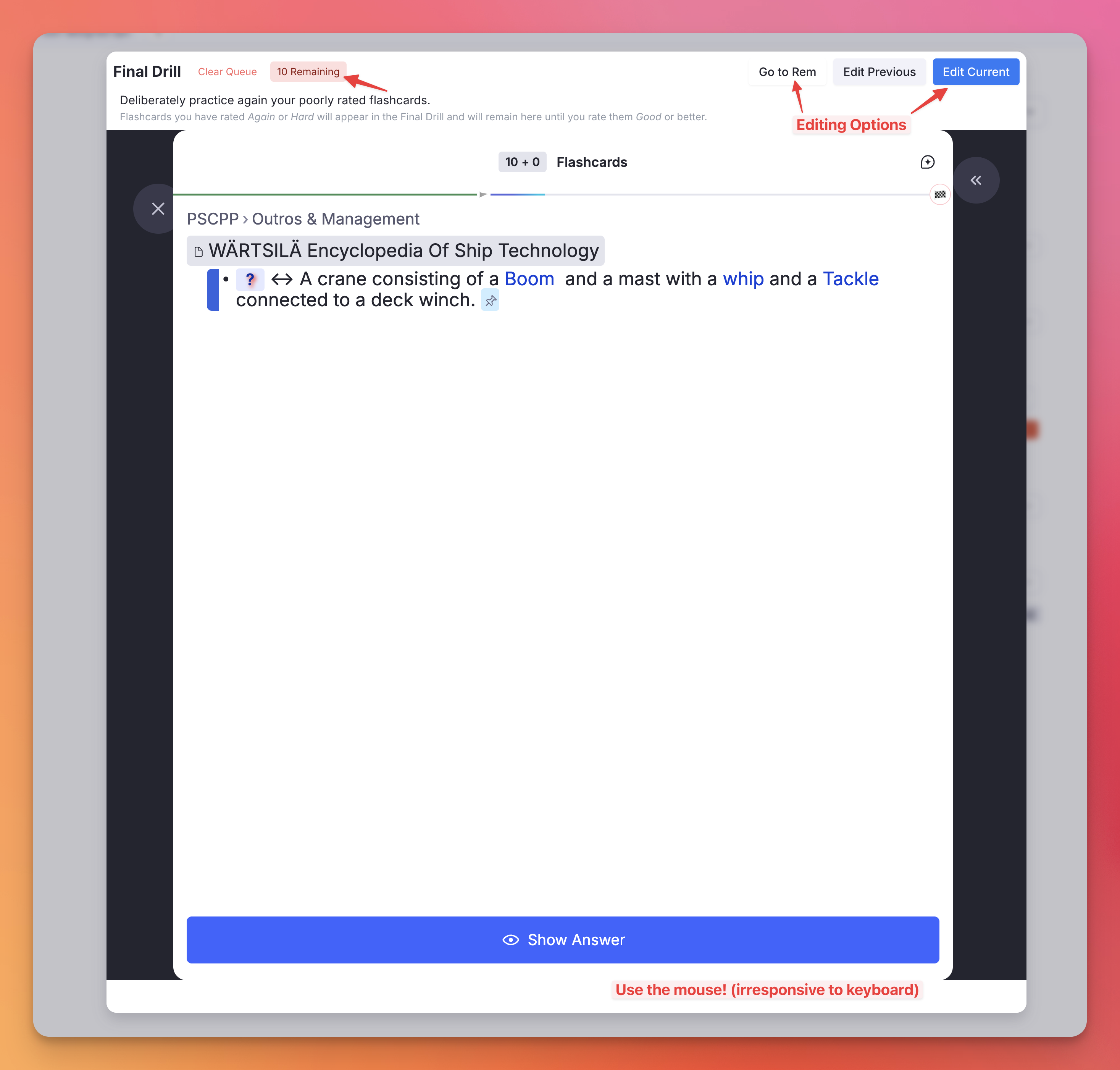
A focused sub-queue of flashcards rated Forgot or Hard, designed for deliberate re-practice until cards are mastered. Inspired by SuperMemo's Final Drill.
- Cards enter the drill automatically when rated Again or Hard; leave when rated Good or Easy.
- Reviews are recorded in your repetition history just like regular reviews.
- Includes a built-in editor UI: Edit Later (defers editing via the Edit Later powerup), Go to Rem, and Edit Previous buttons.
- Old Items Warning: cards lingering past the configured threshold (default 7 days) are flagged; clear them with a single click.
- Clear Queue: empty the entire drill at any time.
📖 Full documentation: Mastery Drill
(Left Sidebar)
A periodic notification widget that appears in the Left Sidebar End when ≥ 10 cards are pending in the Mastery Drill queue.
- Shows the count of pending cards with a rotating motivational phrase.
- Start Drill button opens the Mastery Drill popup directly.
- Dismiss button hides the notification; it reappears automatically every 2 hours.
- Can be disabled entirely via the
Disable Mastery Drill Notificationsetting.
📖 Full documentation: Mastery Drill
