




SleightlyBall is a "spring joint ball" like system built for VRChat users. It is the most customizable, modular, feature-rich ball system with an automatic setup tool, allowing for 2 step installation without any VRChat 3.0 or advanced Unity experience whatsoever.
This is a system and does not include any balls in its own package. Please import your own.
Available now at store.sleightly.dev


- Drag and drop setup - works with any object, not just balls
- Supports balls on either (or both) hands
- Supports up to 8 balls per hand
- Multiple anchor points around the body - pass the ball between hands, head, chest, even the feet or world
- Configurable ball distance and/or strength from in-game
- Constrain any of your anchors in world space or local space and still control balls to and from them
- Mesh based physics (not particle) which works with any object, including collision, bounce, and gravity toggles
- Throw/Shoot modes you can toggle between
- Share your balls with other players! Constrain it to them, or make it orbit them
- FBT Mode options to also control the balls with your feet
- Smart Dynamic Audio supports up to 8 audios both played aloud or locally
- Pilot the ball like a drone without using a constraint-based piloting system, meaning less desync
- Toggle between simple/complex gesture sets in case you want to manage less gestures
- Automatic Write Defaults detection and compatibility with both on/off
- Drag and drop gesture remapping to any configuration you prefer
- Automatically disable facial expressions while controlling the balls
- Automatically optimizes your parameter memory saving up to 46 memory other systems would use. Up to 54/59 (91.5%) of the menu options can fit within 8 memory!
| Specifications | Minimum | Default | Max | Unoptimized |
|---|---|---|---|---|
Memory |
1 | 32 | 55 | 87 |
Icons |
2 | 33 | 57 | 56 |
FX Layers |
5 | 43 | 77 | 54 |
Animation Clips |
15 | 101 | 167 | 148 |


Full Demo GIF

- Basic Unity experience + VRChat SDK3 uploading experience.
- A validated license key for first time activation.
- An active internet connection while in Unity in order to use the tool - cannot be used offline.
- Only compatible with Unity for Windows - not compatible with Unity for Mac/Linux at this time.
- Pre-requisite import - VRChat Creator Companion SDK version
3.1.13or newer.
SleightlyBall's installer now looks sleightly different than at the time of this video recording.
Add to Scene
To add SleightlyBall to your scene, click on JustSleightly in the top toolbar, and click on the SleightlyBall menu option. You can also press Alt + S for SleightlyBall.
This will add the installer onto the first active loaded Avatar Descriptor in the scene.
Technical Details
If you have any GameObjects selected in the scene, clicking the Menu Item for SleightlyBall will search all selected objects and parents first for an Avatar Descriptor.
If there are no active Avatar Descriptors found in the scene, the installer will be added to the base scene.
Activate License
If you have never used this on this PC before, you will see a field labeled Enter your license key. Make sure you've validated your license key on the Discord server, then input your license key from your purchase and click activate. This is a one-time-use key that will authorize the current PC for future use of SleightlyBall.
You will also be prompted to come up with a security question and password. These will be used if you ever need to reset/transfer your license, so please remember your selection. Please don't use any sensitive information for your responses.
If your license key is not working due to it already being in use, click the Transfer License option.
Ball Setup
Ball Configuration
Select the Hand Configuration to set up the SleightlyBall system.
Both HandsBall Inputs Applied to Both Hands Left Handed OnlyBall Inputs Applied to Left Hand Only Right Handed OnlyBall Inputs Applied to Right Hand Only
Ball Inputs
Use the +/- symbol to add/remove additional balls to the system, up to 8 balls. Drag in any GameObject/Prefab from your hierarchy or your project assets. Rearrange them by click/dragging into your preferred order.
If you have an option for Individual/Shared control, please see the related section under Animator Pseudo API.
Technical Details
All GameObjects will have their root re-positioned to (0, 0, 0).
If the input GameObject is a prefab, the prefab will be unpacked.
Inputting the Avatar Root or SleightlyBall's own GameObject will automatically be removed.
Any RigidBody, Spring Joint, and Configurable Joint components within any GameObjects/Prefabs inputted will be removed.
Any Sphere, Box, Capsule, and Mesh Collider components within any GameObjects/Prefabs inputted that are not set as Triggers will be removed.
Leaving an input field blank will yield a Warning. You may continue with blank fields and manually add the balls into the hierarchy later (for advanced users).


Additional Features
Ball Distance
Enable this feature to include a radial puppet that adjusts the distance of the hand and head ball anchors from you by a local scale of 1 - 10x.
Technical Details
This also affects your orbit radius, but the radius may be scaled differently than your hand anchor distance depending on your initial set radius.
If FBT Mode is enabled, this also affects foot anchors and foot orbits.
Adds one dedicated float (8 memory) to your expression parameters.
Ball Strength
Enable this feature to include a radial puppet that adjusts the strength at which the ball is attracted to its anchors.
Technical Details
Default Ball Strength can be configured under Advanced options.
Adds one dedicated float (8 memory) to your expression parameters.
World Constraints
Enable this feature to include four toggles to world constrain your hands, head, or chest anchors independently, allowing you to pass the balls between your body and fixed points in the world.
Enable Local Space to constrain them to your Avatar instead of the World, such as simulating Follower behaviour.
Technical Details
If FBT Mode is enabled, two more toggles will be included to constrain each foot anchor.
Constraining your chest anchor will cause your Chest Orbit gesture control to attract like your head/hand gesture controls rather than orbit.
Enabling Local Space will disable any currently active World Constraints.
World Constraints remember their dropped rotation as well.
Adds 0 - 7 memory to your expression parameters (See Memory Calculations for more details).
World Physics
Enable this feature to include three toggles to enable/disable ball collision, bounce, and gravity.
Technical Details
The ball’s collision, when enabled, can affect world triggers (portals, distance-based mirrors, etc).
Collision is on by default.
Bounce is on by default.
Gravity is off by default.
Adds 0 - 3 memory to your expression parameters (See Memory Calculations for more details).
Simple Control
Enable this feature to add a toggle to switch between simplified versus advanced Gesture Control.
SimpleOnly 'simple' gesture controls are enabled AdvancedAll seven gesture controls are enabled Technical Details
By default, Primary, Secondary, and Orbit are considered
Simplegestures.The definition of a
Simplegesture can be configured from Remap Control Gestures.Adds 0 - 1 memory to your expression parameters (See Memory Calculations for more details).
Shoot Toggle
Enable this feature to add a toggle to switch between ball throw vs ball shoot.
Technical Details
The shoot forward driver lasts 0.25 seconds which can result in unique behaviors, such as briefly curving the shot, or slowing down on impact if shot into a surface with collision enabled at short range.
Adds 0 - 1 memory to your expression parameters (See Memory Calculations for more details).
FBT Mode
Enable this feature to add a toggle to change the gesture control set to include feet control.
Technical Details
See Advanced Options to select an FBT Mode.
Adds 0 - 1 memory to your expression parameters (See Memory Calculations for more details).
Pilot Mode
Enable this feature to add a two-axis puppet control for each enabled hand.
The puppet menu, by default, pilots position on the XZ plane: AKA Moving Forward, Moving Backward, Strafing Left, and Strafing Right.
If you do a Thumbs Up gesture in either hand while the puppet menu is open, the axes swap to XY controls, replacing Forward and Backward with Up and Down.
Closing the puppet menu will have the ball maintain its position in world space, until you activate your Rigid Return gesture while the menu is closed.
While the piloting is less desynced than your typical constraint based piloting system, it is still not in perfect sync due to Unity Physics in VRC and other network difficulties. Please be aware others may not see the ball in the exact same location you do.
Technical Details
The ball piloting rotation is only constrained to your head's Y rotation. This means you can turn your head left/right to steer the ball, but the ball will never move up or down unless you Thumbs Up.
Adds 17 - 18 memory to your expression parameters (See Memory Calculations for more details).
Hide On Idle
Enable this feature to add a toggle that hides the ball when performing the Idle gesture.
Technical Details
When using Simple Control, non-simple controls will also hide the ball.
Adds 0 - 1 memory to your expression parameters (See Memory Calculations for more details).
Ball Audio
Enable this feature to add up to 8 audio sources to attach to the balls.
Audio can be enabled, disabled, or played locally only.
If you add more than one audio, you can select from any of them in-game.
Balls will play their default audio unless a Song Override is selected.
If a song override is cleared, the balls will return to their default audio.
Technical Details
If a ball is already enabled and playing audio when the other ball is enabled, the other ball will jump in sync with the other audio.
Adds 0 - 11 memory to your expression parameters (See Memory Calculations for more details).
Rotation Types
Enable this feature to include three toggles to alter the way the balls rotate/face.
Head FollowBalls rotate in sync with your head. Head AimBalls will always face away from your head based on its own position. NoneBall will stop rotating and preserve its current rotation. Technical Details
Adds 0 - 3 memory to your expression parameters (See Memory Calculations for more details).
Gesture Lock
Enable this feature to add a toggle to lock your current SleightlyBall controls without locking your VRChat gestures.
Technical Details
Adds 0 - 2 memory to your expression parameters (See Memory Calculations for more details).
Avatar Interactions
Enable this feature to include three features that interact with other players:
Player Sharing
Activate to allow others to physbone grab your objects.
This requires others to enable Avatar Interactions with you in VRChat.
See Advanced Options to select a Sharing Mode.
Player Orbit
Activate to cause your Throw/Shoot control to orbit the first player it detects within its path.
Player Constrain
Activate to locally constrain the ball within range of another player
Technical Details
Generates an SB_Renderer object to use as a culling cube.
Adds 0 - 5 memory to your expression parameters (See Memory Calculations for more details).
ToggleHUD
Enable this feature to add a HUD to assist with keeping track of your currently toggled options.
This primarily helps with the lack of menu indicators for toggles when optimizing lots of memory.
Technical Details
See Advanced Options to select an ToggleHUD position.
This option is only available if Disable Memory Optimization is not enabled, and there is memory being optimized.
Adds 0 - 2 memory to your expression parameters (See Memory Calculations for more details).


Advanced Options
Write Defaults
Enabling/Disabling this option will enable/disable Write Defaults in all generated animator states for SleightlyBall.
If it says Write Defaults (Auto), then this is handled automatically to match the current Write Defaults of your Animator Controller(s).
Technical Details
If your FX Animator Controller is set to one Write Defaults mode, the Write Defaults option will automatically match and be labeled with (Auto).
If your FX Animator Controller has a mix of Write Defaults On and Off, a warning will appear and the Write Defaults option will not be labeled with (Auto). This option will be available to manually enable/disable, and the generated states will follow the manually set status.
States with BlendTrees that are also set to Write Defaults On and have
(WD On)in the name are omitted from the scan.Remap Control Gestures
Enabling this feature will allow for the rearrangement of each Gesture Control to map to different gestures. If Simple Control is enabled, then the definition of a
Simplegesture can be redefined here as well.
Technical Details
The
Simple?toggle checkboxes only display if Simple Control is enabled.If FBT Mode is enabled, the respective FBT Mode columns will apply.
FBT Mode Complex refers to combo gesturing with the opposite hand.
If Remap Control Gestures is disabled, the Gesture Control mapping and Simple Control definitions will generate according to their default configuration regardless of any changes while it is enabled.
Disable Facial Anims
Enable this feature to force your facial expressions to maintain their defaults while a ball mode is enabled, regardless of activated gesture.
Technical Details
All blendshapes that exist on your Viseme Mesh set in your Avatar Descriptor are animated to the values they were set to at the time of generating SleightlyBall. Blendshapes used on your Viseme Mesh are ignored.
As this only accounts for blendshapes, please be wary of any non-blendshape animation properties that are triggered on gesture (eye movement, tongue toggles, etc.). These can be adjusted during Anchor Positioning.
Enabling this feature but not using Viseme Blendshapes mode or having a Viseme Mesh assigned in your Avatar Descriptor will yield an error.
This also affects Ball Demo if it is included.
Force Gesture Tracking
Enable this feature to force VRC Tracking Control to set fingers to Tracking rather than Animation while a ball mode is enabled. This is only relevant to VR controllers that use finger tracking (ex. Valve Knuckles) on Avatars that use animation overrides on finger tracking.
Technical Details
This also affects Ball Demo if it is included.
Attach To Index Finger
By default, the ball hand anchors will be reparented to your wrist bone. Enable this attach to your furthest Index finger bone instead.
Technical Details
If you do not have Index finger bones mapped, it will end up attached to your wrist bone anyway regardless of this setting.
This setting will locate your furthest bone regardless of it you have all three finger bones mapped in your humanoid rig.
Enable Move Or Copy
Enable the ability to Move ball input sources from their respective location in the hierarchy rather than Copy them. This is typically used when trying to maintain specific component references that would otherwise break when instantiated via Copy.
Technical Details
Balls are set to Copy by default, and will behave as Copy when this option is disabled.
Ball Inputs from the project assets rather than the hierarchy cannot be set to Move and will revert to Copy.
Using the same Ball source for multiple inputs and setting them to Move will yield an error, as you cannot move one object into two locations.
Using the same Ball source for multiple inputs and setting one to Move and the others to copy, will instantiate the copies first during generation, before moving the remaining one.
Include Ball Demo Mode
Enable this feature to toggle default Unity Spheres that follow the ball's gesture control. This is often only used for either troubleshooting, demonstration, or practice purposes.
Technical Details
If Disable Facial Anims is enabled, Demo Mode will also disable facial animations.
If Force Gesture Tracking is enabled, Demo Mode will also force gesture tracking.
Adds 0 - 1 memory to your expression parameters (See Memory Calculations for more details).
Disable Memory Optimization
Enable this feature to disable all memory optimization and use a dedicated bool for each toggle. This is primarily an option for those who prefer the default VRChat menu indicators.
Separate Balls Per Hand
Select whether to configure each hand independently or identically. Enable this to input a ball for each hand rather than have each ball apply to both hands.
Technical Details
This option is only visible if Ball Configuration is set to
Both Hands.Enabling this option also allows for independent scaling of each hands' balls and colliders during Anchor Positioning.
Select Sharing Mode
Select which Sharing Mode you'd like to use.
StandardWhen Sharing is enabled, immediately world constraint the ball and allow it to be grabbed by others. When it is grabbed and released, it stays where it was released. One toggle per L/R. ComplexWhen Sharing is enabled, allow all of your anchors to be grabbed by others. When it is grabbed and released, it returns to the original anchor position. Rotation is frozen during grab.
Technical Details
In Complex mode, you can use gesture controls to continue to pass the ball between anchors.
This option is only visible if Avatar Interactions is enabled.
Select FBT Mode
Select which FBT Mode mapping you'd like to use.
StandardWhen FBT Mode is enabled, Head/Between controls are replaced with Primary/Secondary Foot control ComplexWhen FBT Mode is enabled, combo gestures act as triggers to allow for entirely alternative gesture control
Technical Details
In Complex mode, you use the opposite hand from the ball to hold the trigger gesture which converts your primary hand gestures to new mappings.
Complex Mode only works with one active ball at a time.
This option is only visible if FBT Mode is enabled.
Select HUD Position
Select which HUD Position you'd like to use.
Technical Details
This option is only visible if ToggleHUD is enabled.
Select Shoot Strength %
Set the strength of the forward driver when using Ball Shoot mode.
Technical Details
This option is only visible if Shoot Toggle is enabled.
Select Pilot Speed %
Set the speed of the ball when using Pilot Mode.
Technical Details
Up/Down speeds are halved relative to the speed set for Forward/Backward/Left/Right
This option is only visible if Pilot Mode is enabled.


Saved/Default Parameters
Designate which parameters should be saved (persist between worlds/avatar loads) and which values they should start with by default on.
Saving some options may increase your required memory.

Save File Path
Select where to create the GeneratedSBResources folder which contains all of the generated files.
Technical Details
By default, this path is
Assets/JustSleightly/SleightlyBall.Changes made to this path will attempt to be saved to your editor preferences for use in other projects as well.

Begin Setup
Clicking this button will begin the generation of the SleightlyBall system according to the configuration of the Main Settings window, and proceed to Anchor Positioning. This button will be greyed out if there are any red errors returned in the Inspector.

Utilities
Memory Calculations
Displays the Required Memory to generate, the Available Memory on the current Avatar's Expression Parameters, and the Optimized Memory that will be saved with the current configuration.
Necessary Memory can be calculated as:
$$TotalRequiredMemory = LocalSyncedMemory + NetworkSyncedMemory + CustomBallMemory$$ where:
$$LocalSyncedMemory =\begin{cases}LocalBools & LocalBools <8\\8 & LocalBools \geq 8\end{cases}$$ $$LocalBools = \Sigma EnabledLocalBools$$ $$\Sigma EnabledLocalBools =\begin{cases}2 * Ball Count & BothHands\\1 * Ball Count & LeftHandedOnly\\1 * Ball Count & RightHandedOnly\\5 & WorldConstraints\\2 & WorldConstraints\&FBTMode\\3 & WorldPhysics\\1 & SimpleControl\&(!SaveControlMode)\\1 & ShootToggle\&(!SaveThrowShootMode)\\1 & FBTMode\&(!SaveFBTMode)\\1 & HideOnIdle\&(!SaveHideOnIdle)\\3 & BallAudio\&(!SaveAudioMode)\\1 + AudioCount & BallAudio\&(AudioCount > 1)\\3 & RotationTypes\&(!SaveRotationType)\\1 * HandCount & GestureLock\\1 & AvatarInteractions\&(!SavePlayerOrbit)\\1 * HandCount & AvatarInteractions\\2 & AvatarInteractions\&(SharingMode==Standard)\\1 & AvatarInteractions\&(SharingMode==Complex)\\1 & ToggleHUD\&(!SaveToggleHUD)\\1 & BallDemoMode\end{cases}$$ and:
$$NetworkSyncedMemory = \Sigma EnabledSyncedMemory$$ $$\Sigma EnabledLocalBools =\begin{cases}8 & BallDistance\\8 & BallStrength\\1 & SimpleControl\&SaveControlMode\\1 & ShootToggle\&SaveThrowShootMode\\1 & FBTMode\&SaveFBTMode\\16 & PilotMode\\2 & PilotMode\&BothHands\\1 & PilotMode\&LeftHandedOnly\\1 & PilotMode\&RightHandedOnly\\1 & HideOnIdle\&SaveHideOnIdle\\3 & BallAudio\&SaveAudioMode\\3 & RotationTypes\&SaveRotationType\\1 & AvatarInteractions\&SavePlayerOrbit\\1 & ToggleHUD\\1 & ToggleHUD\&SaveToggleHUD\end{cases}$$ Warnings/Errors
ERROR: No Avatar Descriptor Detected
Triggers if no Avatar Descriptor component can be detected in any parents of the current GameObject.
ERROR: No Animator Detected
Triggers if no Animator component is found on the Avatar Descriptor GameObject.
ERROR: An Error Has Occurred And Interrupted The Installation
Triggers for various reason, likely due to going in/out of Play Mode, or sometimes Unity recompiling due to a change in project files via import/deletion.
ERROR: Previous SleightlyBall Installation Detected
Triggers if a remnants of a previous SleightlyBall installation were detected. Please remove it from the Avatar to proceed using Remove from Avatar.
ERROR: Not Enough Memory
Triggers if the Expressions Menu does not have enough available memory to satisfy the features configured in Main Settings.
ERROR: Not Enough Menu Space
Triggers if the Expressions Menu in the Avatar Descriptor already has 8 controls.
ERROR: Animator Missing Avatar
Triggers if the Animator component on your Avatar Root does not have an Avatar mapped.
ERROR: Model Not Humanoid
Triggers if the model's FBX is not set to Humanoid rig configuration.
ERROR: Chest Not Mapped
Triggers if the model's humanoid rig configuration does not have the chest mapped.
ERROR: Viseme Mesh Not Detected
Triggers if no Viseme Mesh is detected on the Avatar Descriptor or if the Viseme Mode is not set to Blendshape, while Disable Facial Anims is enabled.
ERROR: Duplicate Ball Inputs Set To Move
Triggers if multiple Ball Inputs have the same source GameObject, Move Or Copy is enabled, and those inputs are set to Move. The same GameObject cannot be moved to multiple locations at once.
ERROR: Duplicate Audio Names
Triggers if multiple Audios have duplicate names. Each audio requires a unique name.
WARNING: Avatar Not At Origin
Triggers if the Avatar is currently not at origin (0,0,0 Position and Rotation). If continued, the SleightlyBall system may spazz out for remote players.
WARNING: Mixed Write Defaults
Triggers if both Write Defaults On and Off are detected in your FX Controller.
Continuing will use whichever value of Write Defaults you set under Advanced Options.
WARNING: The following ball inputs contain constraints
Triggers if any ball inputs contain constraint components. These may or may not function properly depending on if they were intended for use with SleightlyBall or not.
WARNING: Default Controllers/Expressions Detected
Triggers if the FX Controller, Expression Parameters, or Expressions Menu in your Avatar Descriptor is either default or empty.
WARNING: Empty Ball Inputs
Triggers if any Ball Input fields are left blank. Balls can be added after the hierarchy is generated, but you will not be able to take advantage of any of the positioning/scaling tools.
Press OK to acknowledge this warning and stop disabling the Begin Setup button. If there are any other errors, they will still disable the Begin Setup button.
WARNING: Empty Audio Inputs
Triggers if any Audio Input fields are left blank. Audios can be added after the hierarchy is generated.
Press OK to acknowledge this warning and stop disabling the Begin Setup button. If there are any other errors, they will still disable the Begin Setup button.
ERROR: Found an audio clip with load type 'Decompress On Load'
Triggers if any audio clips with load type 'Decompress On Load' don't have 'Load In Background' enabled. This is a VRCSDK error that will prevent upload of the Avatar until it is resolved
Press
Fix Audio Clipsto enabled 'Load In Background' for those clips automatically.ERROR: Double Layer Rig Bug Detected
Triggers if your Avatar Descriptor has two FX Playable Layers. Pressing Fix will restore the Action Playable Layer for you, but you will need to re-populate any custom layers you had previously set here.
This is a known VRCSDK bug that occurs when switching the avatar in the root animator or switching the FBX of that avatar between Generic and Humanoid rigs when it already has an Avatar Descriptor in the scene.
Remove From Avatar
Removes any trace of SleightlyBall out of the avatar's hierarchy and Avatar Descriptor.
Technical Details
Deletes Hierarchy: Any GameObjects with the Prefix "SB".
Deletes Controller Layers: Any Layers with the SB Identifier on the AnyState.
Deletes Controller Parameters: Any Parameters with the Prefix "SB/".
Deletes From Expressions Menu: Any SubMenu whose name contains "SleightlyBall" or leads to a SubMenu with the Prefix "SB".
Deletes From Expression Parameters: Any Parameters with the Prefix "SB".
Delete from Project
Deletes the Generated Resources folder at path
Save File Path/GeneratedSBResources. This may contain files for more than just the current avatar if you have generated SleightlyBall multiple times in this project.
Authorized user
Dynamically displays the current Authorized User's discord name and license type. Just a little extra personal touch!
Check For Update
Click the three lines next to the version number in the bottom left to check for newer versions of SleightlyBall. If a new version is detected, a pop-up window will point you to the changelog.
This will automatically check the first time it is loaded per day.
Send Feedback
Click the three lines next to the version number in the bottom left to send feedback for SleightlyBall straight from Unity.
Verify
Click the three lines next to the version number in the bottom left to select when SleightlyBall verifies authentication.
On Display initiates authentication when the window is opened.
On Project Load initiates authentication when the project is opened.


Edit Anchors
Edit Hand Anchors
Adjust the labeled BallRoot anchors in the scene view to each index fingertip using the positioning handles.
If necessary, rotate the anchors so that the large arrow is parallel to your fingers, away from your body.
There is an option to enable/disable moving the Hand Anchors symmetrically in World Space.
Edit Head Anchor
Adjust the labeled BallRoot.Head anchor in the scene view to about an arm's length in front of your head using the positioning handle.
If necessary, rotate the anchor so that the large arrow is parallel to your forward view, away from your body.
Edit Foot Anchors
Adjust the labeled BallRoot anchors in the scene view to above each foot/ankle using the positioning handles.
If necessary, rotate the anchors so that the large arrow is parallel to your leg, away from your body straight downwards.
There is an option to enable/disable moving the Foot Anchors symmetrically in World Space.
This option is only visible if FBT Mode is enabled.


Edit Orbit Radius
Edit Chest Orbit Radius
Adjust the Chest Orbit Radius in the scene view to the desired size using the radius handle.
This will be the spherical limit the ball orbits along when using the Ball Orbit gesture.
This is typically a bit bigger than your armspan.
Edit Feet Orbit Radius
Adjust the Foot Orbit Radius in the scene view to the desired size using the radius handle.
This will be the spherical limit the ball orbits along when using the Ball Orbit gesture in FBT Complex Mode.
This is typically up to your knee.
This option is only visible if FBT Mode is enabled and set to Complex Mode.


Edit Ball Size
Adjust the labeled Ball Sizes in the scene view using the scale handles or the field below.
Alternatively, you can also multi-select balls to scale multiple balls at once.
If you're using Unity 2019, using the center scale handle when the scale is not (1, 1, 1) will exponentially snap initially due to a Unity 2019 bug, but it can still be used to uniformly scale across all axes.

Edit Physics Collider Size
Adjust the labeled Ball Collider Sizes in the scene view using the scale handles or the field below.
Alternatively, you can also multi-select balls to scale multiple balls at once.

Show/Hide Handles
Toggle these options to help manage the clutter in the scene while editing the above steps.
This option is only visible while editing the above steps.

Edit Disabled Facial Expressions
Deselect any blendshapes that should not be reset to their default values while using the SleightlyBall system, such as body blendshapes.
Additional GameObjects that should be enabled/disabled during facial expressions (such as separate mesh lollipops/tongues/other accessories) can be added at the bottom.

Complete Setup
Once Anchor Positioning is finished, click Complete Setup to generate all the required animations and finalize the system and 3.0.
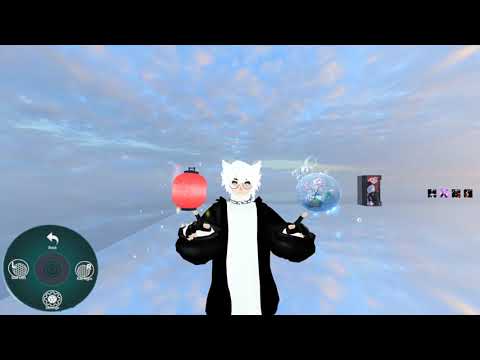
For information regarding menu options, please see Additional Features under Main Settings above.
Gesture Mapping
By default, the gesture control mapping is as follows:
Hand Gesture Layout Simple? Ball Control Mapping FBT Mode Standard FBT Mode Complex F1 Gesture Idle🔳 Idle F2 Gesture Fist🔳 Head Control Primary Foot Primary Trigger* F3 Gesture Open Hand✅ Chest Orbit F4 Gesture Fingerpoint✅ Primary Hand Control F5 Gesture Victory✅ Release Ball F6 Gesture Rock n Roll🔳 Rigid Return F7 Gesture Handgun✅ Secondary Hand Control F8 Gesture Thumbs Up🔳 Between Hand Control Secondary Foot Secondary Trigger* * Gesture in opposite hand to switch gesture set of main hand during FBT Mode Complex.
This mapping can be reconfigured under Advanced Settings using Remap Control Gestures
Control Functions
Ball Control Function IdleNo function - Preserves the last used control. Head ControlAttracts the ball to the anchor controlled by your head. Chest OrbitReleases the ball and sets a firm limiter at a radius centered around your chest. Primary Hand ControlAttracts the ball to the anchor controlled by your primary hand. Release BallRelease the ball from its current position and maintain momentum. / Shoot ToggleShoot the ball in the direction your primary hand is pointing.Rigid ReturnQuickly recall the ball back to its primary hand anchor. Secondary Hand ControlAttracts the ball to the anchor controlled by your secondary hand. Between Hand ControlAttracts the ball to halfway point between your primary and secondary hand anchors. Primary Foot ControlFBT SimpleAttracts the ball to the anchor controlled by your primary foot.Secondary Foot ControlFBT SimpleAttracts the ball to the anchor controlled by your secondary foot.Primary TriggerFBT ComplexHolding this trigger in your opposite hand converts your primary hand gesture set into a primary foot centered one.Secondary TriggerFBT ComplexHolding this trigger in your opposite hand converts your primary hand gesture set into a secondary foot centered one.
SleightlyBall is designed to work with the majority of GameObjects, as it generates its own physics collision system independent of the ball inputs you use.
With that said, below are a few notes you may want to take into account when building your own ball, whether for yourself or to distribute to others.
Structure of a Spring Joint Ball
When designing a spring joint ball for use with SleightlyBall, below are a few elements you may want to consider for a well-rounded feature set:
- Spawn Effects - Features that activate only when enabling the ball
- Idle Effects - Features that are always on and persist
- Trailing Effects - Features that may be always on but are heavily accentuated by movement
- Impact Effects - Features that activate upon impact with world collision
- Post-Impact Effects - Features that leave residual effects at collision points after impact such as decals
Options 4 and 5 above can be tricky to set up without advanced Unity experience, as often times you'll be mixing particle collision with SleightlyBall's physics based collision. I personally use stop-action particle sub-animators to resolve the collision trigger spam.
Usable Components
The SleightlyBall system handles the physics/movement of the ball inputs on its own, so the system is designed to work with most objects as long as they are largely static and unmoving on their own (such as the default Unity sphere).
As such, there are a few components to be careful of when creating your custom ball.
- Rigidbodies and Joints (Spring/Configurable) are automatically removed during installation
- Unity Colliders (Sphere/Box/Capsule/Mesh) are automatically removed during installation if they are not set to IsTrigger
- Constraint components are NOT removed but may cause unintended behaviour in some cases such as
- Constraints that reference objects outside the ball or SleightlyBall system
- Constraints that are self-referenced for damping/spring behaviour and cause non-static movement
- Avatar Descriptors on the ball root object are automatically removed during installation due to the Animator Pseudo API
- Pipeline Managers are also removed from the ball root if an Avatar Descriptor is detected
- Animator components are also removed from the ball root if an Avatar Descriptor is detected
For those who want to integrate custom animation systems on their ball without losing the functionality of SleightlyBall, this pseudo API provides additional tools to advanced Unity creators to facilitate the process!


To enable this functionality on your own custom ball, create an empty GameObject as a new parent/root to your custom ball and add a VRCAvatarDescriptor. SleightlyBall will automatically detect ball inputs with Avatar Descriptors and highlight green.
Automatic 3.0 Merging
SleightlyBall will automatically merge in the FX Controller, Expressions Menu, and Expression Parameters from the Avatar Descriptor of the custom ball. There is no particular naming convention you need to follow, except when using Aliased Gesture/Dynamics Parameters (see below).
All parameters across all three files will be prefixed with
SB/and the ball's index, such asL1for Left 1, to avoid conflicts between multiple custom balls in the same system. Native VRChat parameters and the VRLabs IsMirror parameter are ignored.All animation clips and expressions menu (and submenus) will be duplicated so that they are modified non-destructively.
All animation clips will be repathed with their respective location in the SleightlyBall hierarchy as the new root. Your ball animations should be created with the
VRCAvatarDescriptoras the root in order to be repathed correctly.
Please be mindful of expression parameter memory usage, as end users most often install balls to both hands rather than just one. See Individual vs Shared Control below.

Automatic Target Reparenting
SleightlyBall will automatically reparent certain GameObjects underneath the custom ball's Avatar Descriptor to various parts of the SleightlyBall system, in case you need to use those targets for your own internal logic.
Only GameObjects that are direct children to the Avatar Descriptor will be scanned.
GameObjects must start with one of the below naming conventions in order to be reparented:
Joint Constraint Targets Body Targets SB_JointSB_PrimaryHandJointSB_PrimaryHandSB_SecondaryHandJointSB_SecondaryHandSB_ChestJointSB_ChestSB_HeadJointSB_HeadSB_PrimaryFootJointSB_PrimaryFootSB_SecondaryFootJointSB_SecondaryFootThe Joint target
SB_Jointrepresents the position the ball is attracted to, and automatically moves around to the relevant gesture control target as necessary. This option suffices for most applications.The Constraint Targets represent each individual position the ball is attracted to when performing gesture controls, in the event precise control is desired as opposed to the previous
SB_Jointwhen developing logic. Unlike the previous option, these targets ignore Simple Sharing, as they are used for both Left/Right sets of balls, while Simple Sharing is on a Left/Right basis.The Body Targets represent each individual position the previous Constraint Targets follow around the user's body. Unlike the previous two options, these targets continue to follow the body and ignore SleightlyBall's other features that manipulate the ball's position, including Ball Distance, World Constraints, and Simple Sharing.
Since Primary/Secondary Foot are only available when FBT Mode is enabled in the installer by the end user, it is highly recommended to multi-condition your logic with the
SB/FBT Modebool parameter or use Aliased Gesture Parameters to prevent unintended behaviour.These targets are not intended to be used for animation clips themselves, but rather as component sources such as for constraints.
Each reparented GameObject will have its name modified to include the index of the ball it's associated with.

Aliased Gesture Parameters
SleightlyBall offers two aliased parameters you can use in your custom ball's FX controller in place of VRChat's native GestureLeft/GestureRight parameters.
By using these parameters in your FX controller instead of VRChat's, you can accommodate for end users who remap their SleightlyBall gesture controls to different gestures using the installer. These should only be added to your controller and not to your Expression Parameters.
SB/Hiddenis a bool that is true when the ball is currently hidden by gesture via the HideOnIdle feature.
SB/Gestureis an integer with values ranging from 0 to 15 and corresponds to each of the possible SleightlyBall gesture controls.SleightlyBall will automatically change
SB/HiddenandSB/GesturetoSB/HiddenLeft/SB/HiddenRightandSB/GestureLeft/SB/GestureRightaccording to the mode the ball is installed to by the end user. You can also directly use the Left/Right variants if you need specific hand conditions.It is recommended to multi-condition all of your transitions using
SB/GesturewithSB/Hidden = falseso that they only activate while the ball is visible.
SB/Gestureis not properly supported with Shared Control (see below) and will default to SB/GestureLeft. Avoid usingSB/Gestureon balls intended for Shared Control or inform your users accordingly.
Int Value Gesture Control Feature Requirement 0 Primary Hand Control1 Secondary Hand Control2 Head Control3 Chest Orbit4 Chest Constraint ControlWorld Constraint 5 Release Ball6 Shoot BallShoot Toggle 7 Rigid Return8 Between Hand Control9 Primary Foot ControlFBT Mode 10 Secondary Foot ControlFBT Mode 11 Primary Foot OrbitFBT Mode: Complex 12 Secondary Foot OrbitFBT Mode: Complex 13 Primary Foot Rigid ReturnFBT Mode: Complex 14 Secondary Foot Rigid ReturnFBT Mode: Complex 15 Between Feet ControlFBT Mode: Complex
Aliased Dynamics Parameters
SleightlyBall offers
SB/AD/as a parameter prefix that you can use in your custom ball's Avatar Dynamics components, FX controller, and Expression Parameters.By using this prefix in your parameters, you can accommodate for PhysBones or Contact Receivers per custom ball to avoid conflicts between multiple custom balls in the same system.
SleightlyBall will automatically change
SB/AD/according to the mode the ball is installed to by the end user, such asSB/L1/for Left 1.Avoid having Aliased Dynamics Parameters and regular parameters named identically with or without the prefix, as regular parameters will also be prefixed with
SB/and their respective index. Example:SB/AD/TestandTestwill both end up beingSB/L1/Test.
SB/AB/is not properly supported with Shared Control (see below). Avoid usingSB/AB/on balls intended for Shared Control or inform your users accordingly.
Individual vs Shared Control
SleightlyBall offers a variety of ball configurations, including Left/Right/Both Hand configurations as well as Separate Balls per Hand.
By default, SleightlyBall will merge all custom ball animation systems on an individual per-ball basis. In both hand configurations, this means the left and right hand ball will each have their own independent custom animation system that you can control individually.
If you have the Ball Configuration set to Both Hands and Separate Balls per Hand is disabled, an option to select between
Individual ControlvsShared Controlappears. SelectingShared Controlwill cause SleightlyBall to merge that ball's custom animation system in to affect both the left and right hand at the same time, and halving Expression Parameter memory used.Please note that these options are all-or-nothing for the entire animation system, and SleightlyBall does not support setting individual/shared control on a per-layer/parameter basis.
It is recommended to add to your custom ball instructions/description whether or not your custom ball is compatible with
Shared Control.
If you have any questions about this API, or would like to develop for this API but don't own SleightlyBall, feel free to reach out to me!
Is SleightlyBall compatible with VRChat Quest Avatars?
No, as VRChat Quest Avatars do not support Physics Objects (Rigidbodies, Joints, Colliders) nor Constraints at this time. Other spring joint ball systems shouldn't be compatible either.
Is SleightlyBall compatible with Optimized Avatars?
Depends. The most limiting restrictions are easily the RigidBodies, Colliders, and Audio Sources. It is possible to pull your Avatar down to at least Medium/Poor. Below is a table describing all the stat-influencing components that are generated according to what options you enable. Any other stat reductions are dependent on what balls you choose to use alongside this system.
Options Components Base1 Rigidbody + 2 Rigidbodies per Hand World Physics2 Sphere Colliders per Hand Shoot Toggle1 Rigidbody per Hand Pilot Mode1 Rigidbody per Hand Ball Audio1 - 8 Audio Sources per Hand Avatar Interactions : Sharing Standard1 PhysBone per Hand + 6 Contact Receivers per Hand Avatar Interactions : Sharing Complex4 PhysBones (+ 2 PhysBones if FBT Mode) + 6 Contact Receivers per Hand Avatar Interactions OR ToggleHUD1 Skinned Mesh Renderer + 1 Material Slot (+1 Material if ToggleHUD) Demo Mode1 Mesh Renderer per Hand + 1 Material Slot per Hand + 1 Material per Hand
Why can't other players see my SleightlyBall system in game / Why is it spazzing out?
Make sure your Avatar is uploaded at world origin (0,0,0 Position and Rotation)!
Why does the ball jitter when I move during Player Sharing?
This is local only, and other players will not see this. Unfortunately this is a limitation of VRChat and how PhysBones work.
None of my toggles work anymore! HELP?
If you are using the original version of SleightlyBall, if you have included World Physics, this may occur if you rearrange the layers in your Gesture Playable Layer of your Avatar Descriptor. If these layers' order is shifted, you must run VRLabs' Layer Weight Tool to resolve the sub-animator. Alternatively, you can re-generate the SleightlyBall system, or better yet, update SleightlyBall.
Can I edit/swap the balls after I generate SleightlyBall?
Yes, expand the SB_SleightlyBall hierarchy until you reach the Left/Right Ball Modes. You can replace any child to the Ball Mode objects, just remember to leave those child objects enabled, as your animations toggle the Ball Modes on/off. You should also remove any pre-existing spring/configurable joints, rigidbodies, or sphere/box/capsule/mesh colliders on your balls that would usually be auto-removed by the SleightlyBall installer.
How do I fix Disable Facial Anims to also disable non-blendshapes (Tongues/Eyes)?
Navigate through your project files to your Avatar's GeneratedSBResources folder and locate the animation clip for Disable Facial Animations in the Animations folder. You can add extra properties to this clip to account for resetting your non-blendshape animations. This is usually handled during the Anchor Positioning step of the installer.
How do I fly up/down in Pilot Mode? How do I reset the ball after using Pilot Mode?
If you do a Thumbs Up gesture in either hand while the puppet menu is open, the axes swap to XY controls, replacing Forward and Backward with Up and Down.
Closing the puppet menu will have the ball maintain its position in world space, until you activate your Rigid Return gesture while the menu is closed.
How do I export SleightlyBall with my commercial package?
Assuming you have a commercial license for SleightlyBall, the script generates everything from scratch, making it easy to export without worrying about conflicting with other packages.
You can find these generated resources at
Save File Path/GeneratedSBResources/. By default, this isAssets/JustSleightly/SleightlyBall/GeneratedSBResources/.The folder with your avatar's SleightlyBall under Generated Resources is the only one you need to export, aside from the files of the actual balls you used with the tool. The only exception to this is if you did not have an FX controller, Gesture controller, Expression Parameters, or Expressions Menu by default, in which those will be generated in your
Assets/folder.You may not export or redistribute the SleightlyBall.dll file and other contents under
Packages/JS - SleightlyBall/. Please refer to the full Terms and Conditions on my store.
Why is my project crashing after importing SleightlyBall?
Remove SleightlyBall via Windows File Explorer and check your project to see if it currently contains Cinemachine. You can locate this by clicking on
Window > Package Managerfrom the top toolbar, and browsing the packages currently in your project. If Cinemachine is added, remove it. It is sometimes added through the VRChat Worlds SDK, so you may need to remove any remnants of the Worlds SDK from your project and this package manager window before removing Cinemachine.
Can I change the computer my license is registered to?
Yes, in the event you change hardware, you can use the Transfer License option when trying to verify your license key in Unity on the new hardware. There is a cooldown period to prevent abuse, and these logs will be monitored for misuse. If you need to re-transfer sooner than this transfer period, open a support ticket on discord.
Can I upgrade my personal license?
Yes, open a support ticket on discord and we can get that process started for you.
My license key isn't working!
Open a support ticket on discord or check the SleightlyBall support channel for known issues if you are a validated customer.
Where do I report a bug?
You can add issues to this github repository, or post it in the support channel for SleightlyBall on discord.
Where can I request features/make suggestions?
Feel free to leave these in the support channel on discord and we can discuss them in more detail.
I need more help!
If you need help with using SleightlyBall, reach out in the designated support channel on discord so me or a community member can help. If you have private issues involving purchase details, open up a support ticket instead.
To my early alpha customers/testers for waiting up to nearly a year for this release - LeBUBBLES/ksivl/mango/KeepItBlank/Zen/Squirtles/PrimeSlav/Ember/Ronin/IMPACT/Once
PF_Cactus - For the original inspiration of making a custom inspector multi-step setup script with his original drone
Joshuarox100 - Whose logic in Inventory Inventor is directly used for the memory optimization in this system
Lin - Who coincidentally released World Physics while I was tackling getting this system to have collision in Nov 2020
hfcRed - For support with the Avatar Interaction aspects regarding player sharing
and especially Dreadrith - For basically helping me learn C# for Unity/VRC and directly implementing the licensing system on the script