Your work screens. Your gaming monitor. Your TV. One hotkey.
Switch between named display setups without rebuilding your Windows desktop each time. DeskModes remembers each set's arrangement, refresh rates and window positions.
Download DeskModes · Report a bug · Suggest an idea
Windows 10/11 · Free and open source · Portable · No administrator rights · No telemetry


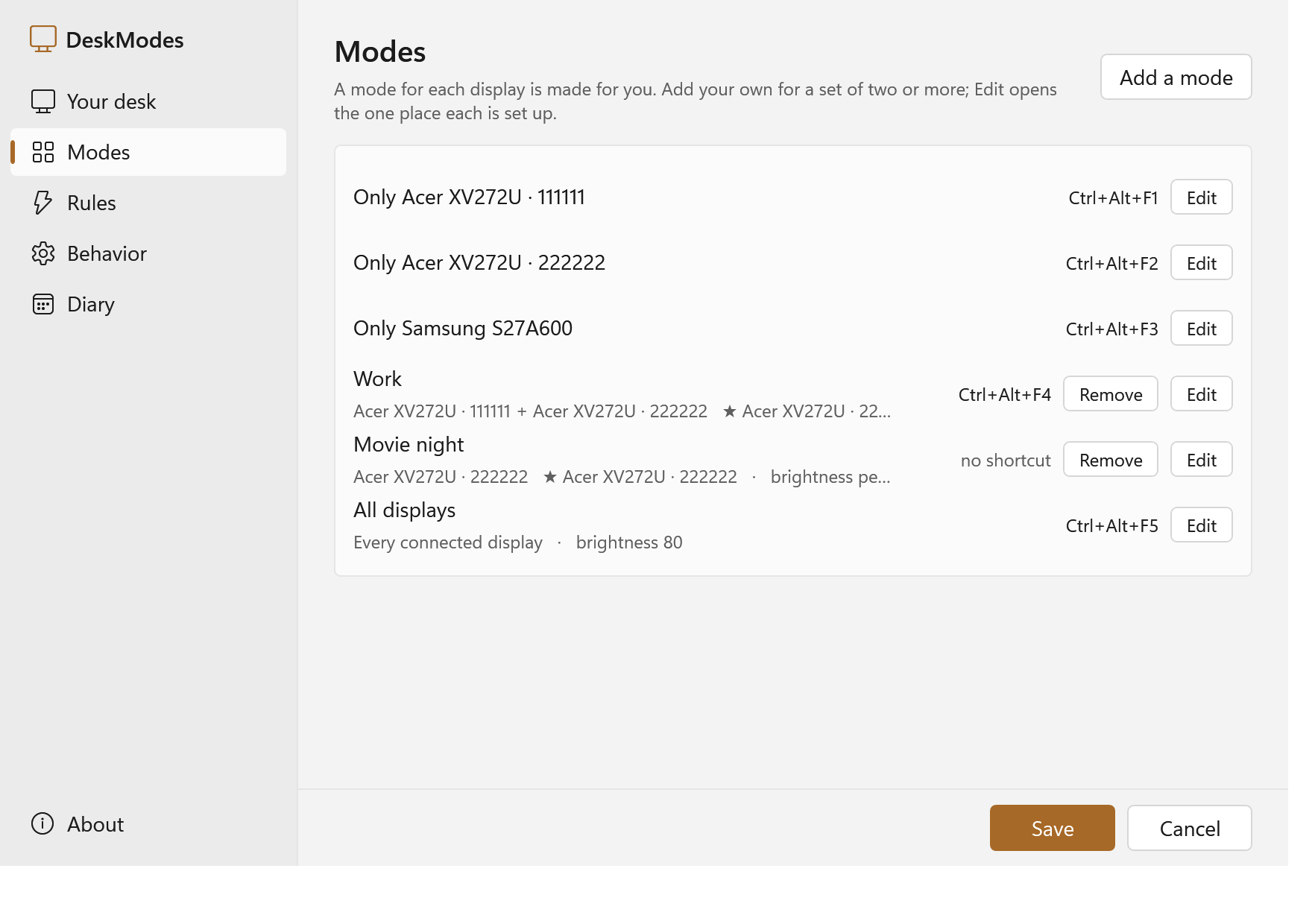
Current interface with an example desk. Monitor names and hotkeys are yours to choose.
| When you want to… | Create a mode for… |
|---|---|
| Work across two screens | Your work displays, with their saved layout and taskbar display |
| Play on one monitor | Your gaming display, with the other screens out of the Windows desktop |
| Watch on a TV | The TV, optionally with its playback device |
| Return to your previous setup | Back to the previous mode, from the tray or a hotkey |
Switch from the tray menu or a keyboard shortcut. Optional rules can select a mode while any of your chosen games or programs is running and return when the last one closes. Brightness, picture presets and HDR are available where your hardware supports them.
- Download the latest release. Extract the DeskModes release ZIP into a writable folder; keep the whole folder together.
- Double-click Displays.cmd. Follow First steps, then open Modes to add a display set and assign its hotkey. Press Save.
- Choose your mode from the tray menu or press its hotkey.
Double-left-click the tray icon to reopen Settings; right-click for the menu.
If the icon is hidden, look under the taskbar's
^arrow.
Windows PowerShell 5.1 is already included in Windows; the launcher selects it for you. If Windows shows a warning, review the source and publisher before choosing to run it.
The interface supports English, Russian, Ukrainian, Spanish, French and German. Choose a language in First steps or Settings → Behavior.
See how your desk is arranged
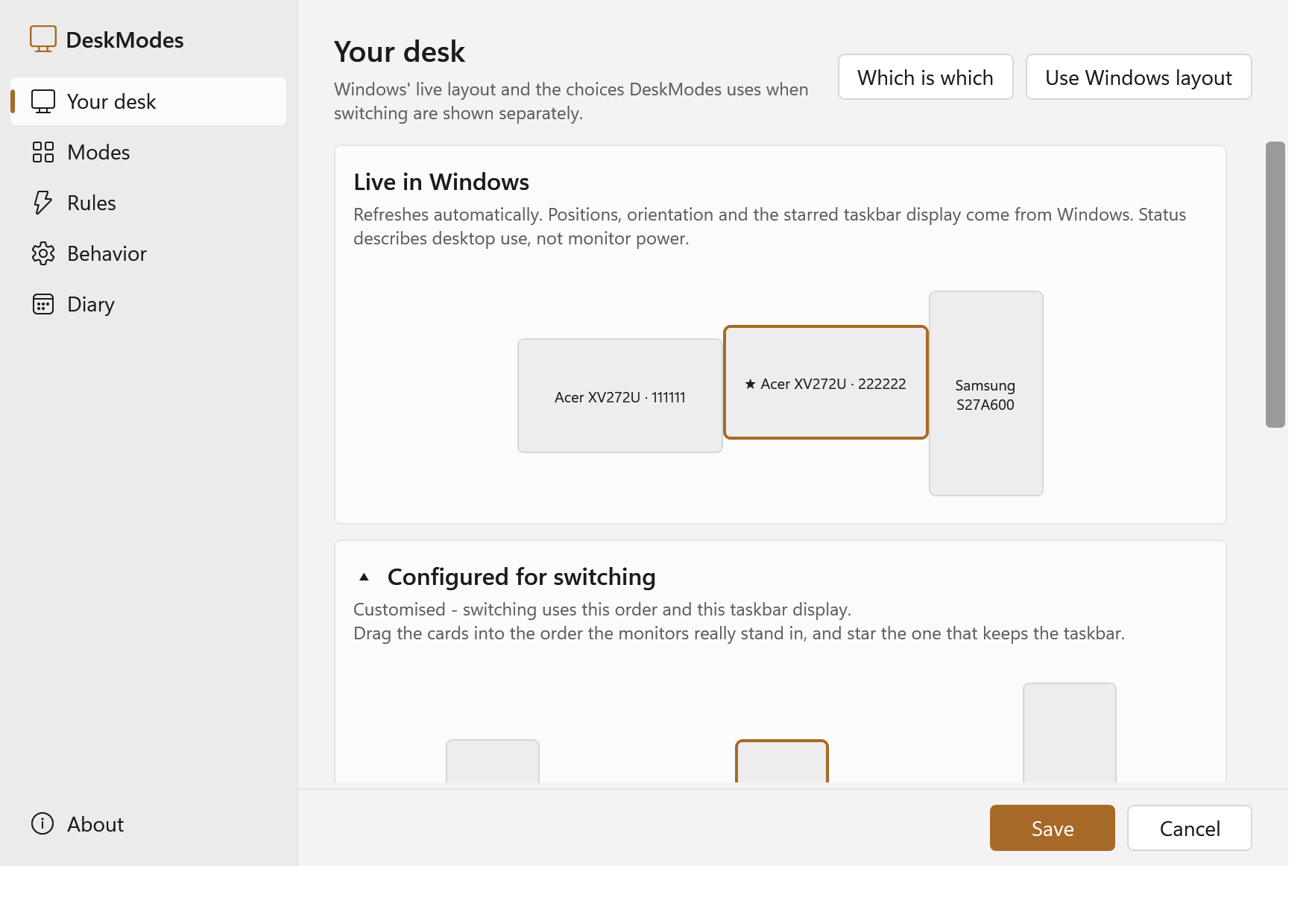
The live Windows layout and your switching choices are shown separately. Use Windows layout adopts the current arrangement; Save writes settings. Applying an edited arrangement has its own button.
Setup, updating and recovery · Full reference
Report a bug:
describe what happened and how to reproduce it. Add Settings → About → Copy diagnostics
or diagnostics.cmd output if available. Logs are optional; review them for private paths
or hook commands before posting. A GitHub account is required to submit an issue.
For an unusable display setup, try Back to the previous mode or another available mode. For security issues, use the private reporting route in SECURITY.md.
The core workflow has been tested on the author's three-display desktop. Laptops, docks, multiple GPUs and identical panels remain experimental; fresh Windows 10/11 launch and the full accessibility matrix remain unverified. DDC/CI controls and panel wake depend on your monitor and connection.
Start with a correct Windows layout and keep the folder writable. Windows desktop status does not confirm that a physical panel is awake. See the recorded validation before relying on an optional hardware feature.
DeskModes makes no network requests. The optional activity diary is off by default. Startup is opt-in; see the setup guide to update, move or remove the portable folder.
If DeskModes helps you, buy me a coffee on Ko-fi. Support is optional and helps me keep improving the app. Have an idea for a feature or a better workflow? Suggest an improvement.
Bug reports, setup reports, translation improvements and code contributions are welcome. See CONTRIBUTING.md. MIT license.