A very simple microservice example with NodeJS, Python, Redis, and Mongo
- Node
- MongoDB
- Redis
- python3
- pip3
- flask
- pymongo
- redis
- NGINX
The services are configured with environment variables so the same code can run under systemd, Docker Compose, Kubernetes, and CI/CD.
QUOTES_API- required. Base URL for the QuoteService, for examplehttp://localhost:5000.PORT- optional, defaults to3000.APP_ENV,APP_VERSION,BUILD_SHA,BUILD_TIME- optional metadata returned by/api/version.
MONGO_HOST- required.MONGO_USER- required.MONGO_PASSWORD- required.REDIS_HOST- required.MONGO_PORT,MONGO_AUTH_SOURCE,MONGO_DB,MONGO_COLLECTION,REDIS_PORT,REDIS_PASSWORD,PORT- optional.APP_ENV,APP_VERSION,BUILD_SHA,BUILD_TIME- optional metadata returned by/version.
See .env.example for a local development example.
The repository includes a small end-to-end contract test suite. Once the whole application is reachable from a single base URL, run:
make test-e2e BASE_URL=http://localhost:8080The tests verify the frontend, gateway status, health/readiness, version metadata, seeded Mongo data, Redis-backed quote counts, request IDs, and the quote create/read path.
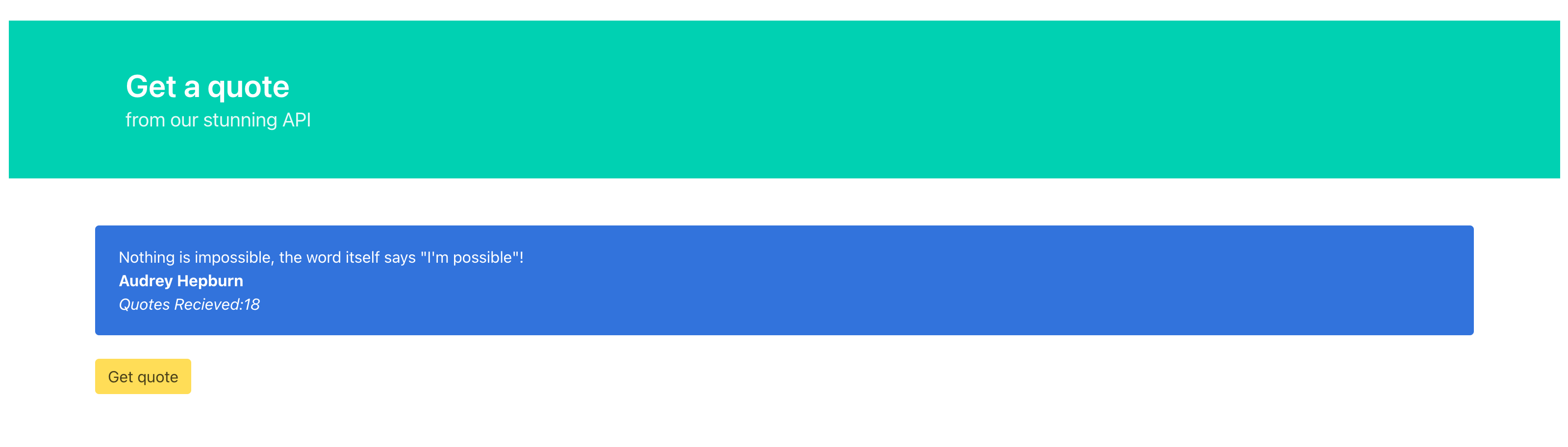
The application uses a frontend written with plain html with jQuery and to style with Bulma.
This is built with webpack. By default the frontend calls same-origin /api
routes, which works well when NGINX proxies /api/ to the API Gateway.
To build this to fit your own IP Address please follow the steps before running the whole microservice.
-
Install NodeJs on your system
-
Go to FrontendApplication directory
-
Run
npm installor if you have yarnyarnto install packages -
Now you need to set the API Gateway for this frontend application. It can be any host you have.
- Let's say you are hosting this application on
http://example.comthen yourAPI_GATEWAYwould be this one. - If you are hosting in some machine with IP
123.324.345.1then yourAPI_GATEWAYwould be your IP. - If the frontend and API are served from the same base URL, leave
API_GATEWAYunset.
- Let's say you are hosting this application on
-
To pass this setting to webpack build you need to set an Environment Variable
- Windows :
set API_GATEWAY=http://YOUR_HOST - Linux/Max :
export API_GATEWAY=http://YOUR_HOST
- Remember no / at the end of the URL to get your web app work
- You will need to add a port if not using standard ports
- Windows :
-
Now you can do
npm run buildoryarn build -
Check
dist/folder for newly created index.html and the main.js -
Copy
dist/folder contents to/var/www/htmlto overwrite the default nginx files.
Follow the instructions from Mongo to install MongoDB on Ubuntu.
Make sure to run the systemd(systemctl) instructions at the end to enable and start MongoDB running as a background service.
Finally make sure you initialize the database admin user and database with starter data.
mongosh < MongoDB/admin-init.js
mongosh < MongoDB/init-db.js
Run MongoDB/init-db.js against the quote_db database to seed the quote
collection. The script is idempotent and can be run more than once without
duplicating seed records.
Follow the instructions from Redis to install Redis on Ubuntu.
Then enable/start redis running as a daemon service.
sudo systemctl enable redis-server
sudo systemctl start redis
sudo systemctl status redisCreate a python virtual environment and install the dependencies
python3 -m venv venv
source venv/bin/activate
pip install -r requirements.txt
Set the required MongoDB and Redis environment variables in your shell, systemd service, Docker Compose file, or Kubernetes manifests. Then update the quote.service file to match your local paths to python and your code. Copy the quote.service file to /etc/systemd/system/quote.service and then enable the QuoteService daemon service.
sudo systemctl daemon-reload
sudo systemctl enable quote.service
sudo systemctl start quote-
Go to ApiGateway directory
-
Run
npm install -
Update the environment in the apigateway.service file to point at QuoteService.
Environment="QUOTES_API=http://localhost:5000"- Use the QuoteService container or Kubernetes service name when deploying in those environments.
Now can deploy API Gateway service. Copy the apigateway.service file to /etc/systemd/system/apigateway.service and then enable the ApiGateway daemon service.
sudo systemctl daemon-reload
sudo systemctl enable apigateway.service
sudo systemctl start apigatewayNow we need to update/change the configuration for NGINX.
sudo rm /etc/nginx/sites-enabled/default
sudo cp FrontendApplication/vhost.conf /etc/nginx/sites-available/
sudo ln -s /etc/nginx/sites-available/vhost.conf /etc/nginx/sites-enabled/default
sudo systemctl restart nginx- check
http://YOUR_HOST:80to see web app - run
make test-e2e BASE_URL=http://YOUR_HOSTto verify the deployment