There needs to always be a working, stable version of all PICs code available for testing and integration. We also need a record of changes occurring in the code so that the reason errors are solved or are introduced can be determined. Finally, the organization and location of our code should be logical and easy to understand for future BYU cubesat projects.
Git allows the use of branches to separate different threads of work on a project, keeping changes separate, and thus protecting working code from the daily changes made during code development and debugging. A typical git branching workflow looks like the following:
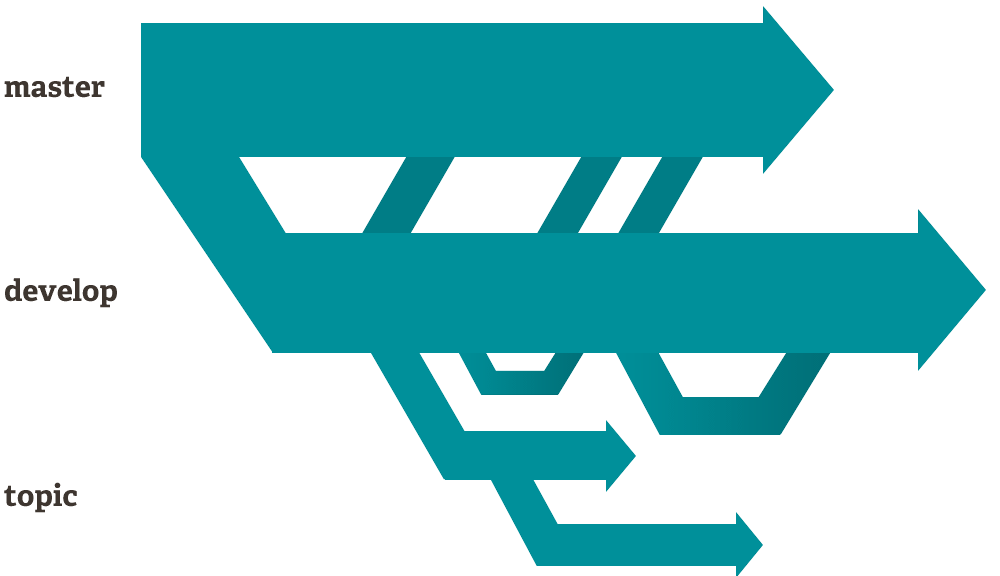
The master branch is where the working and verified code lives. The development branch is where different code portions are tested together, and where it is 'legal' to have untested code. The topic area is a set of branches, each used to fix and test an individual problem or idea.
Each git repository will consist of a master branch, a development branch, and topic branches. Tags should be used to mark important code points, as well as any time code is left on a board. Commit often, and use descriptive commit messages. This will allow us to find the changes we need, without bringing a whole bunch of others along too.
There are two types of tags, version tags and checkpoint tags.
- Version Tags: Every time code is loaded onto a board, and that code will be left for others to work with, a version tag needs to be added to the commit.
- Checkpoint Tags: Important moments in the history of the code, such as the code used for the engineering unit or the final code going on the satellite should be tagged with checkpoint tags as well.
All tags should be annotated tags, and a description should be given to them that specifies what makes them different than previous tags. Example:
git tag -a c3 -m "Code on PIC-A flight unit"
vMajor.Minor.Patch
- v - short for version
- Major - Big change to the code, incompatible with previous major numbers
- All development level programming should occur at Major # 0
- Changes that will require a major number change must be communicated to the whole team
- Minor - Features added to the code, but still compatible
- Patch - Bug fixes, and other minor code changes
Note: Compatibility means your changes do not require changes to other people's code.
_For a more in-depth discussion of version numbering, see http://semver.org/ _
cNumber
- c - short for Checkpoint
- Number - increment for each checkpoint we reach
Branch Name: master
The master branch must always contain verified, working flight code. Boards should be left with master code on them at the end of a development period, and always at the end of the day.
Branch Name: development
The development branch is where all major coding and debugging occurs. Errors in the master branch should first be addressed here, then tested and pushed to the master branch.
Branch Name: User Determined
When a specific test needs to be done, or a specific change to the code needs to be developed, a topic branch can be created and used to make this change, then merged back into the development branch for verification. Topic branches are also where each person can have their working branch.
Branch Name: User Determined
If necessary, additional branches can be created to meet a need at any of the "branch levels." Examples of when this might be necessary are for a test program that is not flight software, but is used to verify that the board is working properly.
Git can be confusing, here are a few tips that have been useful on the project, as well as links to cheat sheets, tutorials and documentation. Feel free to add to this list if you find a useful command, or resource for solving a common problem.
To list all branches:
git branch
To switch between branches:
git checkout branch-name
Note: changes need to be committed prior to checking out another branch, otherwise they will be lost!
To create a new branch:
git branch new-branch-name
then checkout that branch:
git checkout branch-name
then push the new branch to remote repository:
git push origin new-branch-name
then set your branch to track the remote (github) branch:
git -u new-branch-name origin/new-branch-name
To view all branches (even ones that are only remote):
git pull
then
git branch -a
To see what branches you are tracking:
git branch -vv
To tag a commit:
git tag -a <tag> -m "<tag message>"
To list all tags:
git tag
To list all tags of a certain type (here, v1):
git tag -l "v1"
To move to a different tag:
git checkout <tag name>
Note: To change files after checking out a tag, you must move your changes to a new branch. Git will prompt you with how to do this when you checkout a tag
To solve a merge conflict:
git mergetool
To list commit history and tags:
git log --decorate
To view the differences in the log:
git log -p -<#>
The -<#> is the number of previous commits to show.
To view what files were changed in the commit history:
git log --stat
To view a nice colored graph of the log:
git log --oneline --abbrev-commit --graph --decorate --color --branches=* --tags=* --all
To merge a branch into another branch:
git checkout branch-to-merge-to
then
git merge branch-to-merge-from
- [GitHub cheat sheet] (https://services.github.com/on-demand/downloads/github-git-cheat-sheet.pdf)
- [Visual Cheat Sheet] (http://ndpsoftware.com/git-cheatsheet.html#loc=workspace;)
- Depicts each stage of the git flow, the second column, workspace, is where we typically live as programmers.
There are a lot of man pages for git, to view a manual page for any git command: man git or man git command
Online, Git SCM contains git tutorials, videos, the online edition of Pro Git, and all of the git man pages. This is pretty much a one stop resource for anything git related.
- Basic Branching and Merging, a git scm tutorial for branching and merging, highly recommended.
- Distributed workflow, explains how to work on a project with other people and a remote repository.
Google searches can lead to solutions to pretty much every question and problem you face while using git.